
A Workstation SOP for Sensitive File Conversion on Windows
On this page
- SOP header
- Operator checklist
- Roles and separation of duties
- Classification gate: stop before opening the converter
- Prepare the approved workstation
- Create the four-folder workspace
- Preflight the source
- Set the output location deliberately
- Perform the conversion
- Protect against name collisions
- Verify the output outside the converter
- Approve and deliver
- Retention and cleanup
- Failure and escalation procedure
- Exception handling
- Keep the SOP tied to evidence
A short standard operating procedure gives a small team a repeatable way to control file-handling risks. It does not make every file suitable for conversion, certify a product, or replace your organization’s data-classification, retention, incident-response, and supplier-review policies. It connects those policies to the practical steps an operator performs on a Windows workstation.
The template below assumes that IT has already approved a particular local converter, version range, set of format routes, and workstation configuration. Adapt the labels, roles, and time limits to your own rules before adoption.
SOP header
Document owner: Operations or IT
Approver: Security, privacy, records, or another designated authority
Applies to: Named managed Windows workstations and approved operators
Review cycle: At least annually and after a trigger event
Related records: Approved-software register, data-classification policy, retention schedule, incident procedure, vendor record, pilot evidence
Purpose: Convert approved file types while preserving the source, limiting unnecessary copies, verifying the output, and recording exceptions.
Out of scope: Files prohibited by policy; unsupported format pairs; server or unattended automation; personal devices; public conversion websites; removable media not separately approved; and any workflow requiring redaction, malware analysis, secure erasure, digital forensics, or regulatory advice.
Operator checklist
Use this compact list at the workstation:
- Request, owner, classification, route, and recipient confirmed
- Converter, version, package source, and workstation approved
- Four-folder case workspace created in an approved location
- Source placed in Incoming; Working copy verified
- Output destination set to Review
- Conversion result and warnings recorded
- Incoming and Working sources remain intact
- Output opened in the destination application
- Route-specific content and metadata checks completed
- Collision or version ambiguity resolved
- Accepted output placed in Delivery
- Recipient and delivery channel verified
- Retention and cleanup steps completed
- Failure, exception, or incident escalated when required
Roles and separation of duties
One person may fill several roles in a small organization, but the responsibilities should still be explicit.
Requestor: Explains why conversion is needed, identifies the intended recipient and format, and states the information classification. The requestor must not reduce the classification merely to make the task easier.
Operator: Confirms that the request is in scope, works only on the approved workstation, follows this procedure, and records the result. The operator does not improvise with another converter when the approved route fails.
Reviewer: Opens and checks the converted output. For routine low-impact work, the operator may self-review. Sensitive, legally significant, financial, accessibility-critical, or publication-ready material should receive an independent review where policy requires it.
Approver or escalation owner: Decides whether an exception is permitted, whether a failed conversion may be retried another way, and whether a suspected disclosure or integrity problem is an incident.
Classification gate: stop before opening the converter
Every request starts with a classification decision. Use your organization’s actual vocabulary; a simple example is Public, Internal, Confidential, and Restricted.
Ask:
- Who owns the file, and are we authorized to transform it?
- Does it contain personal data, health information, payment data, credentials, legal material, export-controlled information, trade secrets, or information subject to a customer contract?
- Is the approved converter permitted for this classification and route?
- Is a local workstation an approved processing location?
- Must metadata, comments, tracked changes, hidden sheets, attachments, layers, or accessibility features be preserved?
- Is conversion actually necessary, or can the recipient use the source safely?
Stop and escalate if the classification is unknown, the route is not on the approval list, the requested destination format may remove required information, the source appears suspicious or damaged, or the operator cannot establish ownership.
Local processing can reduce the need to send source files to a conversion provider, but it does not make the workstation outside policy. Operating-system components, security agents, backup software, sync clients, preview handlers, and other installed programs may interact with files. Treat “local” as a processing architecture, not as a blanket confidentiality guarantee.
Prepare the approved workstation
Use a managed Windows device that meets the approval memo: supported Windows version, current security updates, expected endpoint protection, full-disk encryption where policy requires it, and a standard user account unless the application has a documented need for elevation.
Confirm the converter’s name, publisher, version, and distribution source. If the installed version is outside the approved range, stop. A successful pilot of one package does not automatically cover another version.
Close unrelated documents and communication apps that could expose previews during screen sharing. Check whether the intended workspace is synchronized or backed up. If sensitive files are not permitted in a sync service, use an approved local location and verify the sync status before copying anything.
Do not disable endpoint protection, firewall controls, logging, or device-management controls to make the conversion succeed. If the application cannot operate under the approved baseline, record the failure and escalate.
Keep sensitive filenames, content and diagnostics out of optional feedback. LocalFlux sends the message and optional reply email when the operator submits it; use a synthetic reproduction and the approved support channel. Maintain approved component updates even when conversion works offline. See the privacy policy and security guide.
Create the four-folder workspace
For each request, create a case folder with a non-sensitive identifier, then create four subfolders:
01-Incoming: the received source and request record;02-Working: the copy used for conversion;03-Review: generated outputs that have not yet been accepted;04-Delivery: only reviewed and approved deliverables.
The folder model prevents a generated file from being mistaken for the authoritative source. It also separates outputs that merely exist from outputs that have passed review.
Do not name the folder after a patient, employee, customer, investigation, transaction, or unreleased project unless policy explicitly requires it. Prefer a ticket or case number that is meaningful only inside the approved record system.
Preflight the source
Place the received file in 01-Incoming. Do not edit it in place.
Confirm:
- filename and extension match the request;
- size is plausible and within the converter’s tested limits;
- source application can open it without a repair warning, if policy permits opening;
- endpoint protection has not raised an alert;
- the source format and intended destination are on the approved route list;
- there is enough storage for the source, working copy, output, and temporary overhead;
- the output name will not collide with an existing reviewed file.
Calculate and record a SHA-256 hash when integrity or repeatability matters. A hash confirms byte identity; it does not prove that the content is trustworthy or malware-free.
Copy the source to 02-Working. Confirm that the copy hash matches the Incoming hash. From this point onward, the converter receives only the Working copy.
Set the output location deliberately
Configure the converter to place results in 03-Review if it supports an output-folder setting. If the product uses a fixed destination, the approved SOP should name that exact location and include a controlled move into Review.
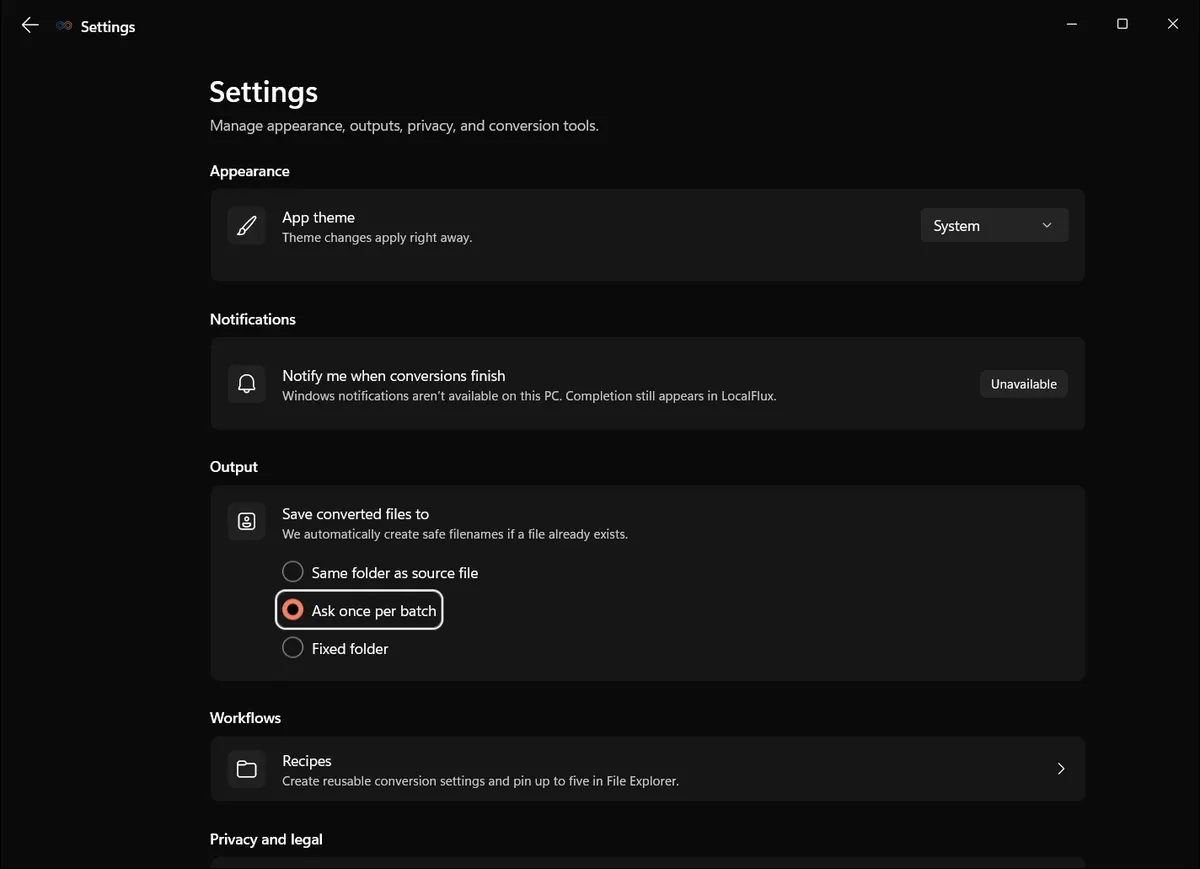
Interface screenshots were refreshed in October 2026 using a build reconstructed from the documented LocalFlux 1.0.10.0 release source. Historical measurements and downloads below retain their original test scope. Capture records: 1
The “Ask once per batch” mode lets the operator choose the controlled Review folder for each case. Confirm the actual path before conversion; the screenshot comes from a synthetic local editorial reproduction.
Before starting, read the full output path back to yourself. Verify that it is not Desktop, Downloads, a personal cloud folder, a removable drive, a shared network location, or another case folder unless that location is specifically approved.
Use a predictable output name based on the case identifier and content purpose, not on sensitive subject details. Keep the original extension in the case record so the route remains clear.
Perform the conversion
Open the approved converter from its normal installed location. Select the Working copy, choose the approved destination format, and confirm the Review folder.
Record:
- date and time;
- operator;
- application and version;
- source name and hash where required;
- source and destination formats;
- selected output folder;
- warnings or changed options;
- displayed completion or failure result.
Run one case at a time when files are sensitive. This reduces cross-case selection errors and makes the audit trail understandable.
Do not rename an error as success. If the app displays a warning, creates no output, produces a zero-byte file, or leaves an obvious partial file, follow the failure procedure below.
Protect against name collisions
Before each run, inspect 03-Review for an existing file with the planned output name. If one exists, stop and determine which file is authoritative.
An application may generate a unique suffix instead of overwriting. That is safer than silent replacement, but the operator still has to identify the correct version.
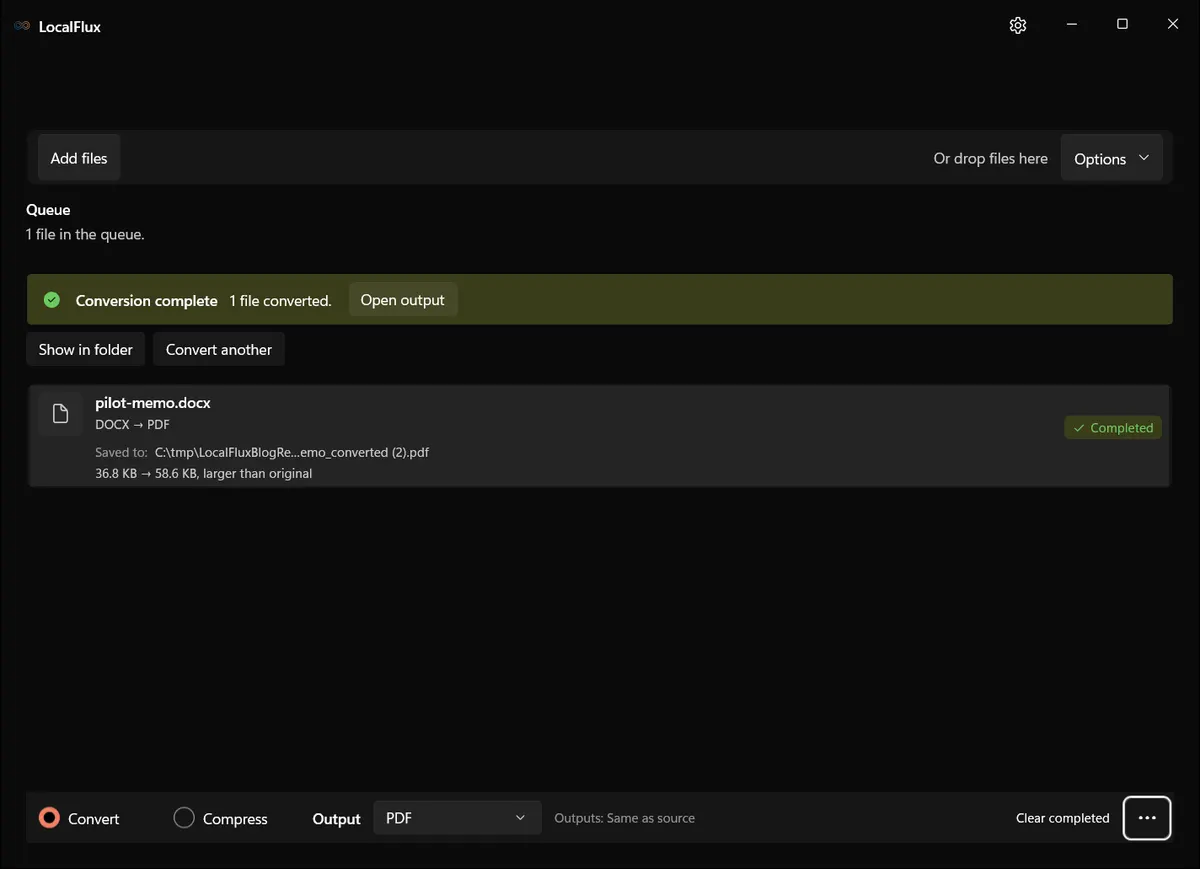
The new 13 October DOCX test repeated the conversion after restarting the app. The first PDF retained its SHA-256; the second used a (2) suffix. The screenshot shows the second result, while the linked capture record accounts for both files.
A collision-safe result preserves both files, but it does not decide which one should be delivered.
Never replace a reviewed output merely because the new file has a later timestamp. Compare the request, route, operator record, visible content, and hashes where used. If a replacement is authorized, keep or dispose of the superseded copy according to the retention rule and record the decision.
Verify the output outside the converter
Move nothing to 04-Delivery until the output opens in the normal destination application and passes route-specific checks.
Documents and PDFs
Check page count, page size, orientation, text, fonts, line wrapping, tables, lists, headers, footers, links, images, form fields, comments, and tracked changes as applicable. Search for a known phrase near the beginning and end. If the document is accessibility-sensitive, conversion requires a separate accessibility check; visual similarity alone is insufficient.
Remember that converting to PDF may flatten or omit interactive features, hidden content, embedded files, signatures, or document structure. Define which elements must survive before approving the route.
Images
Check pixel dimensions, orientation, crop, transparency, color appearance, legibility of small text, and compression artifacts. A route from PNG to JPG cannot preserve an alpha channel; verify the intended background and make sure the change is acceptable.
Audio and video
Check duration, beginning and end, intelligibility, channel count, synchronization, and obvious gaps or distortion. For recordings that carry evidentiary or legal value, do not convert the authoritative original unless a qualified procedure explicitly permits it.
After content review, calculate the output hash if required and add it to the case record. Hashes are especially useful when the file will cross systems or be reviewed by another person.
Approve and deliver
When the reviewer accepts the output, copy or move the accepted file into 04-Delivery according to your recordkeeping rule. Delivery contains only the version that may leave the controlled workspace.
Verify the recipient, channel, and classification before sending. The fact that conversion happened locally does not make email, chat, removable media, or an external portal an approved delivery method.
Use access-controlled transfer, encryption, expiry, or recipient authentication where policy requires it. Confirm the final attachment or upload by name, type, size, and hash when a hash is used. A classic operational failure is sending the original, the Working copy, or an unreviewed output instead of the approved deliverable.
Record the delivery time, recipient or destination, method, delivered filename, and operator. Avoid copying sensitive content into ticket comments when a case identifier and controlled link will do.
Retention and cleanup
Retention must follow the governing schedule, contractual obligations, legal holds, and business record rules. This SOP cannot define a universal deletion period.
At the end of the task:
- confirm the Delivery copy matches the approved Review output;
- close the converter and destination application;
- remove unneeded temporary or partial outputs according to policy;
- retain or dispose of the Working copy as the policy specifies;
- retain the Incoming source if it is a required business record;
- clear approved application history only if your organization’s procedure calls for it;
- store the operator record in the approved system;
- verify that no copy remains in an unapproved destination.
Ordinary file deletion is not a promise of secure erasure. Storage devices, snapshots, backups, synchronization, antivirus quarantine, and application caches can retain data. If sanitization is required, follow your organization’s media-sanitization process and obtain specialist guidance.
Failure and escalation procedure
Stop the workflow if:
- the source classification or ownership is uncertain;
- the application version is not approved;
- the route is unsupported or produces a warning not covered by the SOP;
- endpoint protection or Windows reports a security concern;
- an output is missing, partial, corrupted, or materially different;
- the source changes unexpectedly;
- files appear outside the controlled workspace;
- the app appears to require an unexpected upload, sign-in, elevation, or network connection;
- a sensitive file may have been sent to the wrong location or person.
Preserve the original in 01-Incoming. Do not keep retrying with different public tools. Record the time, application state, exact message, source and output names, and actions already taken. Capture a screenshot only if it can be done without exposing sensitive content; otherwise record the message in text.
Contact the named escalation owner. A suspected disclosure, malware alert, policy bypass, or unexplained external transfer should enter the organization’s incident process, not a routine software support queue.
If support needs a sample, provide a purpose-built synthetic reproduction whenever possible. Do not send the sensitive source to a vendor unless an authorized owner has confirmed the legal, privacy, contractual, and security basis.
Exception handling
Exceptions must be explicit, time-limited, and approved before processing. The exception record should identify the business need, data class, route, tool and version, workstation, compensating controls, recipients, retention, approver, and expiry.
“The deadline is today” is context, not a control. If there is no safe approved route, the correct outcome may be to ask the recipient for another format, use an already contracted service, perform the work in the source application, or delay the task.
Keep the SOP tied to evidence
Review this procedure after application updates, changes to supported formats, privacy or diagnostic changes, Windows upgrades, incidents, significant output defects, or changes in data-classification rules.
Evidence checked on 13 October 2026: the public Trust Center identifies build 1.0.7.0. Earlier editorial tests used a retained 1.0.8.0 x64 package. The refreshed screenshots use new synthetic fixtures and a build reconstructed from the documented 1.0.10.0 x64 release source; their records are linked beside the illustrations. These functional observations are not Store certification, release authorization, clean-VM or ARM64 evidence, or a network test. Recheck the current Store listing and evidence before making a purchasing decision.
An effective SOP is deliberately modest. It does not promise that conversion is risk-free. It makes the decision points visible, preserves the source, limits where files travel, requires a human to verify the result, and gives the operator a clear place to stop.
For small teams, that discipline is often the difference between “we used a converter” and “we can explain exactly how this file was handled.”
Technical references
The format guidance above is checked against these independent specifications and platform references.
- Security and Privacy Controls for Information Systems and Organizations (SP 800-53 Rev. 5), National Institute of Standards and Technology