
How to Batch Convert Documents Without Microsoft Office
On this page
- The short version
- What “without Microsoft Office” means
- Step 1: prepare a representative document batch
- Step 2: choose PDF for the whole queue
- Step 3: let document conversion run in order
- Step 4: inspect the PDFs page by page
- What happens to macros and interactive features?
- Handle blocked and failed files safely
- Batch document conversion checklist
- The result
You do not need to open six documents and export six PDFs by hand. When the goal is a common PDF delivery set, LocalFlux can place supported Microsoft Office and OpenDocument files in one Windows queue and convert them locally without requiring Microsoft Office to be installed.
The supported example in this guide contains DOCX, XLSX, PPTX, ODT, ODS, and ODP files. Each one has a supported PDF route. LocalFlux packages the document conversion component it uses, so there is no separate office-suite setup step for these supported conversions.
Get LocalFlux from the Microsoft Store
The short version
- Close any source documents that are open in another app.
- In LocalFlux, select Add files.
- Add the DOCX, XLSX, PPTX, ODT, ODS, and ODP files.
- Choose PDF under Output.
- Confirm that all six rows are ready and choose the destination.
- Select Convert 6 files.
- Open every PDF and inspect pages, fonts, tables, charts, and slide layouts.
LocalFlux writes new PDFs. Keep the source documents until the results have been reviewed in the destination workflow.
What “without Microsoft Office” means
The phrase is precise: LocalFlux does not require a Microsoft Word, Excel, or PowerPoint installation for its supported document conversion routes. It uses a bundled LibreOffice component locally for document conversion.
It does not mean every document will render exactly as Microsoft Office renders it. Office documents can depend on fonts, macros, linked data, embedded objects, printer settings, layout engines, and application-specific features. A PDF may be created successfully while still needing human review.
For important business, legal, financial, or presentation material, treat conversion as the production step and visual inspection as the acceptance step.
Step 1: prepare a representative document batch
Use a small set before processing a large archive. The example queue covers three Microsoft Office formats and their OpenDocument counterparts:
| Source | Typical content | Target |
|---|---|---|
| DOCX | report with headings, tables, and page breaks | |
| XLSX | workbook with formulas, print areas, and charts | |
| PPTX | slide deck with images and positioned text | |
| ODT | text document | |
| ODS | spreadsheet | |
| ODP | presentation |
Close the documents in Word, Excel, PowerPoint, LibreOffice, or another editor before adding them. A locked source can prevent conversion.
For a pilot batch, use non-confidential test files under C:\tmp\LocalFluxBlogRefresh. Keep this test set separate from customer files and editable masters.
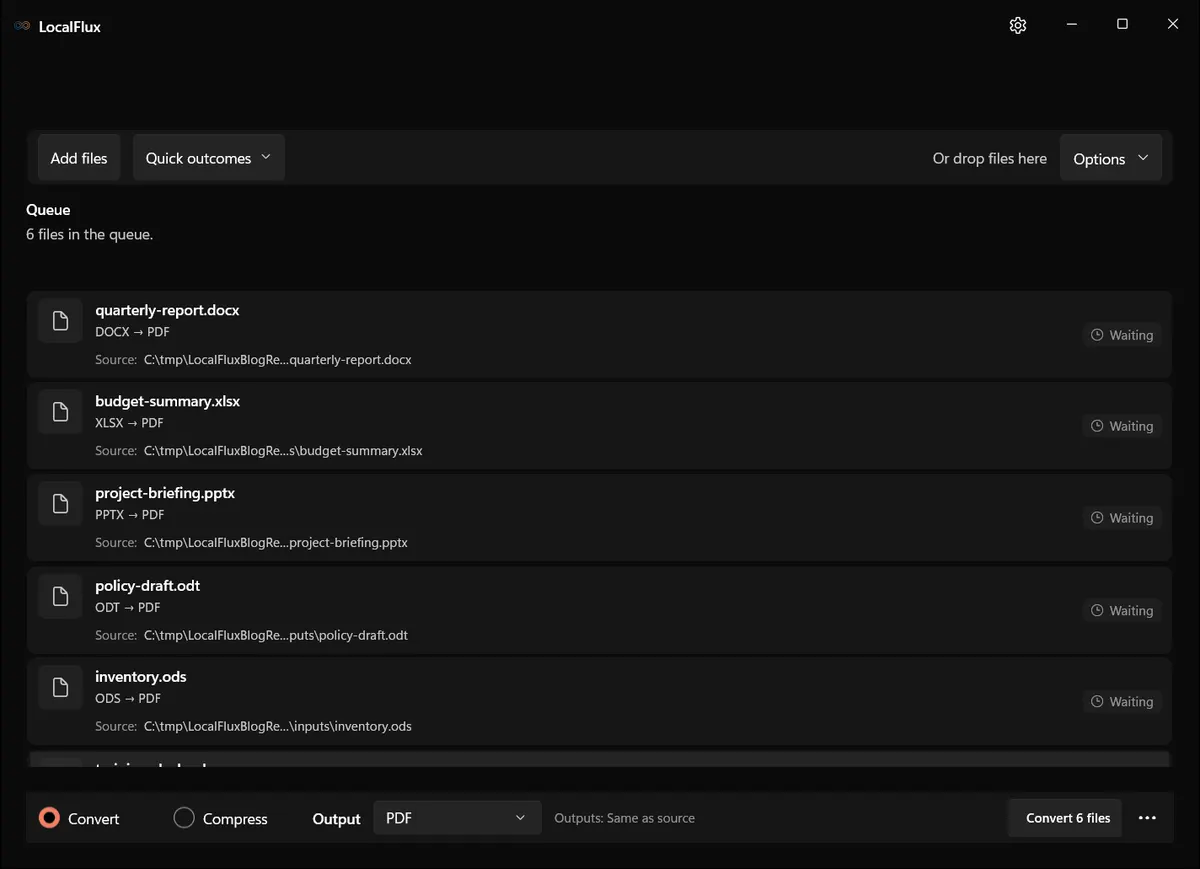
Interface screenshots were refreshed in October 2026 using a build reconstructed from the documented LocalFlux 1.0.10.0 release source. Historical measurements and downloads below retain their original test scope. Capture records: 1
LocalFlux may select PDF automatically when the files share that route. Treat the displayed output as a proposed target and confirm it before starting the batch.
For a confidential batch, use an approved working folder and check sync/backup behavior before adding documents. Local conversion avoids the converter upload; it does not redact the contents or secure the whole PC. The security guide sets out the wider checks.
Step 2: choose PDF for the whole queue
Select PDF under Output. One output format applies to the active conversion batch, and all six example source types support PDF.
If one document needs editable DOCX and another needs PDF, separate them into different batches. A single-output queue is easier to explain and audit: every ready item is working toward the same deliverable.
Choose the destination deliberately
Same as source is convenient for a handful of documents. A new output folder is safer for a large or regulated set because it cleanly separates sources and derivatives. LocalFlux uses collision-safe output names when the expected name already exists, but a clean destination still makes reconciliation easier.
Before starting, confirm:
- six intended source names are present;
- PDF is selected;
- the summary shows six ready items;
- no private path is visible if you are documenting the process; and
- the destination has enough free space.
Step 3: let document conversion run in order
Select Convert 6 files. LocalFlux serializes document conversions, so the app processes them one at a time. That is expected behavior, not a stalled queue.
Leave the source and destination available. Do not edit, move, or rename documents mid-batch. If you cancel, review any PDFs already produced and decide whether to clear the destination before retrying.
Step 4: inspect the PDFs page by page
When the app shows Conversion complete, use Show in folder and open all six PDFs in a trusted viewer.
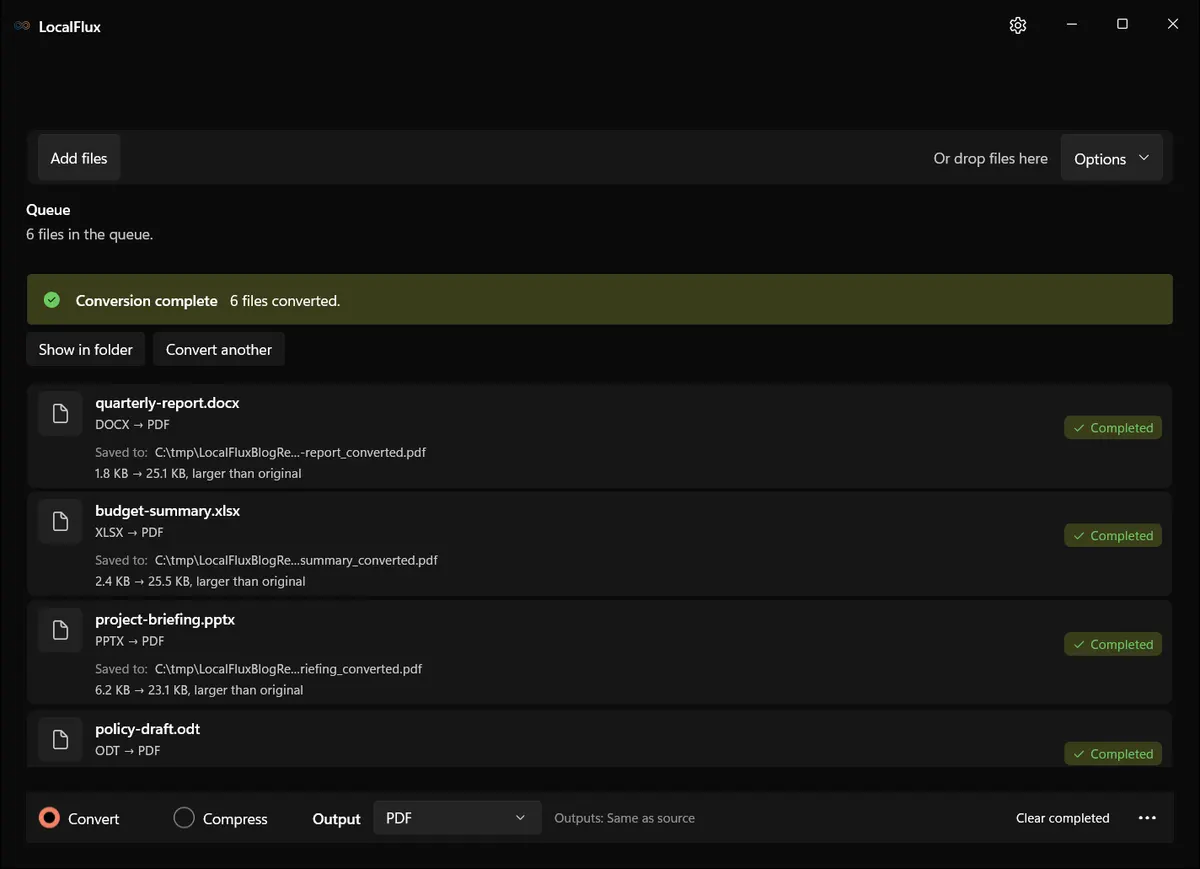
October 2026 finding: these six minimal test documents produced one-page PDFs with matching page content across ten languages. The PPTX and ODP PDFs are blank, including the older retained outputs. The source PPTX lacks explicit title-box geometry and the ODP title box is zero-size. These presentation results are not usable delivery copies. The other four files contain only simple text; this batch does not test charts, formulas or complex layouts. A completed queue is not acceptance: fix the source layout and inspect a fresh export before delivery. 2026-10
Use the retained batch as an example of queue completion, not six approved deliverables. For your own pilot, include a populated document, a spreadsheet with a checked total and print area, and a presentation with visible text and an image. Record expected page counts; open every resulting PDF. A blank page where content was expected fails acceptance even when the queue says completed. Repair the source layout in its editor and export again before expanding the batch.
Check more than the first page.
Word-processing documents
- page count and section breaks;
- headers, footers, and page numbers;
- substituted or missing fonts;
- tables crossing page boundaries;
- images, captions, and footnotes; and
- comments or tracked changes that should not appear.
Spreadsheets
- selected sheets and print areas;
- formulas displayed as expected values;
- row and column clipping;
- scaling across pages;
- charts and conditional formatting; and
- hidden sheets or data that should not be exposed.
Presentations
- slide dimensions and orientation;
- text wrapping and font substitution;
- cropped images and charts;
- speaker notes, if they should or should not be included; and
- transitions, audio, video, and animation that a static PDF cannot preserve.
A PDF is a fixed-layout delivery format. It does not remain an editable spreadsheet or animated slide deck.
What happens to macros and interactive features?
Do not assume a conversion carries application behavior into PDF. Macros, external connections, embedded controls, formulas that need recalculation, animation, transitions, and interactive media may not survive as working features. Some content may be flattened; some may be omitted; some may render differently.
If those features matter, open the source in its authoring application or an approved compatible suite and use the organization’s normal export process. LocalFlux is most appropriate when a reviewed, static output is the goal.
Handle blocked and failed files safely
A blocked row means the chosen output or current settings do not apply. Select the row and follow its guidance, or move it to a batch with an appropriate target.
A failed document row can indicate a locked, protected, malformed, or unreadable source; an unavailable document component; or a destination problem. Close the file in other apps, verify that it opens normally, and retry once. Password-protected or encrypted documents should be unlocked and saved as a separate copy before conversion if policy permits.
Do not upload a sensitive failed document to an arbitrary web converter as a reflex. First determine whether the source is valid, whether it is protected, and whether your organization permits that disclosure.
Batch document conversion checklist
Before:
- keep the editable sources;
- close documents in other apps;
- remove passwords only under an approved process;
- choose one output for the batch;
- use a clean destination; and
- include a representative document of each layout type.
After:
- compare source and output counts;
- confirm every PDF opens;
- inspect every page, sheet, and slide;
- check fonts, page breaks, tables, and charts;
- verify that sensitive hidden content is not exposed; and
- retain the sources until delivery is accepted.
The result
A batch document converter can remove repetitive export work, but it cannot remove the need for document review. Add the six supported formats, choose PDF once, let the serialized queue finish, then inspect every result according to its document type.
With LocalFlux, that conversion can happen on Windows without installing Microsoft Office and without sending the source documents through an online conversion form.