
How to Preserve Transparent Backgrounds When Converting Images
Diagnose missing transparency across PNG, WebP, AVIF, SVG, ICO, and JPG, choose an alpha-capable output, and verify the converted file on Windows.
On this page
Editors often use a checkerboard to show transparency, but the pattern can also be painted into an opaque image. Change the background behind the image to check. An alpha channel stores opacity, not the color pixels themselves; some formats also represent transparency in other ways.
When a transparent logo suddenly gets a white or black rectangle after conversion, one of three things usually happened: the output format cannot store alpha, the source did not contain real transparency, or the conversion tool flattened the image against a background color. Changing the filename extension cannot repair any of those problems.
This guide provides a practical Windows diagnostic for PNG, WebP, AVIF, SVG, ICO, and JPG. It also reports a measured LocalFlux 1.0.8.0 test so the advice distinguishes what a format can support from what a specific conversion path actually produced.
Interface screenshots were refreshed in October 2026 using a build reconstructed from the documented LocalFlux 1.0.10.0 release source. Historical measurements and downloads below retain their original test scope. Capture records: 1 · 2
Store retest, 12 October 2026 (1.0.10.0, x64). The transparent SVG again produced a fully opaque PNG. An alpha-capable format or channel does not prove that transparent pixels survived. The older test below remains a separate historical record. New test record
The quick answer
To preserve a transparent background:
- Confirm that the source contains real transparent pixels.
- Choose an output format that supports alpha, usually PNG, WebP, or AVIF. ICO can contain transparency for icon workflows. SVG represents vector shapes and can have an unpainted canvas.
- Avoid JPG when transparency matters. Standard JPEG has no alpha channel.
- Do not assume “supports alpha” means a particular converter retained it. Open the output over a colored or checkerboard background and verify the edges.
- Keep the original until the destination app or website accepts the result.
In our LocalFlux test with corrected source fixtures, the app detected transparency and warned about JPG. WebP → PNG and AVIF → PNG retained non-opaque pixels. PNG → JPG removed alpha and filled transparent areas. One important exception also appeared: an SVG with no background element became an opaque white PNG in the tested LocalFlux version. That is exactly why the final verification step matters.
13 October 2026 fixture check. All 40 outputs from the ten-language capture runs decoded successfully. WebP and AVIF retained transparency; SVG became opaque white and JPG opaque black at the corner. At 8-bit RGBA decoding, each output matched its historical sample. These findings apply to these fixtures and the reconstructed x64 capture build. 2026-10
What transparency actually means
An ordinary RGB image stores red, green, and blue values for every pixel. An RGBA image adds alpha. Fully opaque pixels have maximum alpha; fully transparent pixels have zero alpha; values between them create soft edges, shadows, glass effects, and anti-aliased curves.
Transparency is different from a white background. A logo drawn on white may look identical in a white document, but place it on a navy slide and the rectangle becomes obvious. It is also different from “background removal” previews in websites. Some sites display a checkerboard while exporting an opaque file, or flatten transparency during download.
A useful test is to open the image in an editor and place a bright colored layer behind it. If the color shows through the empty areas and blends through soft edges, alpha exists. If the empty area remains white, black, or another fixed color, the source is already flattened.
Which image formats support transparent backgrounds?
PNG
PNG is the safest general-purpose answer for logos, screenshots, diagrams, and UI assets that need transparency. The PNG specification supports alpha and lossless image data, so hard edges and text remain crisp. The tradeoff is file size: photographic PNGs can be much larger than JPEG or modern lossy formats.
Use PNG when predictable transparency and broad compatibility matter more than the smallest possible file.
WebP
WebP supports transparency in both lossless and lossy workflows. It is useful for web graphics when you want smaller files than PNG, although the exact reduction depends on the encoder and image content. A lossy WebP can preserve the alpha channel while compressing the color data, so inspect semi-transparent edges for halos or color fringing.
If your destination accepts WebP, our PNG to WebP on Windows guide covers that route.
AVIF
AVIF can store alpha and can be very efficient for complex imagery. Compatibility is now broad in modern browsers and many creative tools, but older Windows applications, CMS pipelines, and email clients may not handle it consistently. AVIF also introduces more encoder decisions than a simple PNG workflow.
Choose AVIF only when the receiving system explicitly supports it, and test the actual output, not just the file extension. See convert AVIF to JPG or PNG on Windows for the reverse route.
SVG
SVG is a vector document rather than a fixed grid of pixels. Areas that are not painted are conceptually transparent, and individual fills or strokes can have opacity. SVG is ideal for scalable logos and icons, but rasterizing it to PNG, WebP, or JPG requires a renderer to decide canvas size, fonts, filters, color management, and background behavior.
An SVG that looks transparent in a browser can still become white if the rasterizer supplies a default background. Our test found that behavior in the LocalFlux 1.0.8.0 SVG → PNG route, so check each SVG output instead of assuming transparency was preserved. The SVG to PNG on Windows workflow should include a post-conversion alpha check.
ICO
ICO is a Windows icon container. It can store multiple sizes and color depths, and modern icon images can contain alpha transparency. ICO is appropriate for application icons and shortcuts, not as a general web-photo format. A single high-resolution transparent PNG may need to be rendered into several icon sizes to look good in Explorer.
For that specialized path, use PNG to ICO on Windows and inspect the icon at small sizes as well as 256 × 256.
JPG/JPEG
Standard JPEG does not have an alpha channel. A converter must replace transparent pixels with a solid color. White, black, and the editor’s current matte color are common choices. Once flattened, the original transparency cannot be recovered from the JPG alone because the file no longer records which pixels belonged to the background.
JPG remains an excellent destination for opaque photographs. It is simply the wrong destination for a transparent logo, watermark, sticker, or interface asset.
A reliable Windows workflow in LocalFlux
1. Add the image and read the route
Open LocalFlux, choose Convert, and add the source. The queue displays a route such as PNG → JPG or WebP → PNG. If several images need the same output, add them together.
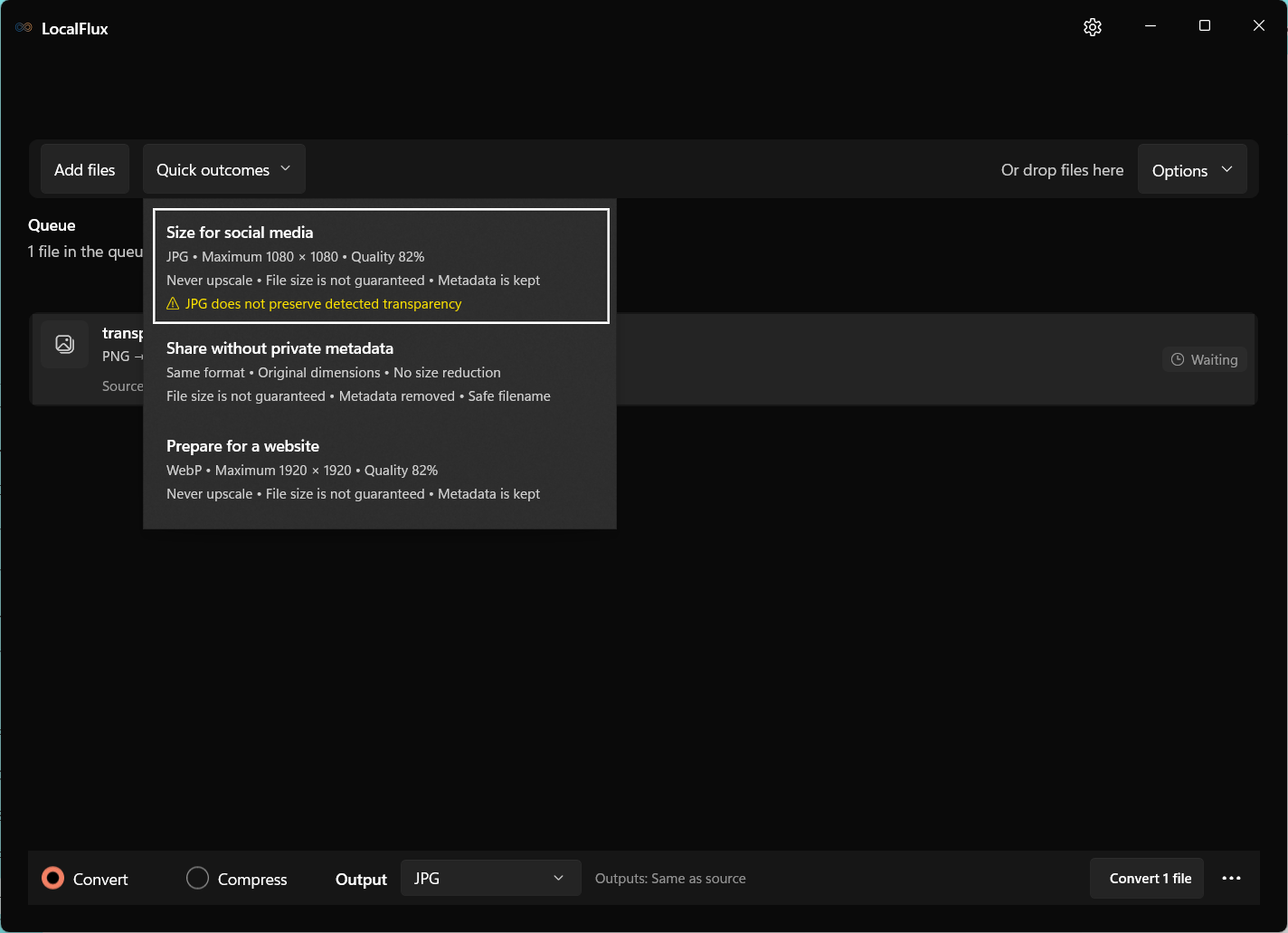
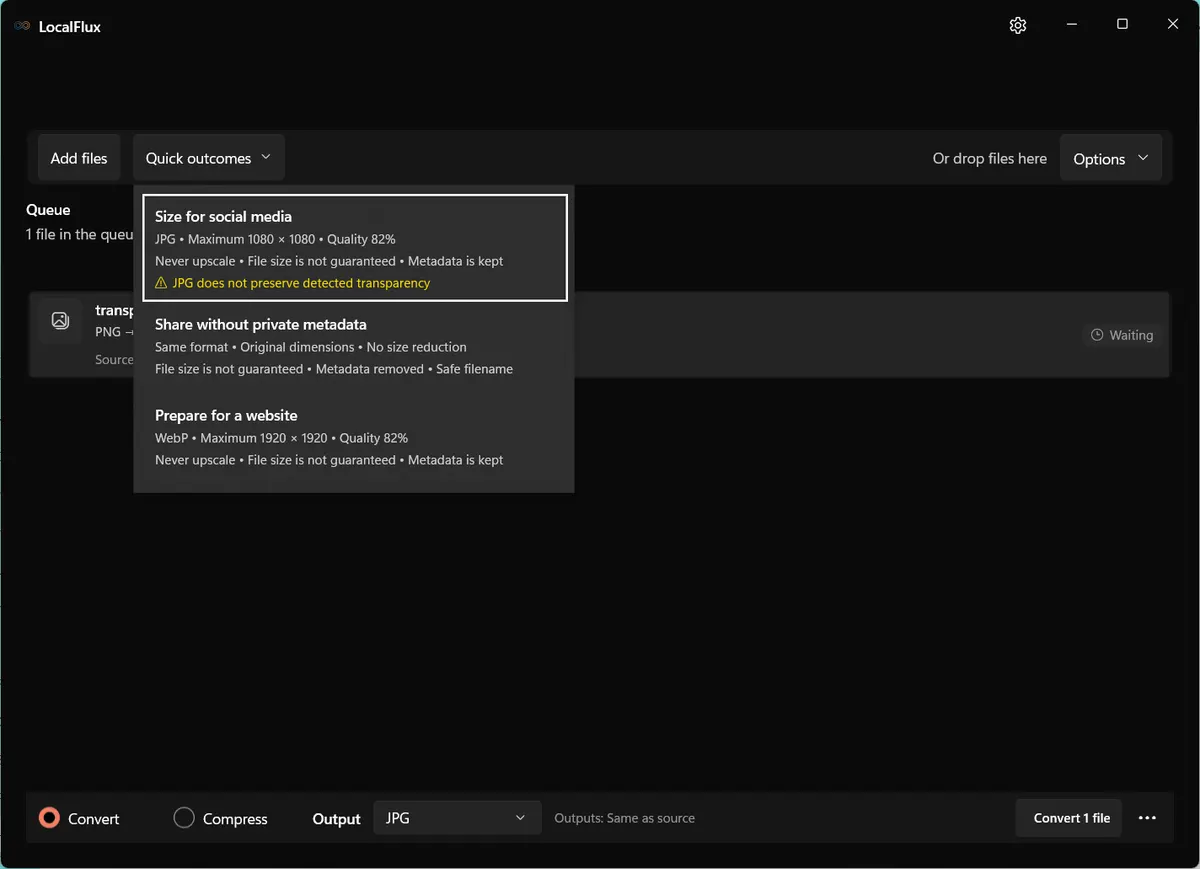
With our verified transparent PNG, WebP, and AVIF inputs, LocalFlux’s JPG quick outcome showed a yellow warning: JPG does not preserve detected transparency. Treat that as a decision point, not a cosmetic note. Open Quick outcomes to see the JPG recommendation and its transparency warning.
2. Choose an alpha-capable output
Open the output menu. For image inputs, the tested build offered AVIF, ICO, JPG, PNG, TIFF, and WebP. PNG is the conservative choice for a diagnostic conversion because its alpha behavior is widely understood and easy to inspect.
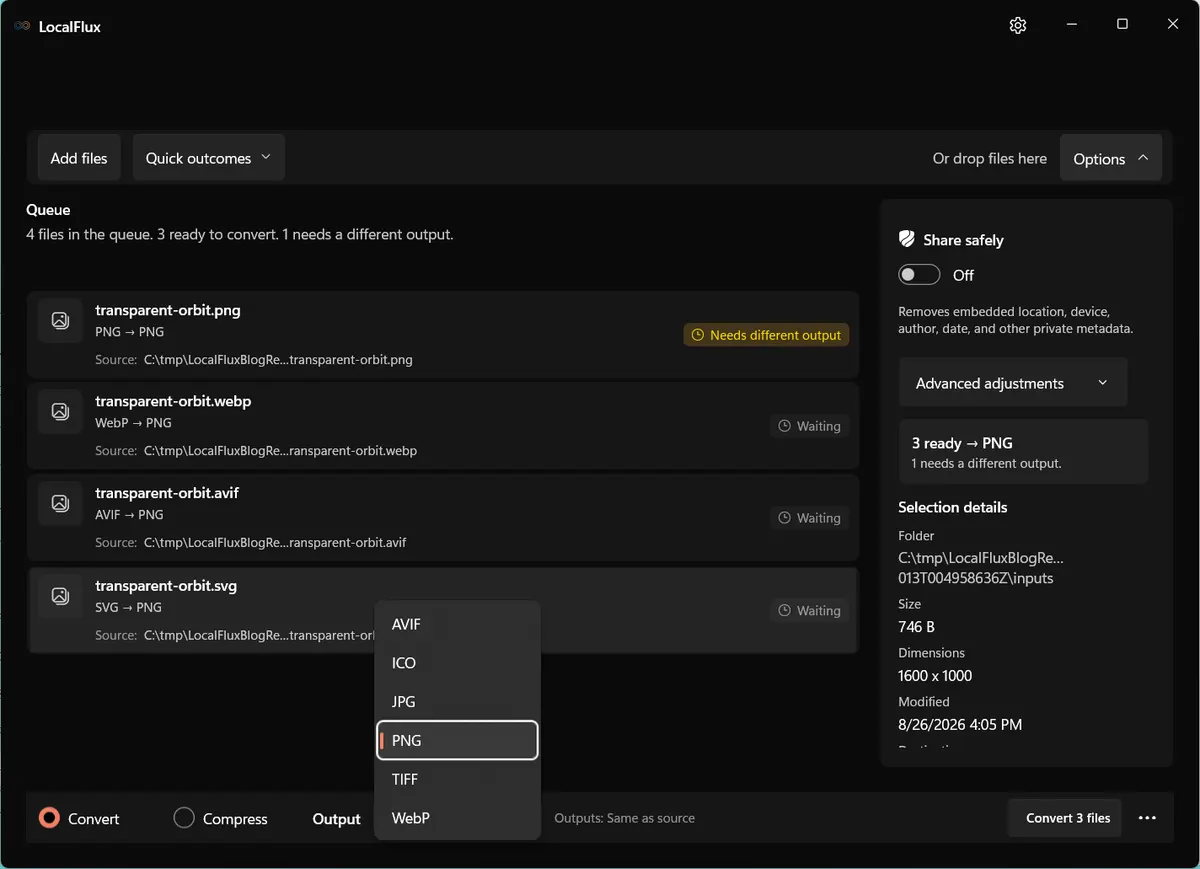
If the source is already PNG, LocalFlux marks PNG → PNG as Needs different output rather than pretending to perform a conversion. That is useful: re-encoding the same file does not create missing transparency. Choose a different target only when the destination requires it.
3. Run the conversion locally
Select the destination folder or keep Same as source, then start the queue. LocalFlux writes a new file and leaves the original unchanged. In our batch, WebP, AVIF, and SVG sources were converted to PNG while the existing PNG was blocked as a same-format no-op.
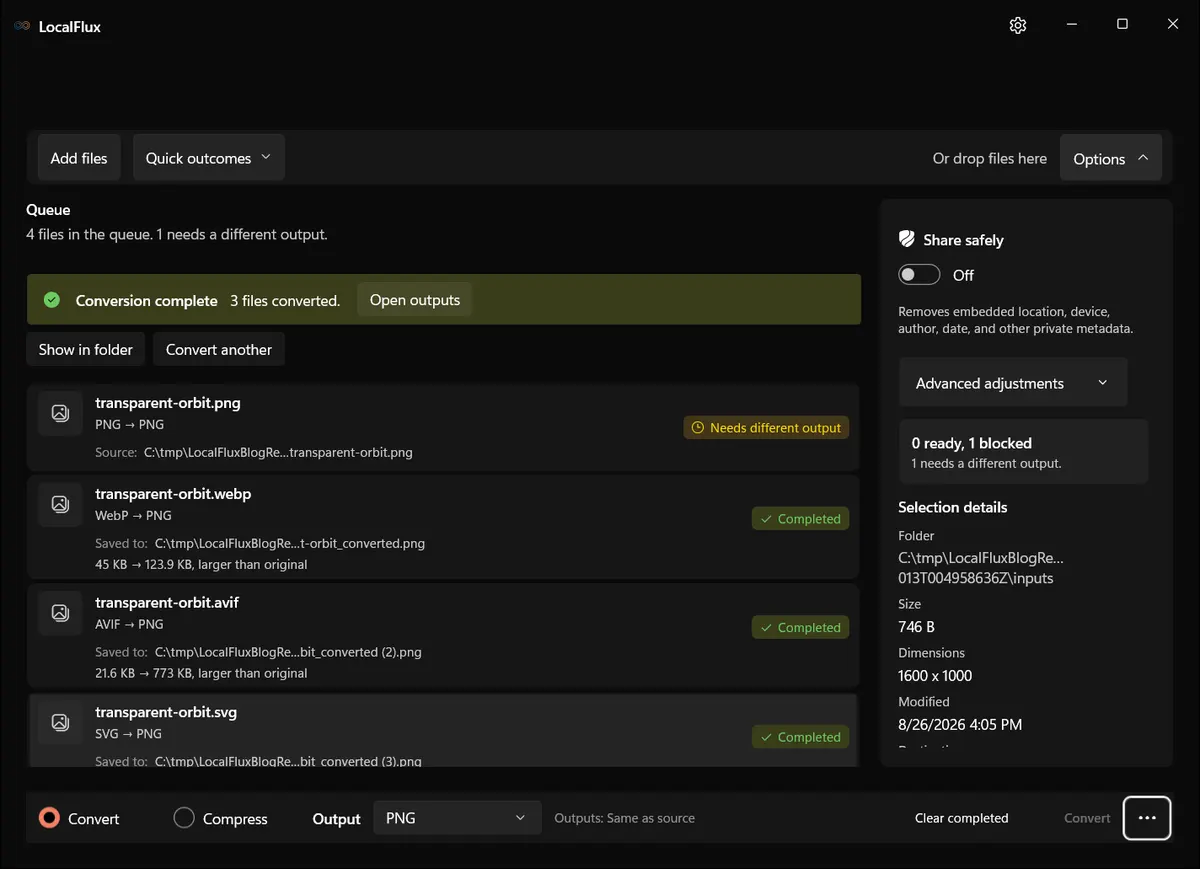
The green completion state proves the encoder wrote a file; it does not prove the alpha channel survived. That requires inspection.
4. Verify the output on a contrasting background
Open the output in an editor that displays transparency correctly. Add a saturated magenta, lime, or blue layer behind the image. Zoom into rounded corners, shadows, hairlines, and anti-aliased text.
Look for:
- a solid rectangle where the canvas should be transparent;
- white or dark fringes around curved edges;
- missing semi-transparent shadows;
- a checkerboard that appears inside the image rather than behind it;
- changed dimensions or an unexpected crop.
For automated evidence, our test used the ImageMagick build bundled with the exact LocalFlux package to ask whether any pixel was non-opaque and to inspect the top-left corner. The corrected WebP → PNG output remained non-opaque with a zero-alpha corner. The AVIF → PNG output also remained non-opaque with a near-zero-alpha corner. Those are positive results.
The SVG → PNG result reported every pixel as opaque and its corner as white. The route completed successfully, but the unpainted SVG canvas had been flattened. This is a renderer-specific result, not evidence that PNG or SVG lacks transparency support.
5. Understand the JPG result
We separately converted the verified transparent PNG to JPG. LocalFlux completed the route and reduced 194,905 bytes to 95,914 bytes. The result had three color channels, no alpha, and an opaque black corner in this tested path.

The smaller size is not a transparency-preserving win. It is a lossy, flattened output. Use it only if the final background is acceptable and the receiving system requires JPEG.
Why transparent edges develop white or black halos
Soft edge pixels contain both color and partial opacity. Some tools store hidden RGB values under fully or partly transparent pixels. When an image is flattened against white, those edge colors are blended with white. If you later try to remove the white background, pale outlines remain because the edge pixels are no longer the original foreground color plus alpha; they are already composited colors.
The safest solution is to return to the original transparent asset and convert directly to an alpha-capable format. Repeatedly removing a solid background from a JPG is destructive and unreliable, especially around shadows, antialiasing, hair, or translucent glass.
If you need JPG with a particular background color, first composite the transparent original onto that color in an image editor. The tested LocalFlux interface has no background-color control. Export the flattened image, then convert if needed.
Common failure modes
The source extension is PNG, but there is no transparency
PNG can contain RGB without alpha, or RGBA where every alpha value is fully opaque. The extension describes capability, not content. Test the actual pixels over a colored background.
Renaming .jpg to .png did not help
Renaming changes the filename, not the encoded data. A proper decoder still sees JPEG, and the missing alpha information remains missing. Use a converter to create a real PNG, but understand that converting an already flattened JPG to PNG cannot reconstruct the original background mask.
A website adds a background after upload
Download the processed asset from the site and inspect it. The site may flatten uploads, generate JPEG derivatives, apply a theme background, or show a preview that does not support alpha. If your local output remains transparent, the problem is downstream.
Windows Photos shows black or white
Some viewers composite transparent pixels against their own background. That can look like flattening even when alpha remains intact. Check the same file in an editor with a checkerboard or use a pixel/alpha inspection tool before concluding that the conversion failed.
SVG fonts or filters changed
Rasterization requires installed fonts and renderer support for SVG features. Convert text to paths when licensing and workflow allow, package required assets correctly, and compare the rendered PNG to a browser reference. Transparency is only one part of SVG fidelity.
ICO looks jagged
Transparency can be intact while small icon sizes are poorly rendered. Build or verify multiple resolutions and inspect Explorer’s 16, 24, 32, 48, and larger pixel presentations.
Choosing the right destination
Use PNG for a transparent logo or screenshot when compatibility and crisp edges are the priority. Use WebP when the destination supports it and web delivery size matters. Use AVIF for modern, explicitly supported pipelines where efficiency justifies more compatibility testing. Use ICO for Windows icons. Keep SVG as vector when the destination accepts it. Use JPG only after you intentionally choose a solid background.
The most important habit is to separate two questions:
- Can this format represent transparency?
- Did this exact conversion preserve the transparent pixels?
The first can be answered from a specification. The second can only be answered by checking the output. Pick an alpha-capable format, heed LocalFlux’s JPG warning, and verify the file on a contrasting background before you publish or send it.
For a batch, record the input format, chosen output, converter version, and one alpha check per distinct source type. A successful PNG result from WebP does not prove that an SVG renderer or ICO encoder follows the same path. Small evidence notes prevent a one-file spot check from turning into an unsupported promise about every format in the queue.
Publication evidence
Technical references
The format guidance above is checked against these independent specifications and platform references.