
How to Convert a Folder of Mixed File Types Safely
On this page
- The short version
- A folder is an intake location, not a conversion rule
- Step 1: inventory the mixed set
- Step 2: choose the first output and trust the readiness summary
- Step 3: convert the compatible subset
- Step 4: regroup by outcome
- Use destinations to preserve provenance
- Reconcile every batch
- Safety rules for real mixed folders
- Common questions
- The result
A folder can contain a video, an audio recording, an image, and a document while still representing one project. That does not mean those files should all receive the same output format.
The safest mixed-format workflow is to use the first queue as an inventory, choose one outcome, convert only the compatible rows, then regroup the remaining files by their next outcome. LocalFlux makes the boundary visible with ready and blocked states.
This guide uses four synthetic files in LocalFlux 1.0.9:
project-preview.movvoice-note.wavcover-image.pngproject-notes.docx
When MP3 is selected, the MOV and WAV rows are ready because LocalFlux can extract or convert their audio to MP3. PNG and DOCX are blocked because MP3 is not a valid target for those source types. That is the queue protecting the job from an incoherent conversion request.
Get LocalFlux from the Microsoft Store
The short version
- Back up the source folder.
- In File Explorer, select the supported local files inside the folder. Do not drag the folder itself.
- Add or drag the selected files into LocalFlux.
- Choose the first desired output, such as MP3.
- Read the ready and blocked counts.
- Convert only the compatible rows.
- Start a new batch for each remaining outcome, such as PNG to JPG and DOCX to PDF.
- Reconcile counts and inspect representative outputs before deleting or moving anything.
A folder is an intake location, not a conversion rule
LocalFlux accepts supported local files. Folders themselves, network shares, web URLs, cloud-only placeholders, duplicates, and unsupported types are skipped. To work with a folder, open it in File Explorer, select its supported files, and add those files to the queue.
The distinction prevents accidental recursive ingestion. You decide which files enter the job instead of assuming that every nested item should be processed.
Before adding anything, make a working copy or ensure the source has a current backup. Conversion writes new outputs, but a backup still protects against unrelated mistakes such as moving the wrong folder or deleting a reviewed source too early.
Step 1: inventory the mixed set
For the example, put the four synthetic files under C:\tmp\LocalFluxBlogBatchSeries\mixed. Select the files in File Explorer and add them to LocalFlux.
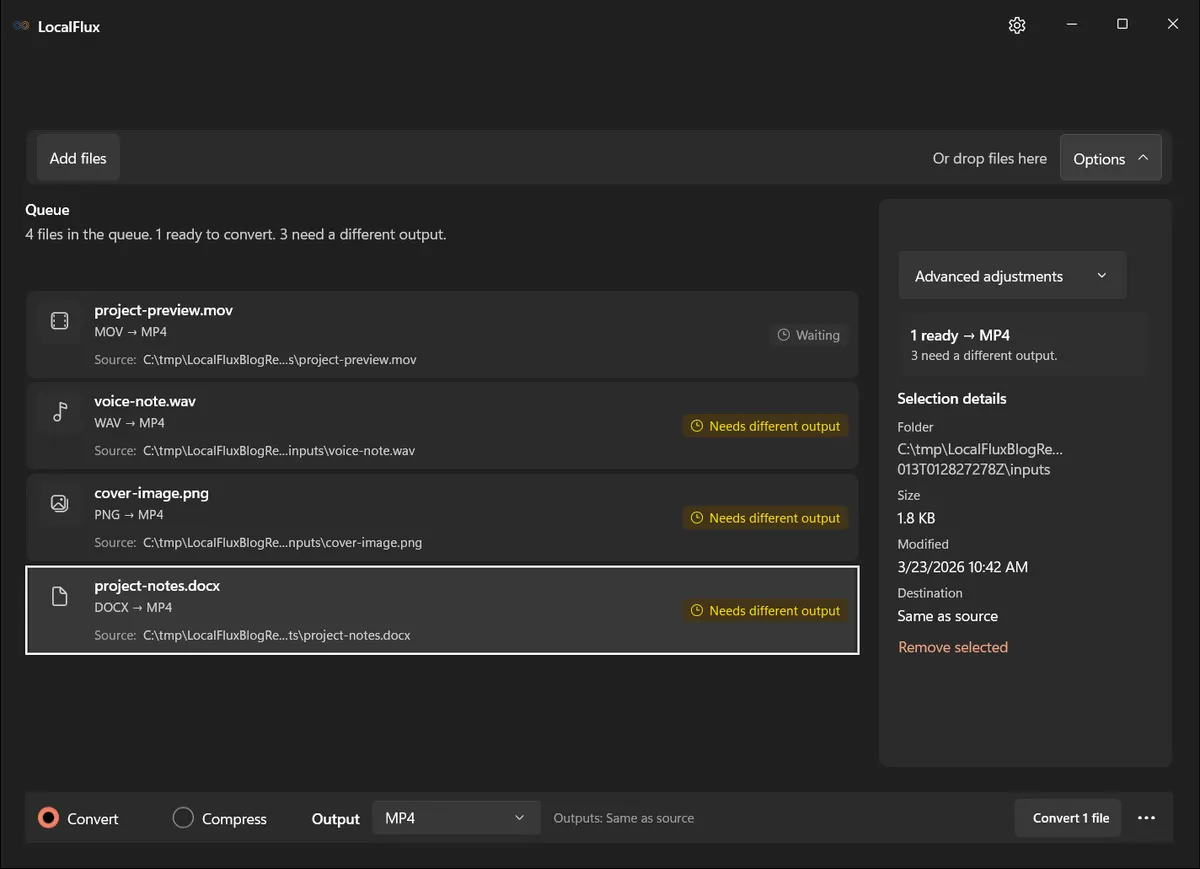
Interface screenshots were refreshed in October 2026 using a build reconstructed from the documented LocalFlux 1.0.10.0 release source. Historical measurements and downloads below retain their original test scope. Capture records: 1 · 2
LocalFlux may propose an output such as MP4 when files are added. In this first inventory view, that provisional choice makes the MOV ready and marks the other three rows as needing a different output. The readiness summary will change when you deliberately choose MP3 in the next step.
Now classify each file by the result you actually need:
| File | Family | Example outcome |
|---|---|---|
| project-preview.mov | Video | Extract MP3 audio, or convert to MP4 |
| voice-note.wav | Audio | MP3 delivery copy |
| cover-image.png | Image | JPG or WebP copy, if required |
| project-notes.docx | Document | PDF delivery copy |
If the desired outcomes differ, the files belong to different conversion batches even if they live in the same source folder.
Step 2: choose the first output and trust the readiness summary
Select MP3. LocalFlux should show the MOV and WAV rows as ready and the PNG and DOCX rows as blocked.
This is a useful safety signal:
- Ready means the selected output and current settings can be planned for the row.
- Blocked means the row will not run with that output or those settings.
- Failed is different: the row was attempted but could not finish.
Do not try to eliminate blocked states by renaming .png or .docx files to .mp3. Extensions help software identify files; changing the extension does not turn pixels or document structure into audio.
Step 3: convert the compatible subset
With MP3 selected, start the batch for the ready items. The MOV contributes an extracted audio output; the WAV is converted to MP3. The incompatible image and document remain blocked rather than being sent down the wrong conversion route.
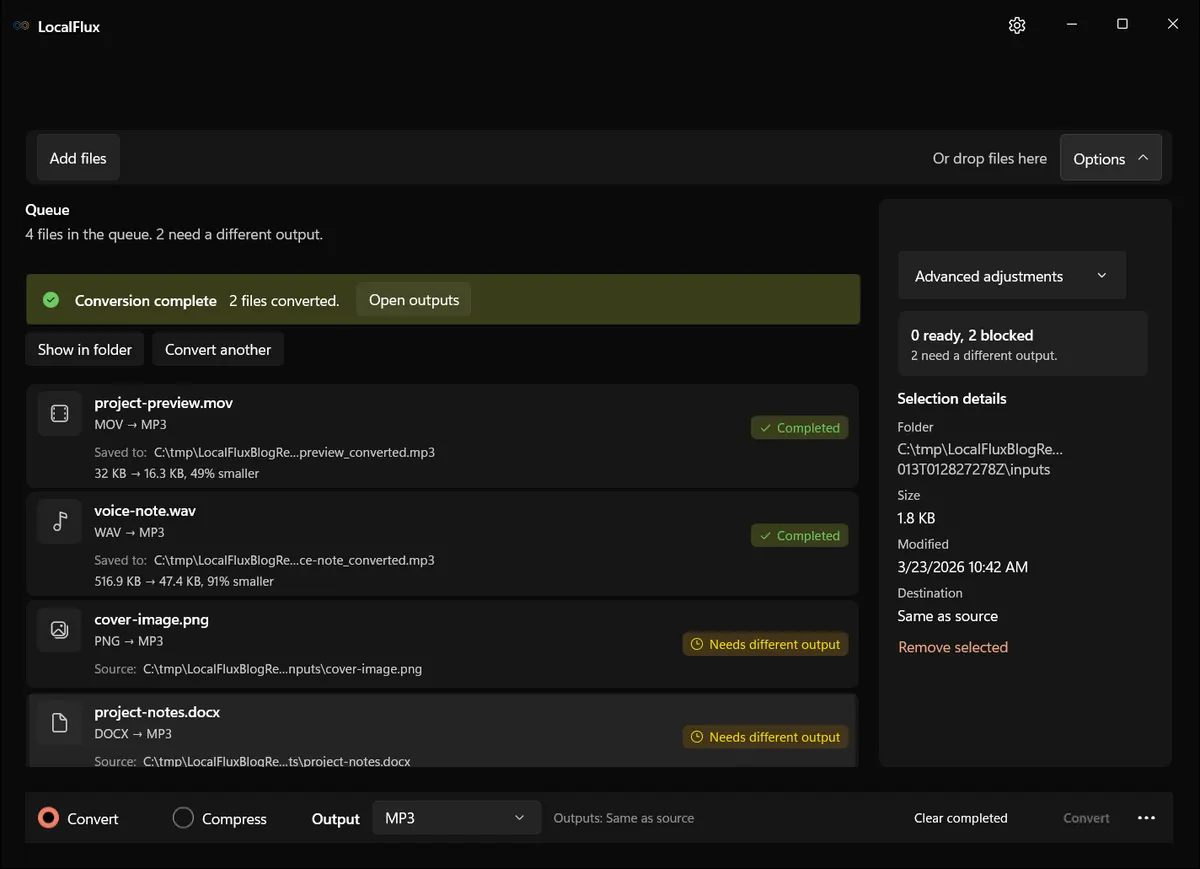
Open the destination and listen to both MP3 files. For the video-derived file, confirm that the expected audio track was used and that its duration is close to the source audio duration; encoded duration may include padding. For the WAV-derived file, check the beginning, middle, end, and channel behavior.
Step 4: regroup by outcome
After reviewing the MP3 files, use Convert another or otherwise begin a clean queue for the remaining work. Do not keep changing outputs on a queue whose completed results you have not reconciled.
A sensible sequence is:
- MOV and WAV to MP3.
- PNG to JPG or WebP only if the destination requires it.
- DOCX to PDF.
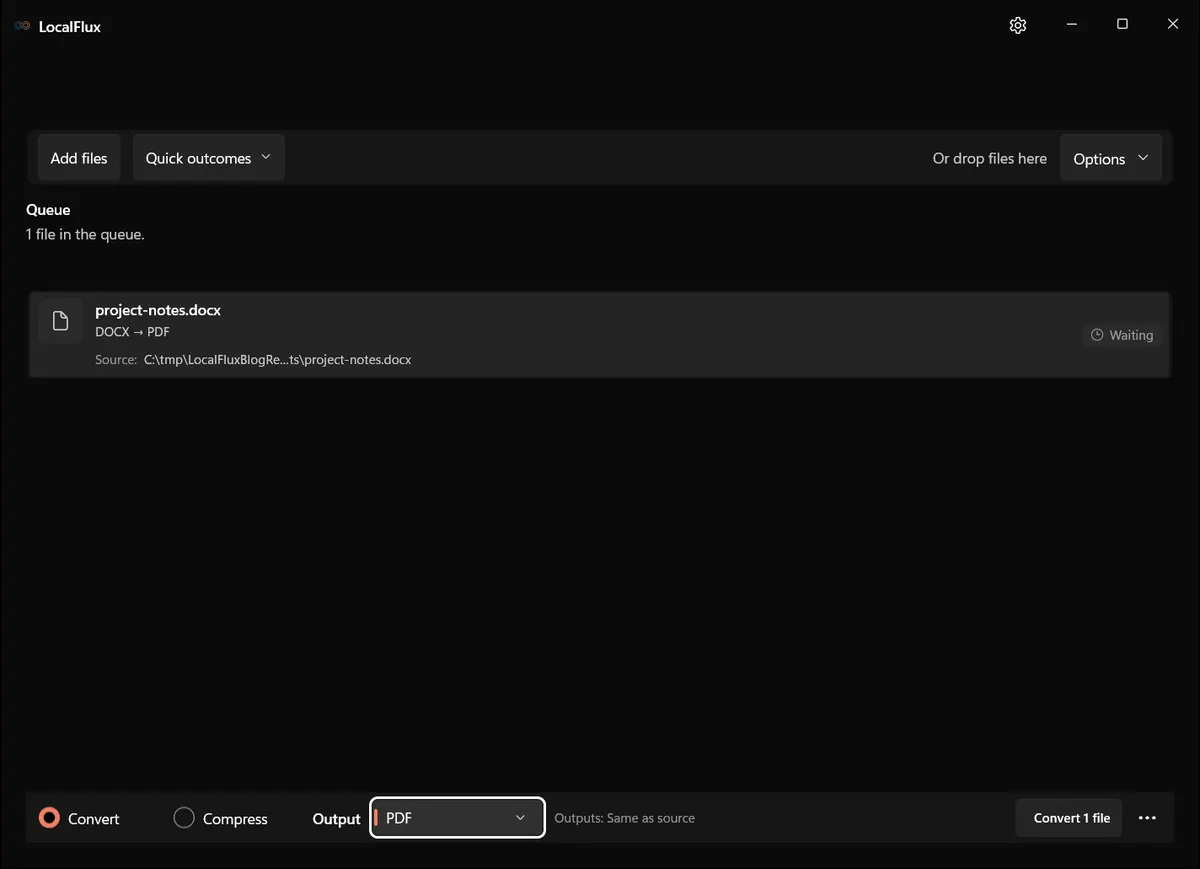
There is no prize for minimizing the number of batches. Separate batches create a useful audit trail: one target, one destination, and one review checklist at a time.
Use destinations to preserve provenance
For mixed source folders, avoid filling the original directory with several kinds of derivatives if the job will be repeated. Consider a structure like:
Project source\
  project-preview.mov
  voice-note.wav
  cover-image.png
  project-notes.docx

Project outputs\
  audio-mp3\
  image-delivery\
  document-pdf\
This makes it clear which files are masters and which are delivery copies. LocalFlux uses collision-safe naming, but folder structure communicates intent better than suffixes alone.
Reconcile every batch
Keep a simple count:
| Batch | Inputs ready | Expected outputs | Review |
|---|---|---|---|
| MP3 | 2 | 2 | Listen and check duration |
| Image target | 1 | 1 | Inspect dimensions, transparency, and edges |
| 1 | 1 | Open and review every page |
Blocked items are not missing outputs; they belong to another plan. Failed items do need investigation. This distinction stops a “four files in, two files out” result from looking complete when two sources were never meant to run under the first target.
Safety rules for real mixed folders
Do not use production originals as the only copy
New output naming protects against a normal overwrite, not against every human or storage error. Keep backups of important sources.
Avoid cloud placeholders and network locations
Make files fully available on local storage before adding them. Cloud-only placeholders and network shares are not supported intake for this workflow.
Do not mix different delivery requirements
“Convert this folder” is too broad. Define outputs: “extract these two MP3s,” “make this image a WebP,” and “export this document to PDF.”
Validate according to media family
Audio needs listening checks. Video needs playback and sync checks. Images need visual inspection, dimensions, and transparency review. Documents need page-by-page review. One completion banner cannot replace those different checks.
Keep a failed source unchanged
If a file fails, preserve it. Confirm that it opens in its normal application, check the destination, and retry once. Repeatedly renaming or re-saving the only copy can destroy evidence of the original problem.
Before using this shortcut with work files, check the file-converter security guide and the actual output folder, including any cloud synchronization.
Common questions
Can I drag an entire folder into LocalFlux?
No. Select the supported local files inside the folder and add those files. Folder objects themselves are skipped.
Why are some files blocked?
The selected output or current settings do not apply to those rows. In the MP3 example, PNG and DOCX are blocked because they are not audio sources. Move them to batches with valid targets.
Can LocalFlux convert video and audio to MP3 together?
Yes, when both sources have an MP3 route. In this example, MOV audio is extracted and WAV audio is converted in the same MP3 batch.
Does one output format apply to every row?
One output is selected for the active batch, but only compatible rows become ready. Other rows remain blocked and should be regrouped.
Are originals overwritten?
LocalFlux creates new collision-safe output paths. Keep a separate backup and review results before removing any source.
The result
Safe mixed-format batch conversion is mostly an organization problem. Treat the folder as an inventory, not a command. Select the files, choose one outcome, use readiness states to separate compatible and blocked rows, validate the results, and then start a clean batch for the next outcome.
That approach keeps a mixed MOV, WAV, PNG, and DOCX project understandable—and keeps the conversion itself local on Windows.