
How to Batch Convert Audio Files on Windows
On this page
- The short version
- Choose the target for the destination
- Step 1: add a representative audio set
- Step 2: select MP3 once
- Step 3: choose a clean destination
- Step 4: run and watch the queue
- Step 5: listen, do not only count files
- How to organize a large audio job
- Blocked and failed are different
- Batch audio conversion checklist
- The result
A batch audio converter is useful when the destination wants one predictable format but your folder contains exports from several recorders, editors, or archives. Instead of converting every track separately, you can build one queue, choose MP3 once, and review the results together.
LocalFlux runs supported audio conversions locally on Windows. The source files remain on your PC during the conversion path, and new outputs are written to a folder you control.
This guide uses a five-file example: WAV, FLAC, M4A, OGG, and WMA to MP3.
Get LocalFlux from the Microsoft Store
The short version
- Open LocalFlux and select Add files.
- Add the WAV, FLAC, M4A, OGG, and WMA files.
- Choose MP3 under Output.
- Confirm the ready count and destination.
- Select Convert 5 files.
- When conversion completes, use Show in folder.
- Listen to representative outputs and check duration, channel layout, and tags that matter.
Use a separate batch if some files need WAV, FLAC, M4A, Opus, or AIFF instead. One selected output applies to the current batch.
Choose the target for the destination
MP3 is a practical target for broad playback compatibility, spoken-word delivery, review copies, and systems that explicitly request .mp3. It is not automatically the best choice for every archive.
Use the destination to choose:
| Goal | Sensible starting point |
|---|---|
| Broad playback or upload compatibility | MP3 |
| Lossless archive or editing handoff | FLAC or WAV |
| Apple-oriented compressed delivery | M4A |
| Modern speech or streaming workflow | Opus, when accepted |
| Legacy production requirement | AIFF, when explicitly requested |
Converting a lossless source such as PCM WAV or FLAC to MP3 is normally a delivery-copy workflow. Keep the lossless source as the master. Converting an already-lossy source to MP3 can introduce another lossy generation, so avoid repeated conversions when the destination can use the original.
Step 1: add a representative audio set
Collect the tracks in a folder you can identify easily. For screenshots, use a neutral path such as C:\tmp\LocalFluxBlogRefresh, with descriptive names that reveal no personal or client information.
Open LocalFlux, choose Add files, and select the five audio files. You can also drag supported files into the window.
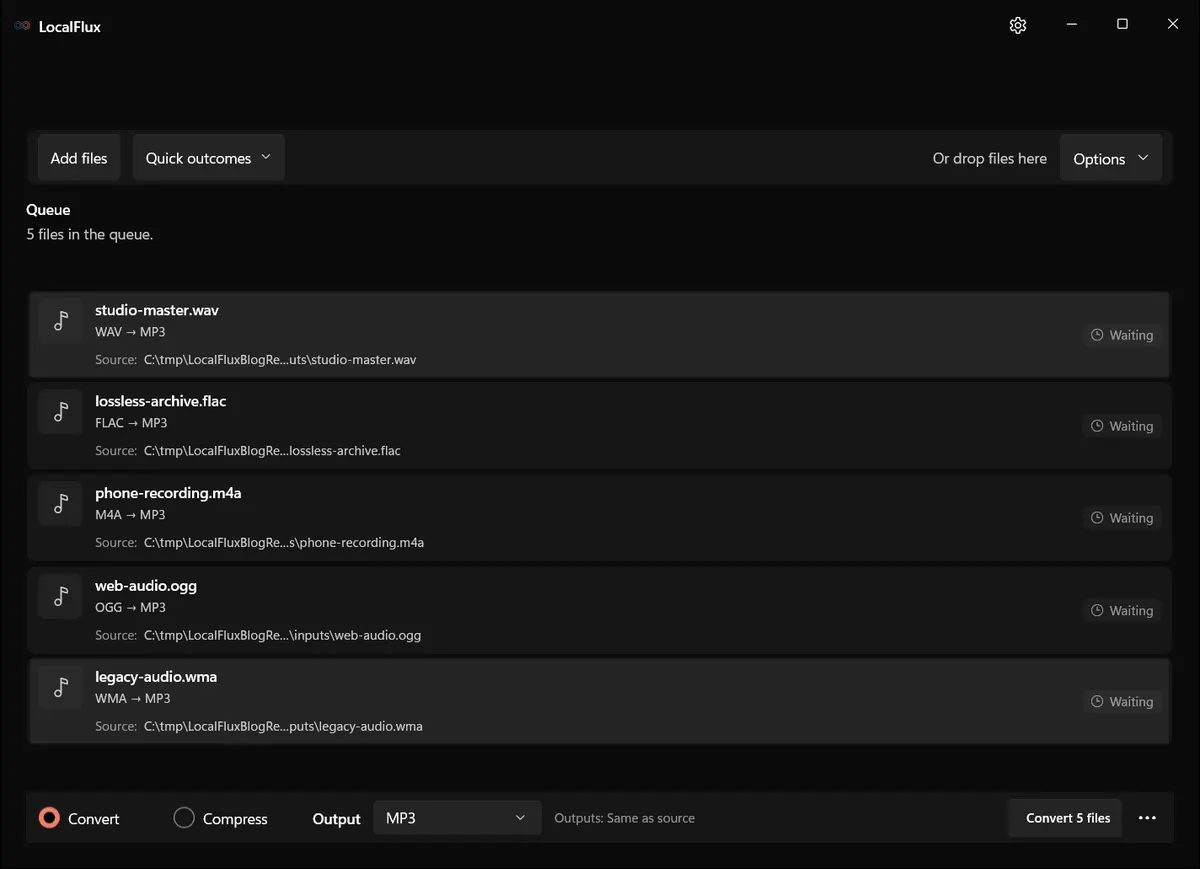
Interface screenshots were refreshed in October 2026 using a build reconstructed from the documented LocalFlux 1.0.10.0 release source. Capture records: 1
Check the actual codec, not just the extension: M4A, OGG, WMA and WAV do not by themselves establish whether the source is lossless. This audio route exports the first audio stream and omits attached artwork and other streams. Keep originals when those matter. The current WAV and AIFF outputs use 16-bit PCM, so they are not exact archival replacements for every higher-precision source; changing to a lossless format cannot restore earlier losses.
After the files are added, LocalFlux may select a common compatible output such as MP3 automatically. Treat that as a proposed target: scan the names, count, and visible output before starting. This catches an accidental master, duplicate, or unrelated recording before processing begins.
Step 2: select MP3 once
Choose MP3 under Output. LocalFlux recalculates the queue and shows which rows are ready for that target.
The example formats all support MP3 output, so the summary should show five ready items. If a row is blocked, read the format guidance instead of forcing it into the batch. A renamed extension does not convert audio and may make later diagnosis harder.
Step 3: choose a clean destination
Same as source creates the MP3 copies beside their source files. That is convenient for a small set. A separate destination is better when:
- the source folder is an archive;
- several people will review the outputs;
- you expect to retry with another target; or
- input and output counts need to be obvious.
LocalFlux uses collision-safe names if a planned output already exists. It does not need to overwrite an existing file to finish the batch. Still, starting with an empty output folder makes the result easier to audit.
Step 4: run and watch the queue
Select Convert 5 files. Rows pass through waiting, converting, and completed states. LocalFlux uses bounded media parallelism, so the queue can make progress without launching an unbounded number of encoders.
Leave the source files and destination in place until the queue reaches a final state. Duration, source encoding, storage, and processor speed all affect timing, so do not treat one capture as a performance promise.
Step 5: listen, do not only count files
When LocalFlux reports Conversion complete, use Show in folder and review the MP3 results.
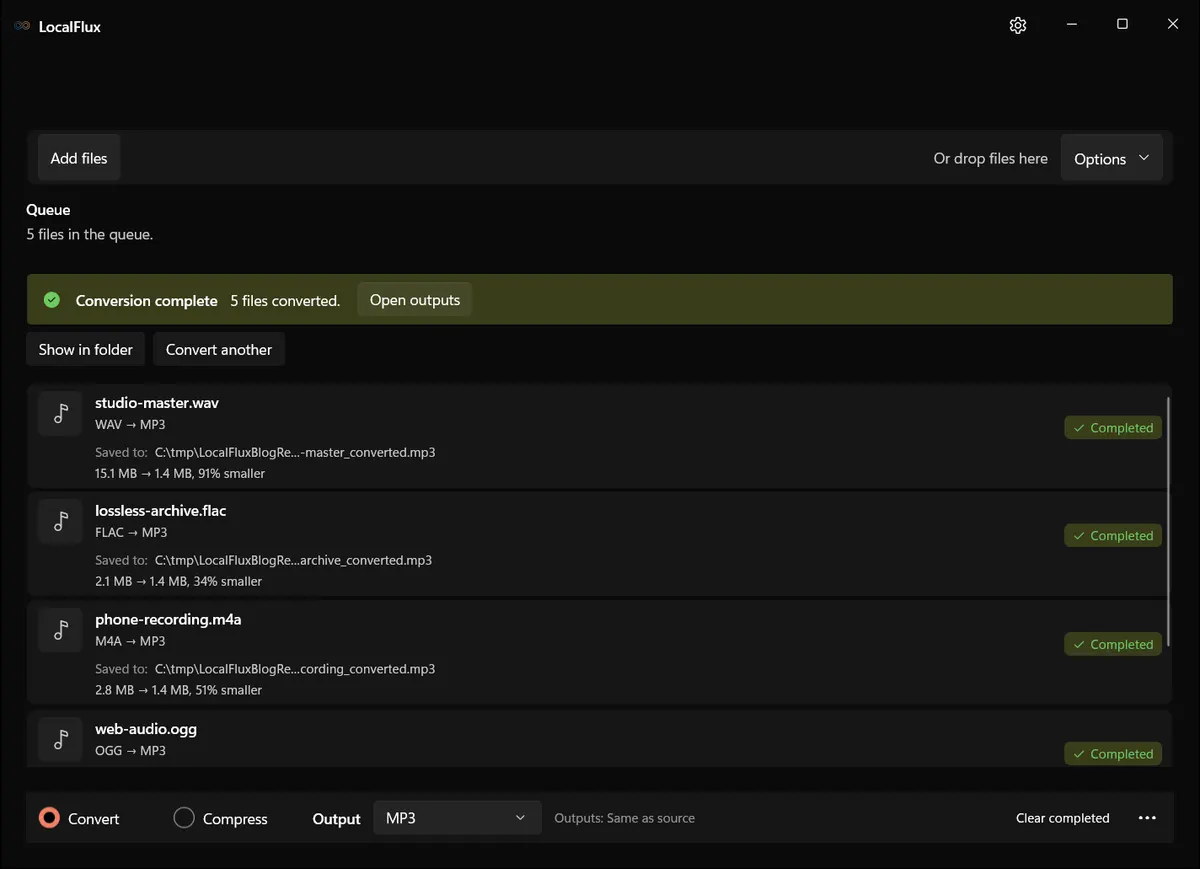
October 2026 recheck: five mono, 44.1 kHz test files produced matching outputs across all ten languages. Full decoding preserved each input’s sample count, but this was not a listening, stereo or library-metadata test. The OGG grew from 370,234 to 1,440,514 bytes: converting to MP3 does not guarantee a smaller file. On-screen KB and MB use KiB and MiB. 2026-10
For your pilot, include a stereo recording with different sound on the left and right, your longest file and a track with the tags you need. Check the first and last audible events, left/right behavior and the actual target player. Attached cover images are omitted by this route; use a separate artwork/tag workflow if required. The historical five-file mono batch verifies neither stereo behavior nor library-metadata preservation.
A useful audio review checks:
- The file opens in the intended player or destination app.
- The duration is plausible and the ending is present.
- Left and right channels behave as expected.
- Speech, music, or effects are not audibly clipped or distorted.
- Required tags, artwork, chapters, or other metadata survived—or were intentionally omitted.
Metadata behavior varies by source container and target. If cover art, chapter marks, broadcast metadata, or exact tags are business-critical, test those properties explicitly on a small sample.
How to organize a large audio job
Group by desired output
The cleanest boundary is the target format. Put everything that should become MP3 in one run, everything that should become FLAC in another, and so on. Do not mix delivery and archival goals merely because the files arrived together.
Separate masters from delivery copies
Keep WAV and FLAC masters in an archive folder. Write MP3 results to a delivery folder. That structure reduces the chance that someone later edits or reconverts the wrong generation.
Sample the difficult tracks
Include a quiet spoken track, a loud music track, a stereo file, and the longest file in your pilot batch. These are more revealing than testing five near-identical tones.
Record the decision
For repeat work, note the chosen output and destination. Consistency is more useful than relying on memory across weekly or monthly batches.
Blocked and failed are different
A blocked row has not started because the current output or settings do not apply. Move it to an appropriate batch or select another target.
A failed row was attempted but did not complete. Check that the source opens, the destination is available, and there is sufficient space. Retry once. If the same item fails again, preserve the source and review the detailed error rather than repeatedly transcoding copies.
Batch audio conversion checklist
Before:
- identify the real destination requirement;
- preserve lossless masters;
- use neutral, understandable names;
- choose one output per batch; and
- confirm every intended row is ready.
After:
- compare input and completed counts;
- listen to representative beginnings, middles, and endings;
- check duration and channels;
- verify important metadata; and
- test one file in the destination system.
The result
The safe batch workflow is simple: group files by outcome, select MP3 once, convert to a clean destination, and listen to representative outputs before delivery. LocalFlux keeps the conversion on your Windows PC and leaves the original WAV, FLAC, M4A, OGG, and WMA files available while you validate the new copies.