
How to Batch Convert Videos on Windows Without Uploading Them
On this page
Converting one video is easy. Converting a folder of clips is where the workflow starts to matter. You need one output format, predictable names, a clear destination, and enough visibility to notice a file that cannot use the selected output.
LocalFlux handles that work on your Windows PC. The source videos stay on the machine during conversion: there is no upload to a browser-based converter and no result to download again. For a common compatibility job, you can add MOV, MKV, WebM, AVI, and WMV clips together, select MP4 once, and run the compatible queue as one batch.
Get LocalFlux from the Microsoft Store
The short version
To batch convert videos to MP4 on Windows:
- Open LocalFlux and choose Add files.
- Select the MOV, MKV, WebM, AVI, or WMV clips you want to convert.
- Set Output to MP4.
- Confirm the destination. Same as source creates the outputs beside their source files.
- Check the ready and blocked counts before starting.
- Select Convert 5 files (the number changes with the queue).
- When the batch finishes, open the output folder and play representative results.
LocalFlux creates new output files instead of changing the original videos in place.
Step 1: make a small representative batch
Start with a few clips that reflect the real folder. A useful first queue might be:
| Source | What it tests | Target |
|---|---|---|
| MOV | phone or camera footage | MP4 |
| MKV | flexible multi-stream container | MP4 |
| WebM | web-oriented video | MP4 |
| AVI | older Windows video | MP4 |
| WMV | legacy Windows Media video | MP4 |
Use copies or backed-up originals for important footage. Put them in a neutral working folder such as C:\tmp\LocalFluxBlogRefresh\video for a small pilot before processing the full folder.
Open LocalFlux, choose Add files, and select all five clips in the Windows picker. Drag and drop also works for supported local files.
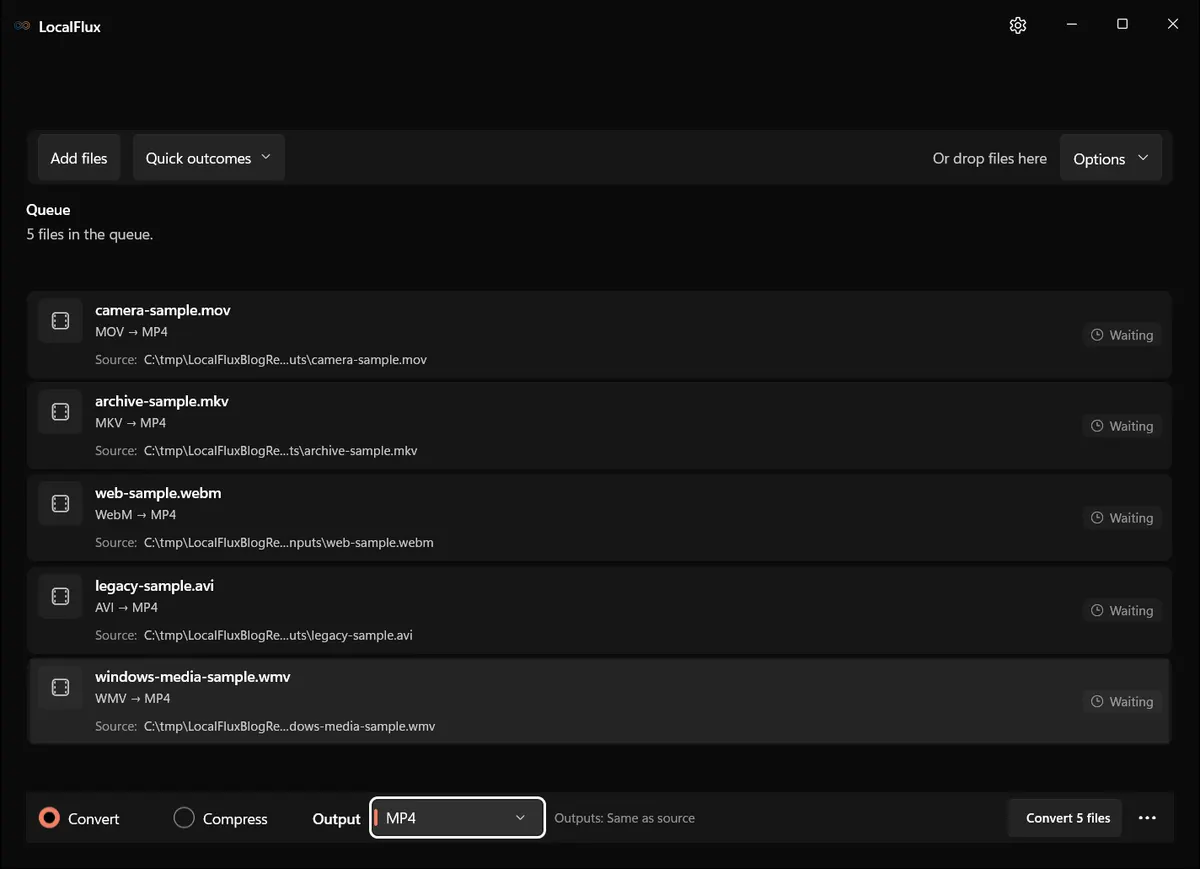
Interface screenshots were refreshed in October 2026 using a build reconstructed from the documented LocalFlux 1.0.10.0 release source. Historical measurements and downloads below retain their original test scope. Capture records: 1
LocalFlux may select a common compatible output such as MP4 when the files are added. Treat it as a proposed target and confirm the queue count, format, and destination before starting.
Step 2: choose one output for the batch
Set Output to MP4. LocalFlux applies one selected output format to the current conversion batch. That is a useful constraint: the queue has one explicit goal instead of silently choosing a different target for each row.
If one group needs MP4 and another needs WebM, run two batches. Clear or remove the first group after it finishes, add the second group, then choose its output. Separating outcomes makes later review much easier.
MP4 is a container, not a quality promise
Changing MOV, MKV, WebM, AVI, or WMV to MP4 can make the files easier to use with common software, but the extension alone does not tell you everything about the result. A video container can hold video, audio, subtitle, metadata, and attachment streams. Not every kind of stream maps cleanly to every other container.
Re-encoding can lose detail; compatible sources may instead be remuxed without re-encoding. The extension alone does not establish which route applies. For that reason, review clips with unusual audio layouts, subtitles, chapters, rotation metadata, or multiple tracks. Keep the originals until the MP4 copies have passed their real destination test.
Step 3: confirm the destination and names
Same as source is convenient for a small, tidy folder. For a large job, a separate output folder is usually easier to audit. It keeps the new MP4 files away from the source set and makes counts simpler.
LocalFlux uses collision-safe output naming. If the expected output name already exists, the app chooses another available name rather than overwriting the existing file. Even so, a clean destination is preferable: you can compare the number of inputs and outputs without guessing which files came from an earlier run.
Before conversion, check:
- the queue count;
- the selected MP4 output;
- the ready and blocked summary;
- the output folder; and
- enough free disk space for both sources and results.
A private recording needs an approved workspace even when conversion is local. Check cloud sync, access to working copies and the eventual delivery channel; smaller or converted footage still contains the recorded conversation. See the security guide for the broader boundary.
Step 4: run the queue
Select Convert 5 files. During the job, rows move through waiting, converting, and completed states. Media conversions can run with bounded parallelism, so more than one item may make progress without the app trying to start the entire folder at once.
Do not move or rename source files while the queue is active. If you need to cancel, treat any already-completed outputs as a partial batch and review them before starting again.
Conversion time depends on duration, resolution, codecs, storage, and processor. A screenshot of the progress state is evidence of the workflow, not a speed benchmark.
“No upload” describes the conversion path. Windows and Microsoft Store may still use the network for installation, licensing, or updates. Local processing also does not replace backups or access controls.
Step 5: review the completed videos
When the queue reaches Conversion complete, use Show in folder and check the results.
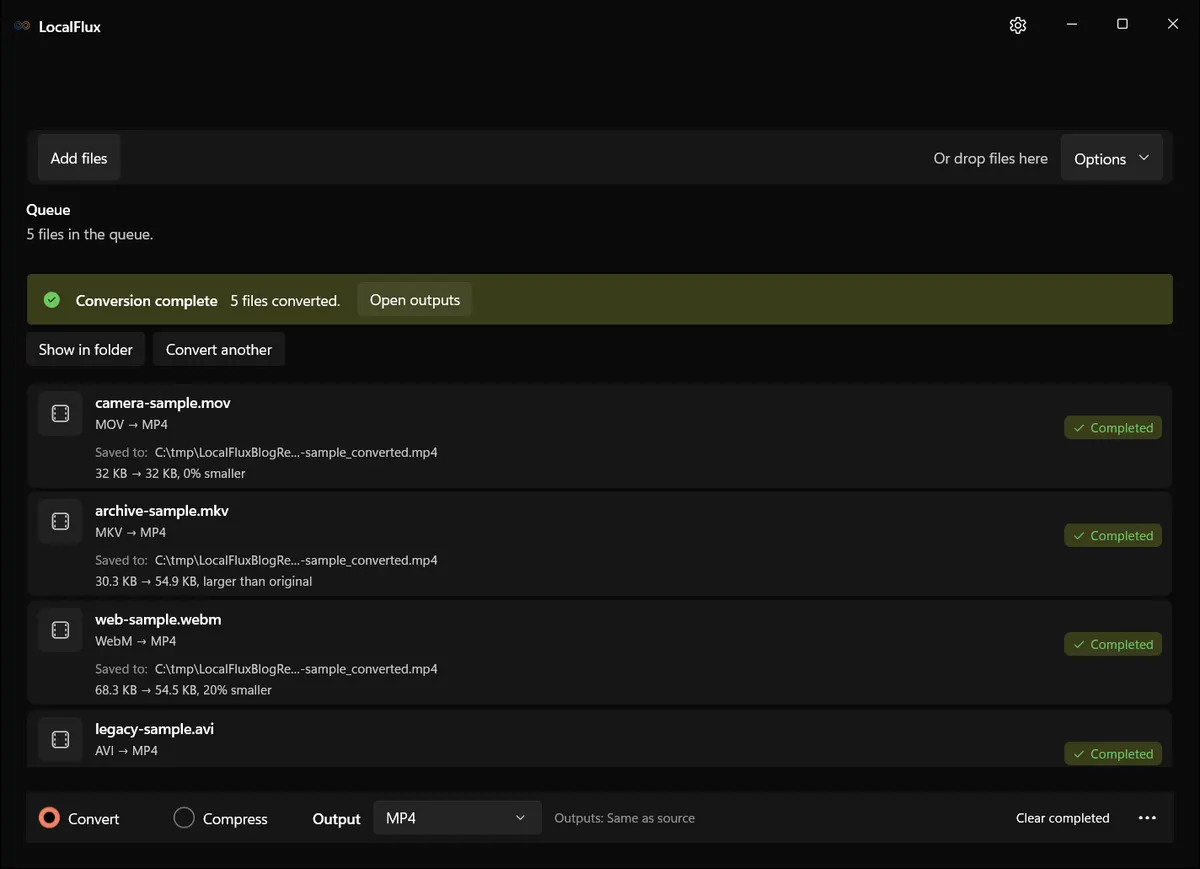
October 2026 recheck: these are five short synthetic clips, not camera or client footage. All 50 outputs decode fully and match the corresponding English output byte for byte. Each retains 60 video frames and its source dimensions. Only the MOV sample retained identical encoded packets and decoded streams; the other four were changed. MKV grew from 30,991 to 56,243 bytes. Timing and audio properties still need review; these fixtures do not test subtitles, alternate tracks, chapters, HDR or rotation. On-screen KB uses KiB. 2026-10
For each representative result:
- Confirm that Windows reports an
.mp4file and that its size is greater than zero. - Play the beginning, middle, and end.
- Confirm that picture and sound remain synchronized.
- Check duration, channel count, orientation and aspect ratio.
- Inspect subtitles, alternate audio, and chapters if they mattered in the source.
- Open one result in the software or device that will actually receive it.
A green completion state means the output was created. It cannot decide whether a creative edit, subtitle track, or delivery specification is acceptable for your project.
What to do with blocked or failed rows
Blocked means the selected output or current settings do not apply to that item. The safe response is to read the row, change the output, or move the item into a different batch. Do not rename an extension to make a blocked file look compatible; that changes the label, not the media inside.
Failed means LocalFlux attempted the route but could not complete it. Common causes include a damaged source, an unavailable destination, a locked file, or media that the underlying decoder cannot read. Keep the failed source, retry once after checking the folder, and use the app’s details or diagnostics if the failure repeats.
Common questions
Can I convert MOV, MKV, WebM, AVI, and WMV together?
Yes. MP4 is an available LocalFlux output for those source formats. Add them together, select MP4, and confirm that every row is ready before starting.
Can each video have a different output format in one batch?
No. One output format applies to the active conversion batch. Split files into separate batches when they need different targets.
Will LocalFlux upload my videos?
The conversion runs locally. The source files are not sent to a conversion server as part of the workflow.
Does converting to MP4 always make a video smaller?
No. Conversion is about compatibility, not guaranteed compression. File size depends on the source, duration, resolution, codecs, and encoding settings.
Are my originals preserved?
LocalFlux writes new, collision-safe outputs. Keep independent backups for important material and do not delete sources until you have reviewed the results.
The result
A good batch video conversion is more than five files with new extensions. It is a controlled job: a representative queue, one intentional target, a known destination, visible exceptions, and playback checks in the real destination.
LocalFlux keeps that workflow on your Windows PC, so a folder of MOV, MKV, WebM, AVI, and WMV clips can become a reviewed set of MP4 copies without an upload step.