
How to Convert OGG to MP3 Offline on Windows
Convert one or many OGG Vorbis files to MP3 locally on Windows, verify duration and channel layout, and understand the quality tradeoff of lossy transcoding.
On this page
OGG audio works well in browsers, games, open-source applications, and many media players. MP3 is still the safer compatibility choice for older car stereos, portable players, presentation software, and workflows that recognize only a narrow set of audio formats.
On Windows, you can convert OGG to MP3 without uploading the audio. LocalFlux reads the files, writes new MP3 copies on the PC, and keeps the originals unchanged. The process is straightforward, but one quality fact matters: OGG Vorbis and MP3 are both normally lossy. Converting between them does not improve fidelity, even when the new MP3 is larger.
This guide covers a batch workflow, measured mono and stereo results, verification, and the cases where you should keep OGG or return to a lossless master instead.
OGG or Vorbis: what are you converting?
People commonly say “an OGG file,” but Ogg is a container format. It can carry different kinds of streams. Many .ogg audio files contain Vorbis, the lossy codec developed by Xiph.Org, so “OGG to MP3” usually means “decode Vorbis audio from an Ogg container and encode it as MP3.”
That distinction becomes important when a converter rejects an unusual .ogg file. The extension alone does not guarantee Vorbis. An Ogg container might carry Opus, FLAC, speech codecs, video, or application-specific data. Inspect the codec if the route fails or the output behaves unexpectedly.
Our test fixtures were conventional Ogg Vorbis audio. One was 44.1 kHz mono and one was 48 kHz stereo. LocalFlux recognized both and offered the quick outcome MP3 for compatibility.
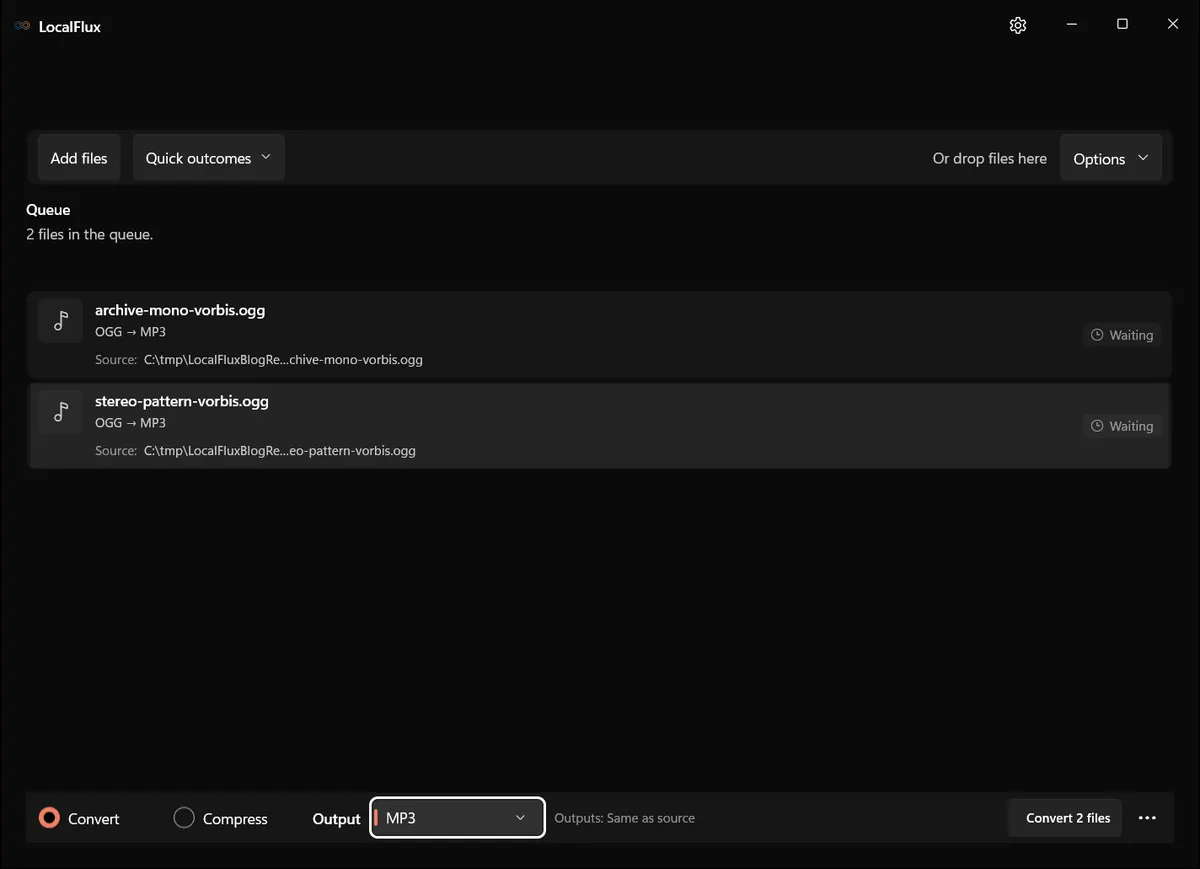
Interface screenshots were refreshed in October 2026 using a build reconstructed from the documented LocalFlux 1.0.10.0 release source. Historical measurements and downloads below retain their original test scope. Capture records: 1
The short workflow
- Open LocalFlux and choose Convert.
- Add one or more
.oggfiles. - Confirm LocalFlux shows
OGG → MP3for every ready item. - Keep MP3 selected or choose it from the output menu.
- Select the destination folder and start the queue.
- Verify that every file completed and check duration, channels, sample rate, tags, and playback.
- Keep the OGG originals until the MP3 copies have passed the destination-device test.
The app does not need an online upload for the conversion, so large batches remain on the Windows PC.
Convert OGG to MP3 in LocalFlux
1. Put the source files in a working folder
Make a folder that contains the OGG files for this job. A clean folder makes batch selection easier and prevents similarly named exports from being confused with originals.
If the files are valuable, back them up first. Format conversion should create delivery copies, not replace the only source.
2. Add the complete batch
Start LocalFlux, select Convert, and use Add files or drag the OGG files into the window. The queue shows each filename and the proposed route.
The tested quick outcome selects MP3 for compatibility and does not guarantee a file size. It does not enable metadata removal; that is not a promise that every Vorbis tag or embedded picture survives conversion to MP3.
Read every queue row. If one item does not show OGG → MP3, remove it and inspect the file separately. A mixed or unsupported stream should not be allowed to hide inside a large batch.
3. Choose MP3 output
If MP3 is not already selected, open the output menu and choose MP3. Keep Same as source when you want each MP3 beside its OGG. For a library migration, a separate output folder is safer because you can compare file counts without mixing extensions.
LocalFlux’s default encoder choices are designed for compatibility. Our mono fixture produced a 64 kbps MP3, while the stereo fixture produced a 128 kbps MP3. Those values are measured behavior for this build and these streams, not a fixed promise for every input.
4. Run the queue
Choose Convert 2 files (or the corresponding batch count). LocalFlux decodes and encodes locally. After completion, use the row’s output-opening and folder actions to locate each MP3 and check its properties.
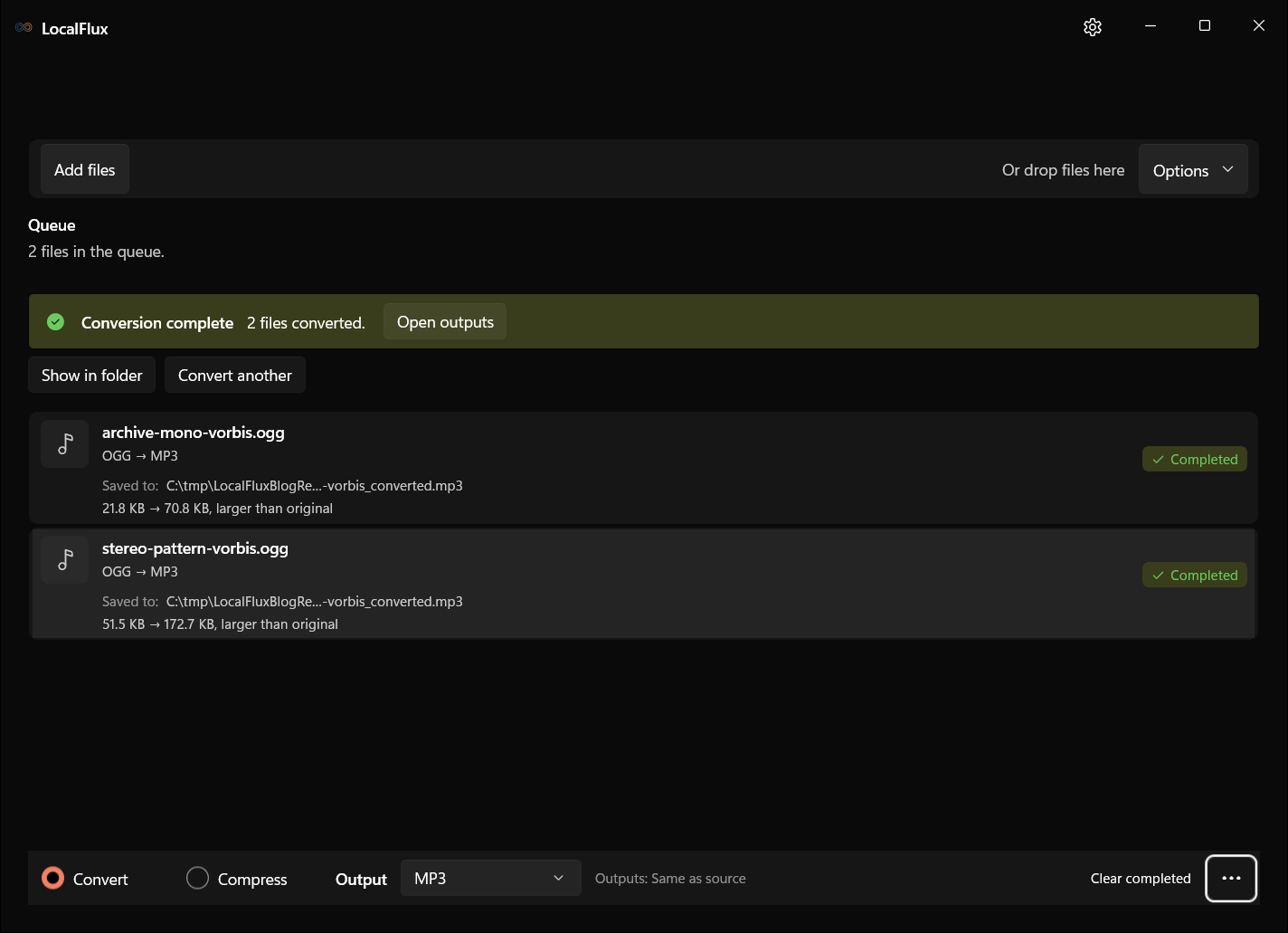
Our 9-second mono source grew from 22,372 bytes to 72,533 bytes. The 11-second stereo source grew from 52,774 bytes to 176,877 bytes. Both results were larger than the original even though their reported MP3 bitrates were lower than the nominal Vorbis bitrate values.
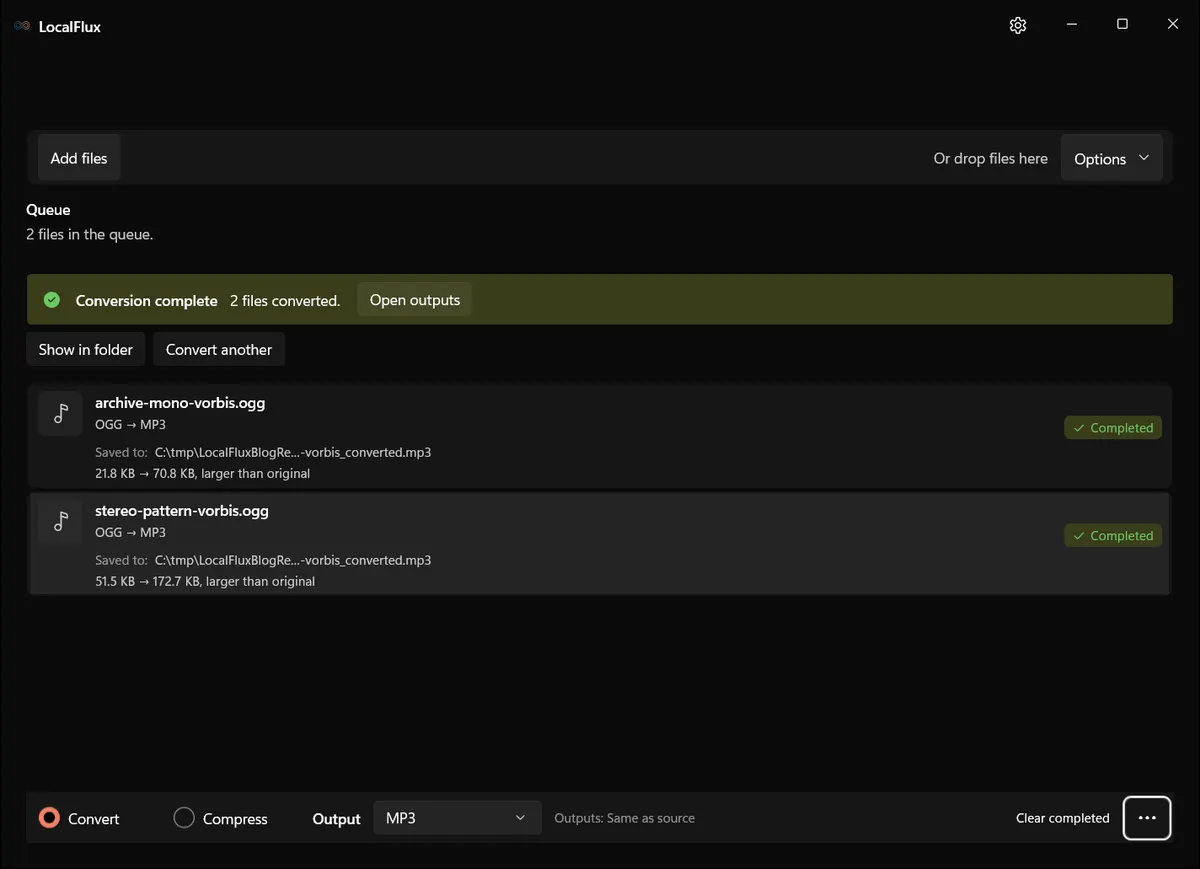
The nominal Vorbis bitrate is a header hint, not a measurement of the actual average. For these synthetic files, total bytes × 8 ÷ duration gives about 20 and 38 kbps for the OGG inputs, versus 64 and 129 kbps for the MP3 outputs, including container overhead. The size increase is therefore consistent with the measured rates. Measure real songs separately; larger files do not establish better sound quality.
5. Verify the output
Open every MP3 in a trusted player and check the beginning, middle, and end. For a batch, verify at least:
- the number of completed outputs equals the number of intended inputs;
- duration is close to the source;
- mono files remain mono and stereo files remain stereo;
- the sample rate is appropriate;
- speech or music is not clipped or silent;
- title, artist, album, track number, and artwork are present if required;
- the actual target device can open the MP3.
Our measured outputs retained the exact 9- and 11-second durations reported by the sources. The 44.1 kHz mono stream remained 44.1 kHz mono; the 48 kHz stereo stream remained 48 kHz stereo.
Metadata deserves its own test. Ogg Vorbis comments and ID3 tags use different conventions, and artwork support differs across tools. The quick outcome said metadata was not changed, but that does not guarantee every nonstandard tag or embedded picture is meaningful in the MP3 ecosystem. Use representative library files before converting thousands of tracks.
Does OGG to MP3 reduce audio quality?
It can. Vorbis and MP3 are both perceptual lossy codecs in the normal use case. The conversion decodes the Vorbis approximation to PCM and asks an MP3 encoder to approximate that waveform again. The MP3 encoder cannot see the original lossless recording, so it may spend bits preserving existing Vorbis artifacts while introducing new decisions of its own.
This is called lossy-to-lossy transcoding. The amount of audible change depends on the source quality, content, encoder, settings, and listening conditions. Speech can tolerate different compromises than cymbals, applause, castanets, or dense electronic textures.
A higher MP3 bitrate may reduce the additional loss introduced by the MP3 stage, but it cannot reconstruct details removed by Vorbis. A 320 kbps MP3 made from a low-quality OGG is still derived from the low-quality OGG.
If quality matters and a WAV, FLAC, AIFF, CD, or original project exists, encode the MP3 directly from that source. Keep the OGG as a delivery asset rather than using it as the new master.
Choosing a practical MP3 setting
Ordinary conversion to MP3 uses the built-in encoder settings. This route has no MP3 bitrate, CBR/VBR, sample-rate or channel-mapping panel. The separate Compress workflow is not an OGG-to-MP3 quality control. If a delivery specification requires exact encoding parameters, use a configurable encoder on the original, then listen to the result in the destination player.
Offline conversion and privacy
An offline converter is valuable for interviews, personal recordings, internal game assets, unreleased music, and large archives because the audio does not need to be sent to a third-party web service for processing. It also avoids upload time and web-tool file-size limits.
Local processing is not a complete security policy. The files still exist on the PC, and outputs can inherit sensitive filenames or tags. Store them in an appropriate folder, review metadata, use device encryption where required, and delete temporary copies according to your organization’s retention rules.
If you enable a metadata-removal or sharing feature, test the result. Removing artist and album fields may be desirable for a private voice memo and disastrous for a music library.
Common OGG to MP3 problems
LocalFlux does not recognize the OGG file
The container may not contain Vorbis, the file may be damaged, or its extension may be wrong. Inspect it with a media-information tool. If it contains Opus, use an Opus-aware route; if it contains video or several streams, extract the intended audio deliberately.
The MP3 is larger than the OGG
A conversion can produce a larger MP3. Compare actual bytes with the delivery limit. If the default result does not fit, keep the original and use an encoder with explicit size or bitrate controls; do not repeatedly re-encode the MP3.
The output sounds quieter
Basic transcoding should not intentionally normalize loudness, but tag-based replay gain, player settings, or metadata differences can change playback level. Compare decoded audio in the same player with enhancements disabled before altering gain.
There is a click or extra silence at an edge
Lossy codecs use frames and encoder delay. Modern containers and players can signal trim information, but old hardware may handle it differently. Test seamless loops and gapless albums on the destination. For game loops, return to the original PCM asset if possible.
Album art or tags disappeared
Vorbis comments do not map perfectly to ID3. Use a tag editor after conversion or a workflow with explicit metadata mapping. Test Unicode, multiple artists, disc numbers, dates, and artwork, not only title and artist.
Windows changes which app opens the file
Conversion creates an MP3 but does not necessarily change file associations. Right-click the output, choose Open with, and select the desired player. Do not rename the extension as a substitute for conversion.
When to keep OGG instead
Keep OGG when the destination supports it, the file already meets quality and size needs, or it is the only available source. Avoiding an unnecessary transcode preserves the existing quality and saves time.
Keep OGG for browser/game pipelines that were authored and tested around Vorbis. Switching format can change loop behavior, decoding load, licensing assumptions, caching, and package size.
If you need both, keep OGG as the source delivery asset and create MP3 compatibility copies in a separate folder. Name the folder or add a README so nobody later treats the MP3s as masters.
For other source formats, see WAV to MP3, FLAC to MP3, M4A to MP3, and WMA to MP3.
Final checklist
- Confirm the
.oggfile contains the audio stream you expect. - Keep a backup and convert to new files.
- Add the complete batch to LocalFlux.
- Confirm every row says
OGG → MP3. - Verify count, duration, channels, sample rate, playback, and tags.
- Test the real car stereo, presentation app, player, or upload service.
- Keep the OGG sources because MP3 is a compatibility copy, not a quality upgrade.
With those checks, OGG → MP3 is a practical offline Windows workflow. The goal is compatibility with controlled additional loss, not a larger file that merely looks better in a properties dialog.
Publication evidence
Technical references
The format guidance above is checked against these independent specifications and platform references.
- RFC 5334: Ogg media types, RFC Editor