
How to Compress Photos for Gmail or Outlook on Windows
Shrink an entire batch of photo attachments offline, budget the total message size, and avoid confusing a per-file target with Gmail or Outlook's message limit.
On this page
- The short version
- Gmail and Outlook limits are message budgets
- Start with the whole attachment batch
- Compress several email photos offline in LocalFlux
- How much headroom should you leave?
- Why this is different from compressing an image to 100 KB
- Common problems
- A repeatable pre-send checklist
- Publication evidence
When an email has several photos, the important number is not the size of the largest photo. It is the size of the whole attachment batch, and, ultimately, the complete message after your mail service adds its own overhead.
That distinction changes the workflow. Compressing each image to 100 KB can be useful for a strict upload form, but it is usually excessive for ordinary email photos. At the other extreme, reducing every photo to “under 5 MB” does not help if you attach six of them and your account accepts only a much smaller total message. The practical approach is to choose a batch budget, divide it across the ready files, leave headroom, and verify the result before opening Gmail or Outlook.
This guide shows that process on Windows with LocalFlux. The files stay on the PC during conversion, originals remain unchanged, and the measured example treats five photos as one email-sized batch.
Interface screenshots were refreshed in October 2026 using a build reconstructed from the documented LocalFlux 1.0.10.0 release source. Historical measurements and downloads below retain their original test scope. Capture records: 1
The short version
For a batch of photos, use this sequence:
- Check the attachment or message limit for the actual Gmail or Outlook account you will use.
- Add every intended photo to LocalFlux at the same time.
- Choose Compress, then either Shrink for email or a custom target size.
- Set a per-photo target that keeps the entire batch comfortably below the provider limit.
- Run the batch, add the output sizes, and leave room for message text, signatures, and transport overhead.
- Attach the compressed copies, not the originals, and confirm the mail client’s final message estimate.
The app uses binary units: its “3 MB” setting is 3,145,728 bytes (3 MiB), so five caps total 15,728,640 bytes (15 MiB). The measured outputs below three million bytes are actual results, not the configured ceiling. Its “5 MB” setting similarly means 5,242,880 bytes. Compare exact bytes with the mail provider’s limit and leave additional room for message encoding.
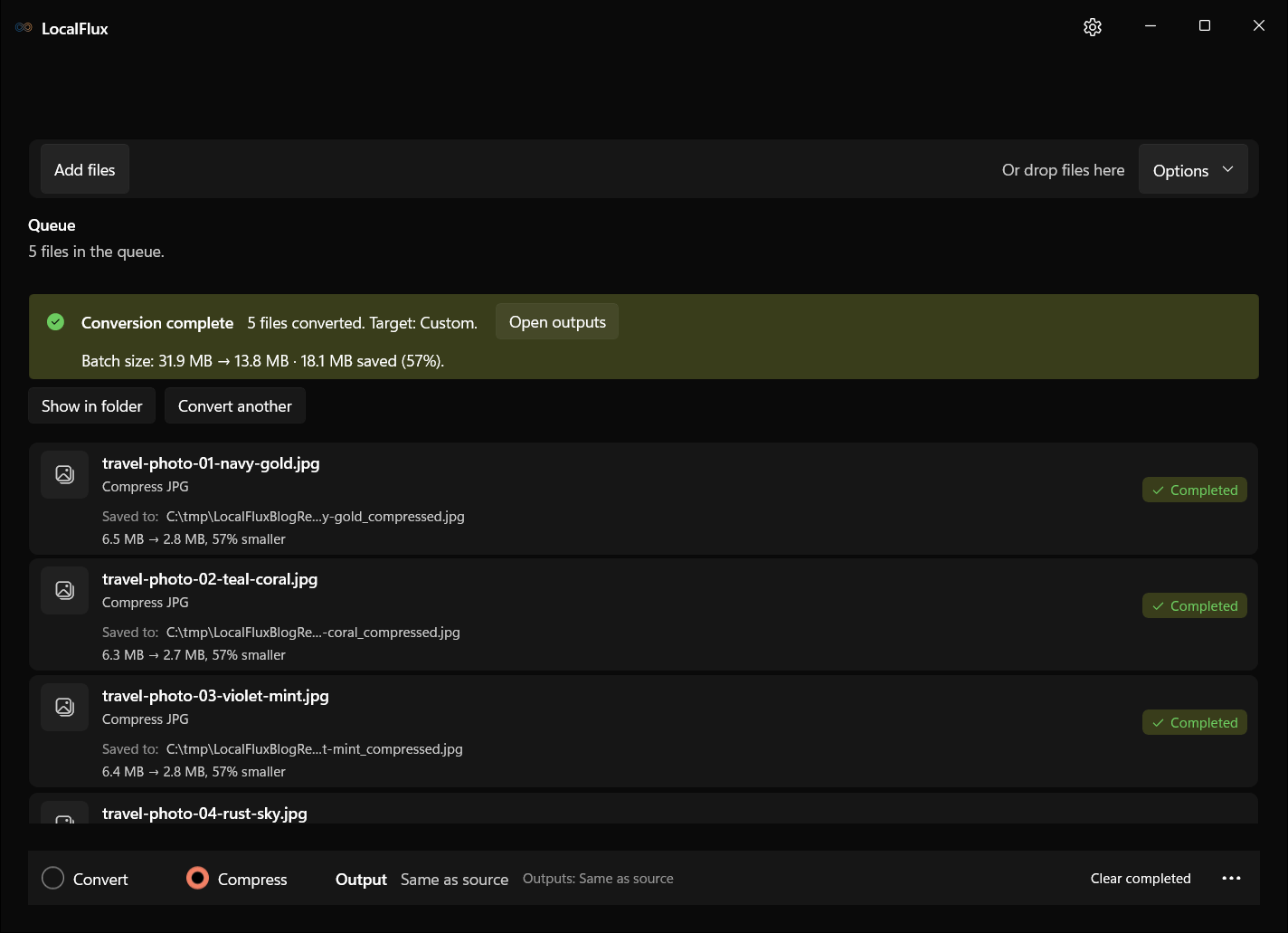
In our controlled test, five 4200 × 2800 JPEG photos totaled 33,442,960 bytes (31.9 MiB as displayed in the app). A custom target of 3 MB per photo gave a theoretical batch ceiling of 15 MiB. The completed output totaled 14,442,758 bytes (13.8 MiB), a 56.81% reduction. Every photo stayed below the observed three-million-byte level.
That result is evidence for the workflow, not a promise that every five-photo batch will shrink by 57%. Compressibility depends on image detail, noise, dimensions, previous editing, and the source encoder.
Gmail and Outlook limits are message budgets
Checked 13 October 2026: Google’s Gmail help gives personal accounts a 25 MB total attachment limit; above that total Gmail uses a Google Drive link. Google Workspace limits can be set by the administrator. These are account limits, not a separate allowance for every image.
Microsoft’s Outlook.com guidance lists a 25 MB file-attachment limit. Other accounts connected to Outlook can have different policies. Microsoft’s general Outlook guidance gives 20 MB Internet-account and 10 MB Exchange examples for the complete email; check your actual account and recipient limits.
A concrete calculation shows why headroom matters: five 3 MiB caps become 21,523,410 bytes when encoded as base64 with CRLF line breaks every 76 characters. The measured batch becomes 19,763,784 bytes, before MIME headers, message text or signatures. That leaves very little room under a decimal 20 MB message limit; use a lower target there. This is a calculation using MIME’s base64 rules, not a successful-send test.
Start with the whole attachment batch
Before changing any photo, make a folder containing only the images you intend to send. In File Explorer, select them all, right-click, and open Properties. Record the combined size and the number of files.
Then estimate a safe attachment budget. A simple planning formula is:
raw per-file ceiling = raw attachment budget ÷ number of photos
Suppose you want the raw attachments to stay near 15 MiB and you have five photos. A 3 MB per-file target is easy to explain and gives a 15 MiB maximum if every output lands exactly at its cap. With eight photos and the same batch budget, use something closer to 1.8 MB per image, or reduce the number of attachments.
The formula defines a ceiling, not a quality recommendation. The JPEG search tries at most 16 candidates and can reduce dimensions. A fitting candidate from those trials is not a globally optimal or perceptually scored result; inspect the outputs yourself.
Compress several email photos offline in LocalFlux
1. Add all the photos together
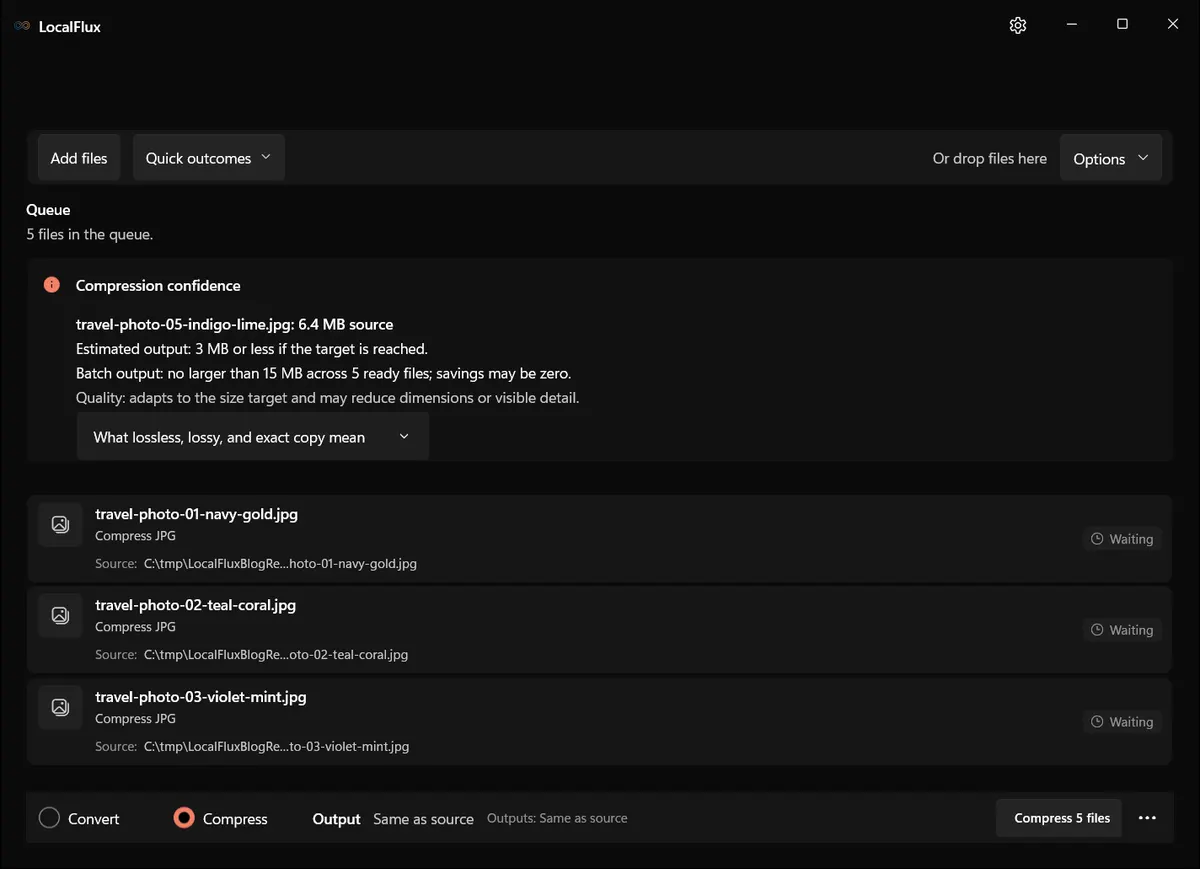
Open LocalFlux, choose Compress, and add the complete batch. The queue shows the file count and estimated maximum output; the source size in the confidence panel describes the selected file. Use Explorer Properties to total the original files.
The five test files are synthetic colored textures, despite their travel-photo filenames. Each is 4200 × 2800 pixels; the sources total 33,442,960 bytes. They test byte budgets, not the appearance of travel scenes, faces or text.
2. Decide between the email preset and a custom cap
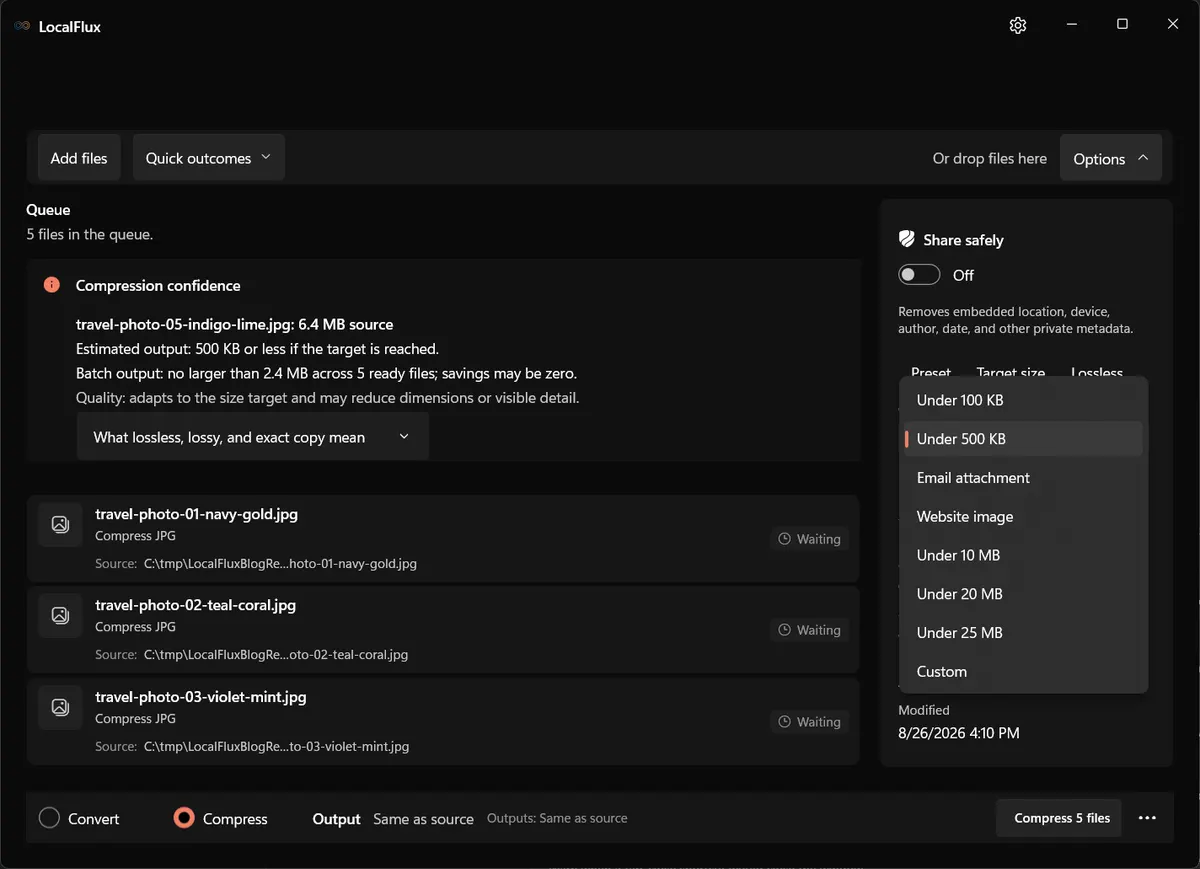
The Shrink for email quick outcome keeps the source format in Compress mode and targets 5 MiB per file. It can reduce dimensions when needed. Choose a lower custom cap when the batch requires it.
The email preset’s “5 MB” cap applies to each file and equals 5 MiB. Five caps total 25 MiB (26,214,400 bytes), already above a decimal 25 MB allowance before message overhead. Treat the preset as a starting point, then lower the per-file cap to fit the actual batch and account.
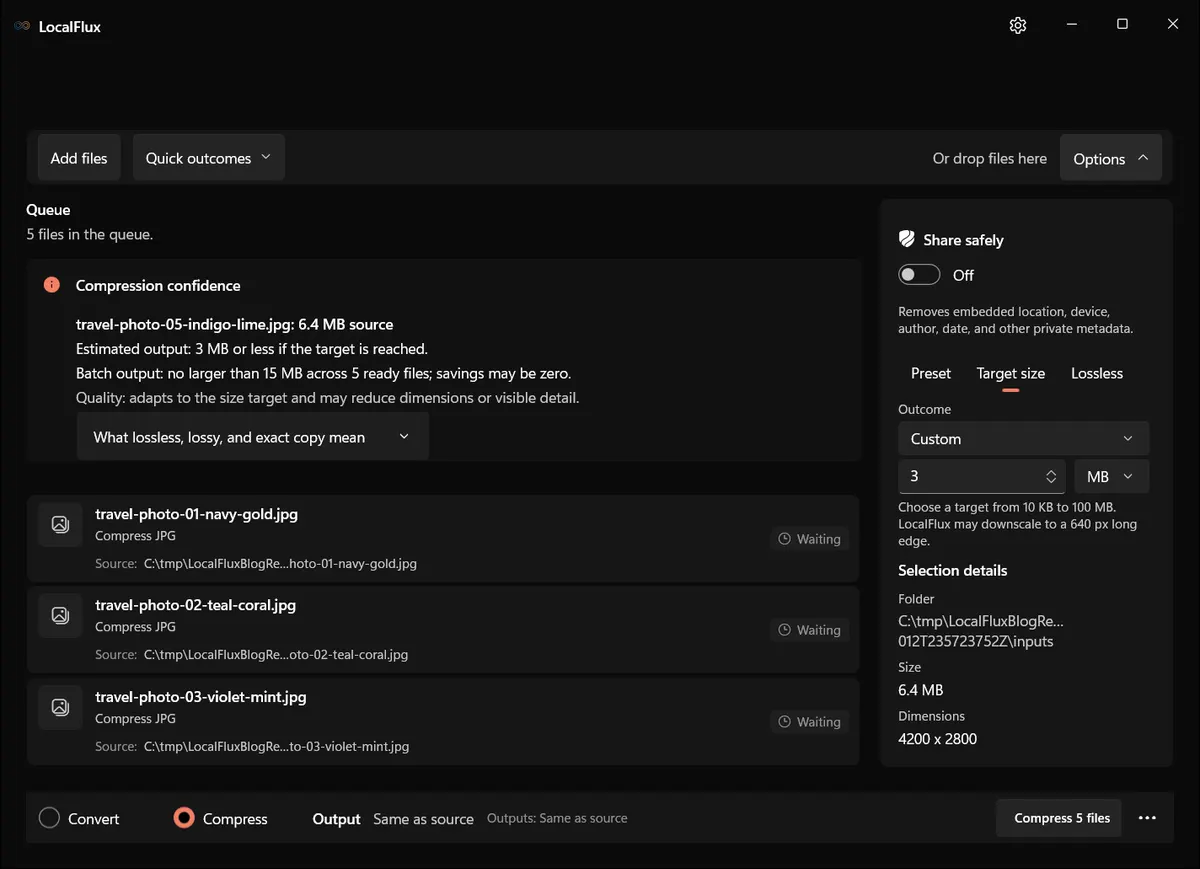
Open Options, choose Target size, select Custom, and set 3 MB for this example. The menu screenshot shows the available choices before Custom is selected.
3. Read the batch estimate before starting
With five ready files and 3 MB per file, the app shows: “Batch output: no larger than 15 MB across 5 ready files; savings may be zero.” Lower the cap or remove files if that maximum exceeds your raw attachment budget.
Compress mode keeps the original format, displayed as Same as source. To change format, use Convert mode. Keep screenshots and transparent graphics separate from ordinary JPEG photos; JPG cannot retain transparency.
4. Run the queue
Choose Compress 5 files. Target-size compression may make several encoding attempts per photo to find a result below the cap. Large, detailed images take longer than simple graphics. LocalFlux processes the files locally and writes new copies, so the source photos remain available if you want a different target later.
5. Verify the completed batch
Do not stop at a green completion banner. Check three things:
- Every queue item says Completed.
- Each output is below the planned per-file cap.
- The combined output total is comfortably below your raw attachment budget.
Our five outputs ranged from 2,835,960 to 2,933,614 bytes. Together they used 14,442,758 bytes. LocalFlux summarized the run as 31.9 MB → 13.8 MB, with 18.1 MB saved.
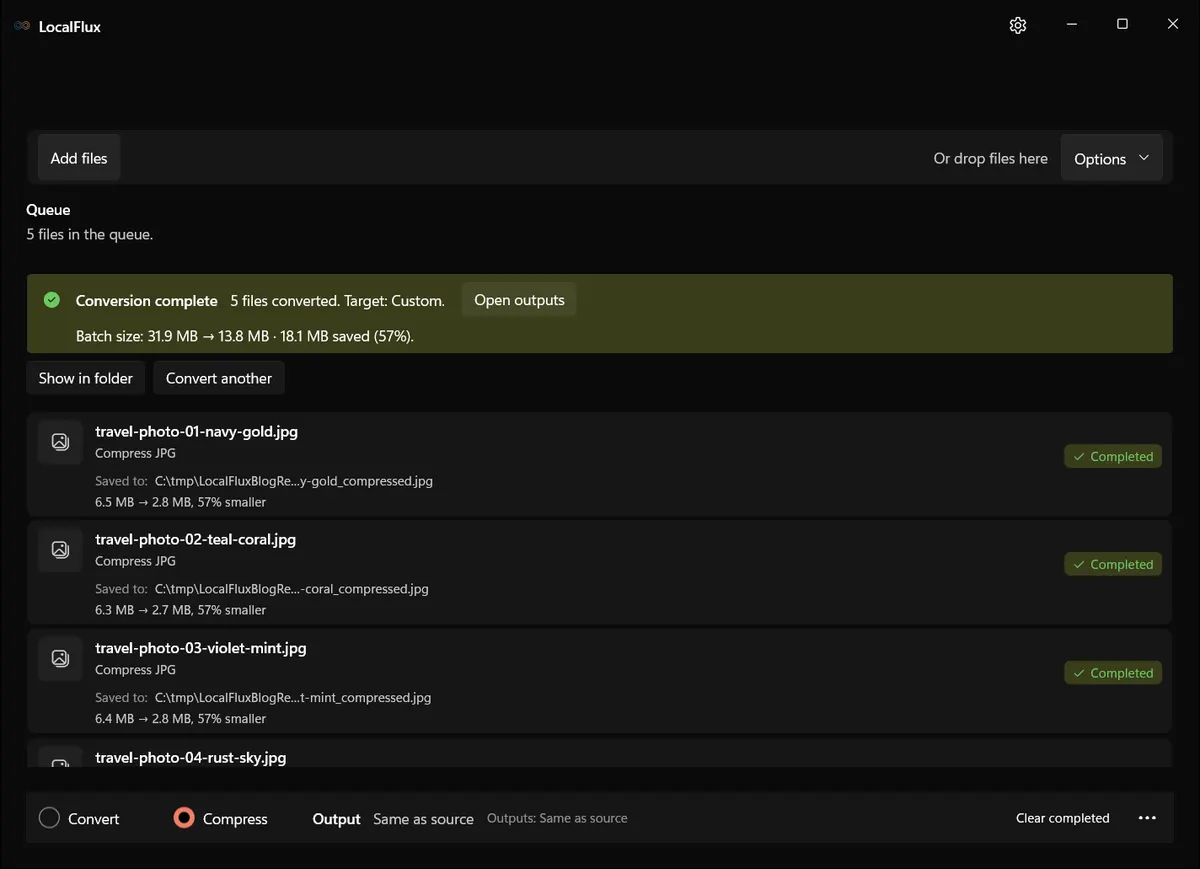
The dimensions remained 4200 × 2800 because the encoder met the target without resizing. That is not guaranteed. For a smaller target or a harder-to-compress photo, LocalFlux may reduce dimensions to get under the limit. Read the output details if full resolution is important.
How much headroom should you leave?
Leave room for encoding and message content. Some mail clients do not display the final encoded size; if yours does not, use a conservative smaller budget and the account policy. For original-quality delivery, use a sharing service approved for those files and check recipient access.
Why this is different from compressing an image to 100 KB
A 100 KB target solves a different problem. Government forms, profile-image fields, and legacy upload portals often enforce a strict limit on each individual image. For those workflows, our compress an image to 100 KB on Windows guide is the right starting point.
Email is normally a batch-and-message problem. Reducing five 6 MB photos to 100 KB each would make the attachment total tiny, but it could discard far more detail than necessary. A 2–3 MB target often preserves substantially more quality while keeping a modest group of photos manageable. The correct value comes from the number of files and the message budget, not from a universal SEO-friendly number.
For a general multi-file workflow that is not specific to email, see how to batch-compress images on Windows.
Common problems
The attachments are still rejected
First confirm that you attached the compressed copies. Then check the final message size, not just the Explorer total. Remove large inline signature images, shorten the batch, or lower the target. If this is a work or school account, ask the administrator for the organization’s send and receive limits. The recipient’s server can also impose a smaller limit than yours.
One photo looks softer than the rest
Target-size compression gives a complex photo the same byte ceiling as a simple one. A crowded landscape or high-ISO image may need more data. Remove that photo from the equal-cap batch, give it a larger individual target, and compensate by making simpler images smaller, or share the originals by link.
The output did not get much smaller
The source may already be efficiently compressed. Re-encoding a previously optimized JPEG can produce only a modest reduction or visible generation loss. Resizing dimensions is often more effective than repeatedly lowering JPEG quality, especially when recipients will view the photo on a phone or in an email pane.
Outlook says the limit is different
Believe the account-specific error and policy, not a generic web number. Outlook can connect to many back ends. Microsoft’s documentation is helpful context, but the configured server decides what your account can send.
Should I make a ZIP file?
ZIP is useful for organizing many files, but JPEG photos are already compressed and often shrink very little inside a ZIP archive. It also adds an extraction step and can trigger security policies. Compressing or resizing the images themselves is usually more effective for email.
A repeatable pre-send checklist
Before clicking Send:
- Confirm the account’s current message or attachment limit.
- Count every attachment, including PDFs or documents added later.
- Add the intended photo batch to LocalFlux together.
- Choose a per-file target from the total batch budget.
- Leave meaningful headroom; do not aim at the exact provider ceiling.
- Verify every output and the combined output size.
- Open a few compressed photos at 100% zoom, especially faces and text.
- Attach the new copies and inspect the mail client’s final size.
- Keep the originals until the recipient confirms the message arrived and the files are usable.
The core idea is simple: compress for the message you are actually sending. Once you treat five photos as one attachment budget, Gmail and Outlook limits become much easier to plan around, and you avoid throwing away quality just to hit an unnecessarily tiny per-image number.
Publication evidence
October 2026 recheck: all 50 outputs reproduced the historical bytes and dimensions. The old measurements.csv target_bytes column incorrectly records decimal 3,000,000 per file and 15,000,000 total; the actual configured caps were 3,145,728 and 15,728,640 bytes. Historical files remain unchanged; output measurements are still correct. 2026-10
Technical references
The format guidance above is checked against these independent specifications and platform references.