
How to Convert BMP to JPG on Windows Offline
Convert large BMP images to smaller JPG files locally on Windows, batch several files, verify quality, and know when PNG is the better output.
On this page
- Why BMP files get so large
- When JPG is the right output
- The short workflow
- Convert BMP to JPG offline with LocalFlux
- Understanding JPG quality
- Transparency and BMP edge cases
- File size: what our test does and does not prove
- Metadata, color, and orientation
- Common problems
- BMP to JPG versus other conversion routes
- Final checklist
- Publication evidence
BMP files are easy for Windows software to read, but they can be enormous. A single uncompressed 3200 × 2200 bitmap can occupy tens of megabytes even when the picture would fit in a much smaller JPG. Converting BMP to JPG is useful for photographs, scanned reference images, email attachments, and applications that expect the familiar .jpg extension.
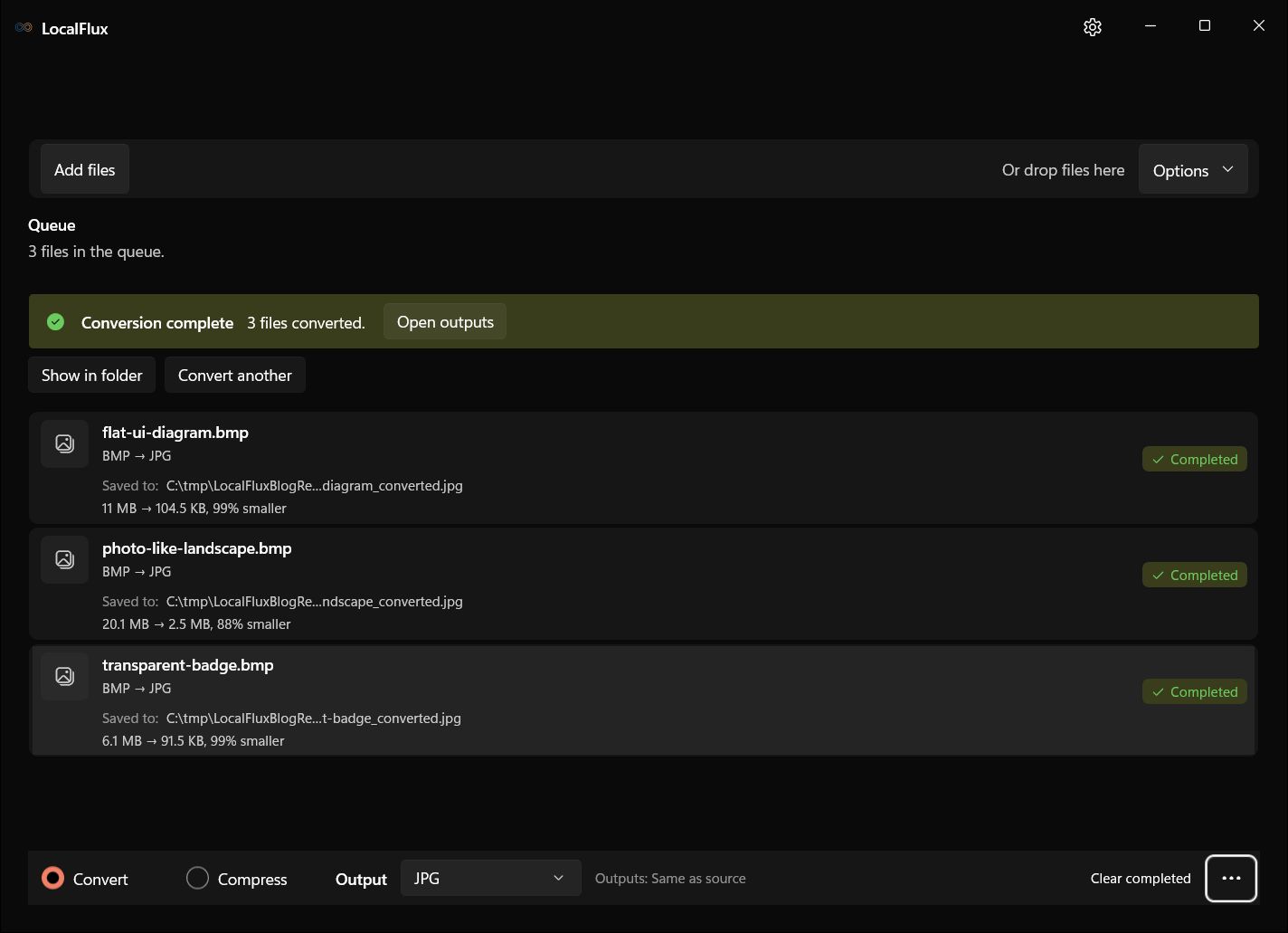
You can do the conversion locally on Windows with LocalFlux. The app writes new JPG copies, leaves the BMP originals unchanged, and can process a whole batch in one queue. In our three-file test, 39,040,246 bytes of BMP data became 2,829,453 bytes of JPG data, a 92.75% reduction, while retaining the source pixel dimensions.
That reduction is not free. JPG is lossy and does not support transparency. For diagrams, screenshots, pixel art, sharp text, or a transparent background, PNG or WebP may be the better destination.
Why BMP files get so large
BMP is a family of Windows bitmap representations. Many BMP files store rows of pixel values directly with little or no compression. File size is therefore driven by width, height, bit depth, row padding, palettes, masks, and headers rather than by how visually simple the image appears.
A flat blue background can occupy nearly as much BMP space as a detailed photograph at the same dimensions and bit depth. That differs from JPG, which transforms and quantizes image information so smooth regions and patterns can be represented with far fewer bytes.
This makes BMP predictable and easy to process in legacy workflows, but inefficient for sharing. It also explains why a dramatic percentage reduction is possible when the content is suitable for JPEG.
When JPG is the right output
Choose JPG for:
- photographs and photo-like renders;
- opaque scans where small files matter more than exact pixels;
- email, presentation, or web workflows that reject BMP;
- broad compatibility with older viewers and devices;
- batches where a modest amount of lossy compression is acceptable.
Choose PNG instead for:
- screenshots and interface diagrams with sharp text;
- logos, line art, charts, and pixel art;
- images that need a transparent background;
- archival or editing stages where repeated lossy saves would be harmful;
- cases where exact pixel values matter.
WebP can be another good choice when the destination supports it and you want efficient photo compression or alpha transparency. The correct format comes from the content and receiver, not merely from which output is smallest in one test.
The short workflow
- Open LocalFlux and select Convert.
- Add the BMP file or select several BMP files together.
- Confirm the queue shows
BMP → JPGfor each item. - Keep JPG selected and choose an output folder.
- Start the queue.
- Open the JPG copies and inspect detail, text, colors, dimensions, and any former transparent areas.
- Keep the BMP originals until the converted files pass their destination test.
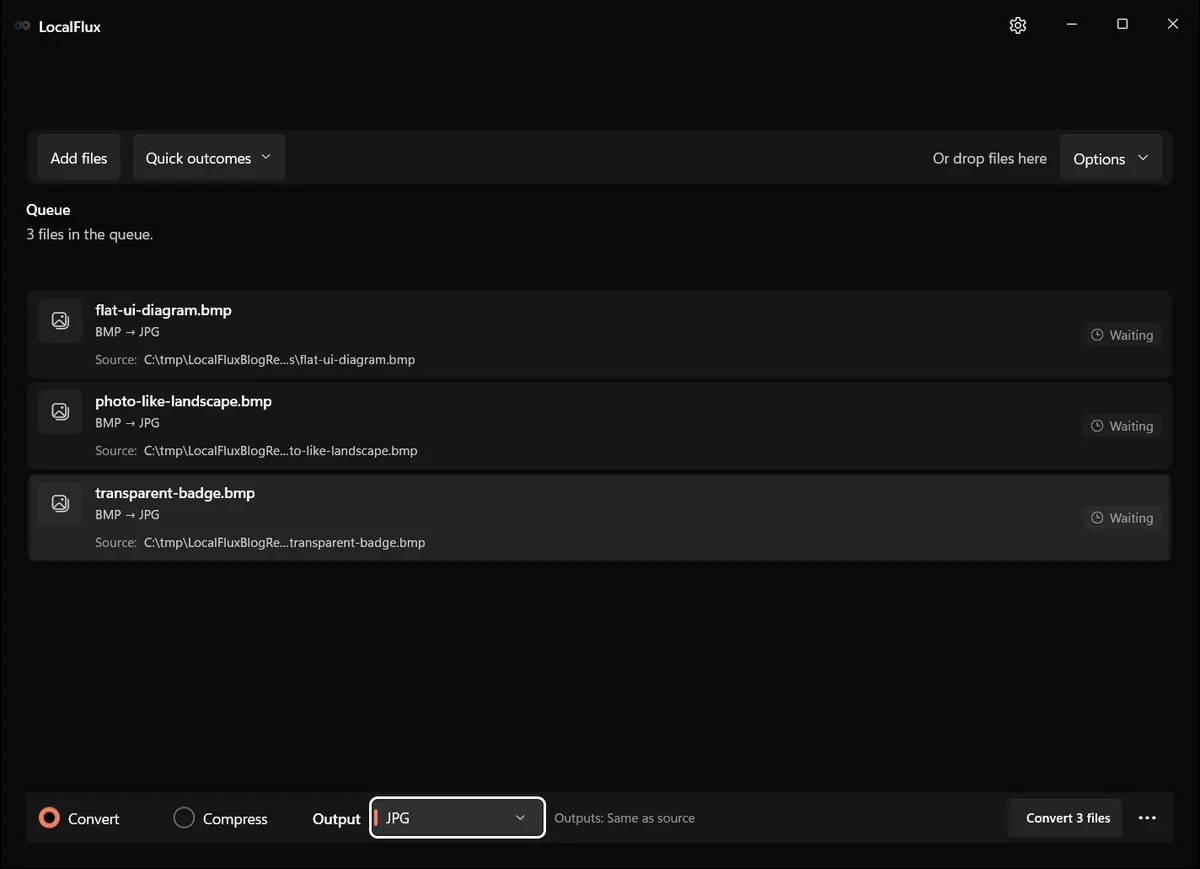
Interface screenshots were refreshed in October 2026 using a build reconstructed from the documented LocalFlux 1.0.10.0 release source. Historical measurements and downloads below retain their original test scope. Capture records: 1
Convert BMP to JPG offline with LocalFlux
1. Prepare the BMP files
Put the images for this job in a dedicated folder. If they are the only copies, back them up. Conversion should be reversible by returning to an original, not by repeatedly re-encoding a JPG.
Before starting, check the dimensions and combined size in File Explorer. That gives you a baseline and catches accidental selections. In our controlled batch:
flat-ui-diagram.bmpwas 2400 × 1600 and 11,520,054 bytes;photo-like-landscape.bmpwas 3200 × 2200 and 21,120,054 bytes;transparent-badge.bmpwas 1600 × 1000 and 6,400,138 bytes.
These are synthetic fixtures, not camera photographs. Rechecking the retained files on 13 October 2026 confirmed the byte counts and dimensions. Despite its name, transparent-badge.bmp is fully opaque: all 1,600,000 alpha samples are 255. This batch does not test transparent-edge compositing. The reconstructed 1.0.10.0 runs in all ten languages reproduced the historical JPG hashes.
2. Add one file or the complete batch
Open LocalFlux, choose Convert, and browse to the files. You can add them together. The queue should identify each source as BMP and propose JPG.
Batching verifies counts and applies one output choice, but different images can need different compression. A photograph and a flat diagram can react very differently to the same encoder defaults. Use a representative test before converting a large archive.
3. Select JPG and the destination
JPG was selected automatically for our BMP inputs. If another output is active, open the format menu and choose JPG.
Keeping Same as source creates output beside the BMP with a distinct suffix. A separate output directory is often cleaner for hundreds of files and makes it easier to compare the input and output counts.
Review any available advanced quality, resize, and metadata controls. Higher JPEG quality usually means a larger file and fewer visible artifacts. Lower quality saves more space but can produce blocking, ringing around text, and smeared texture. If you do not need the original dimensions, reducing width and height may create a more useful size reduction than pushing quality extremely low.
4. Run the conversion
Choose the conversion button showing your batch count. LocalFlux processes the files on the PC. After completion, use each row’s output-opening and folder actions to locate the JPG and inspect its properties.
All three of our conversions completed:
- flat diagram: 11,520,054 → 106,985 bytes, 99.07% smaller;
- photo-like landscape: 21,120,054 → 2,628,822 bytes, 87.55% smaller;
- badge edge case: 6,400,138 → 93,646 bytes, 98.54% smaller.
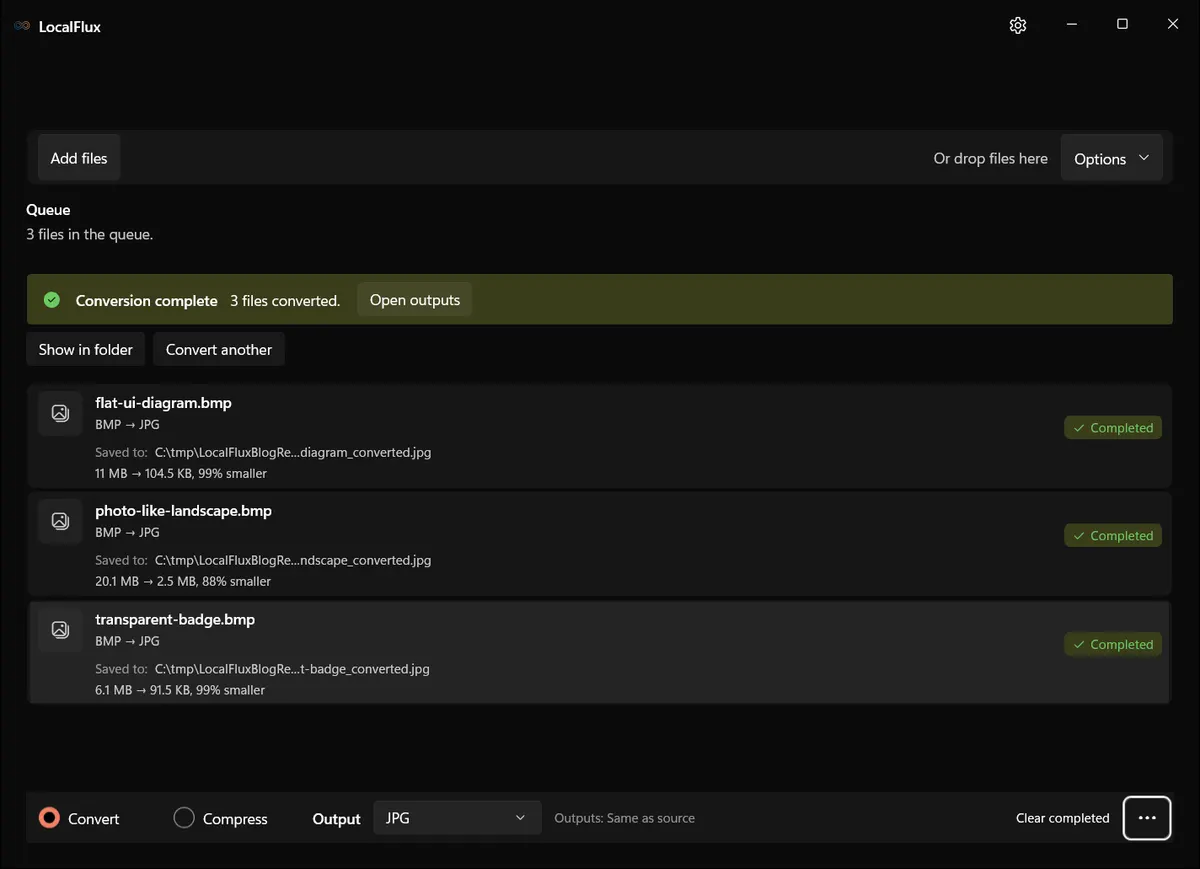
The photo-like image remained much larger than the flat fixtures because complex texture and noise are harder to compress. This illustrates why a percentage from one BMP should never be promised for another.
5. Verify the JPG copies
Open each output and compare it with the BMP at the same zoom. Inspect:
- faces, hair, foliage, fabric, and fine texture;
- text, one-pixel lines, and high-contrast edges;
- smooth gradients for banding;
- saturated colors for shifts or bleeding;
- image width and height;
- rotation and color profile behavior;
- background areas that may have been transparent or masked;
- metadata required by the destination.
Our JPGs retained 2400 × 1600, 3200 × 2200, and 1600 × 1000 dimensions. The JPG format itself has no alpha channel. The badge output was opaque, as expected for JPEG.
Do not evaluate only from a fit-to-window preview. Compression artifacts often disappear when a large image is reduced on screen. Zoom to 100% for technical inspection, then also judge the image at its actual delivery size.
Understanding JPG quality
JPEG quality controls are encoder-specific. “Quality 82” in one tool is not guaranteed to match quality 82 in another. It is not a percentage of original information retained, and 100 is generally not mathematically lossless.
If an output is too soft, raise quality or use PNG. If it is larger than necessary, reduce dimensions to the actual display requirement before lowering quality aggressively.
Transparency and BMP edge cases
Standard JPEG cannot store alpha. For a predictable background, flatten a copy in an image editor before conversion. Do not assume the converter composites transparent pixels onto your intended color: simply removing alpha can expose the stored color values.
BMP adds complexity because not all 32-bit BMP files use the fourth byte the same way. Some treat it as alpha; some reserve it; some rely on channel masks; and older software may ignore it. A file that looks transparent in one app can appear black or opaque in another.
Before converting a suspected transparent BMP:
- Open it in an editor that explicitly shows a checkerboard.
- Place a bright layer behind it to confirm real transparency.
- Choose PNG or WebP if alpha must survive.
- If JPG is required, choose the final matte color deliberately.
- Inspect soft edges after flattening.
For a deeper diagnostic, see how to preserve transparent backgrounds when converting images. For an ordinary opaque PNG route, see PNG to JPG on Windows.
File size: what our test does and does not prove
The measured batch fell from about 39.0 MB in decimal bytes to 2.83 MB. The flat diagram and badge shrank by more than 98%, while the photo-like fixture shrank by 87.55%.
These results demonstrate the structural difference between large bitmap storage and JPEG compression. They do not guarantee that your BMP will shrink by the same amount or look acceptable at the default setting.
A BMP may already use run-length compression. A highly detailed or noisy image may need a large JPEG to avoid artifacts. A tiny indexed BMP can even be competitive with or smaller than a high-quality JPG. Headers and metadata also matter more for very small images.
Measure the complete output and inspect quality. The smallest file is not automatically the best result.
Metadata, color, and orientation
BMP metadata support is limited and inconsistent compared with formats commonly used by cameras. Conversion may not carry every application-specific field. If filenames, timestamps, color profiles, resolution metadata, or authorship fields matter, test them explicitly.
Color appearance can change when an application ignores an embedded profile or converts to sRGB. Compare in a color-managed viewer when brand colors or print output matter.
Orientation is another practical concern. A BMP normally stores pixels in a defined row order and is less likely than a camera JPEG to rely on EXIF orientation, but files produced by specialized software may behave differently. The output should be visually upright without depending on a tag that the destination ignores.
Common problems
The JPG looks blurry around text
JPEG is a poor match for sharp, high-contrast text. Raise quality, avoid chroma-heavy colored text, or choose PNG. If the image is a document, exporting the original document to PDF may be better than converting a screenshot.
The background became black or white
The BMP may contain alpha or a viewer-specific mask, while JPG cannot. Return to the BMP and flatten it against the intended background, or convert to PNG/WebP instead.
The JPG is still too large
Check dimensions. A 6000-pixel image remains large even with efficient JPEG compression. Resize a copy to the actual viewing or upload requirement, then choose a reasonable quality. Avoid repeated JPG-to-JPG saves.
The converted colors look different
Compare both files in the same color-managed application. Check embedded profiles, bit depth, and any wide-gamut source. If accurate color is critical, use a controlled workflow and a destination format that preserves the required profile.
LocalFlux reports an unsupported file
The extension may be wrong, the BMP header may use an uncommon variant, or the file may be damaged. Open it in the producing application and export a standard BMP, PNG, or TIFF. Do not simply rename the extension.
A batch has one failed item
Do not assume the other outputs cover it. Compare input and completion counts, isolate the failed BMP, and inspect its header/preview. Keep batch logs or the LocalFlux completion screen for important migrations.
BMP to JPG versus other conversion routes
If the source is a scan with pages or high bit depth, TIFF to JPG on Windows may be the relevant workflow. If it is a camera raw file, use RAW to JPEG on Windows and make deliberate choices about exposure, white balance, and color processing. If the source is already PNG, PNG to JPG explains the transparency tradeoff directly.
The common principle is to choose a delivery copy without destroying the best available source. BMP may be bulky, but it can be the cleanest version you have. Preserve it until the JPG is proven fit for use.
Final checklist
- Confirm JPG is suitable for the image content.
- Use PNG/WebP for transparency or crisp interface graphics.
- Check pixel dimensions, detail, text edges, gradients, colors, and backgrounds.
- Test the JPG in the actual email, website, player, or legacy application.
- Keep the originals to avoid cumulative JPEG generation loss.
Publication evidence
Technical references
The format guidance above is checked against these independent specifications and platform references.