
Compress a Video for Discord on Windows Without Uploading It
On this page
- Quick start: make a video small enough for Discord
- What is Discord’s video file-size limit?
- Before you start: choose a useful sharing copy
- Step 1: add your video in Compress mode
- Step 2: choose a target with room below the limit
- Step 3: compress locally and inspect the finished copy
- Measured example: 34.7 MB to 13.7 MB
- What to do if the video is still too large
- Frequently asked questions
- Prepare the clip once, then share the right file
You can compress a video for Discord on your Windows PC before uploading anything. Open the video in LocalFlux, choose Compress, set a target below the limit shown in Discord, and check the smaller copy. Your source stays on your computer throughout compression.
For a 20 MB attachment limit, a practical starting point is an 18 MB custom target. This leaves room below the ceiling and avoids relying on a rounded size label. It is a working margin, not a special Discord requirement or a guarantee about every video.
This guide uses a real local compression run and screenshots of the app. “Without uploading” means without uploading to a converter. Sending the finished clip in a Discord chat still uploads that copy to Discord.
Get LocalFlux from the Microsoft Store
Quick start: make a video small enough for Discord
- Check the attachment limit available to your Discord account and destination.
- Open LocalFlux, select Compress, and use Add files to add your MP4.
- Open Options, select Target size, and choose Custom.
- Select MB, enter 18 for a 20 MB limit, and leave the field to apply it.
- Compress 1 file.
- Check the output’s actual size, play the clip with sound, and share the output rather than the original.
If your version or selected format does not offer video targets, use an enabled compression preset and measure the result. Do not follow an image-only target-size tutorial for a video route that lacks that control.
What is Discord’s video file-size limit?
Checked 13 October 2026: Discord’s official attachment FAQ lists 20 MB for non-Nitro accounts, 50 MB for Nitro Basic, and up to 1 GB for Nitro. It also notes that upload-limit experiments may affect some users. Check your actual account and destination before choosing a target. Discord’s File Attachments FAQ. Discord checks size before its own compression, so prepare a file that already fits.
Older articles and search results mention 8 MB, 10 MB, 25 MB, or a different Nitro allowance. Those numbers reflect different periods or contexts; they are not a reliable substitute for the current limit in your client. This workflow works with other ceilings too: choose a smaller target and verify the output.
| Limit shown in Discord | Sensible first target | What to check |
|---|---|---|
| 20 MB | 18 MB | Output bytes and picture quality |
| 50 MB | 45 MB | Whether compression is necessary at all |
| A lower or custom limit | A target comfortably below it | Supported target range and readable content |
LocalFlux’s tested custom control accepts targets between 10 KB and 100 MB. That range is an app setting, not Discord’s allowance. You do not have to target a whole gigabyte just because your account permits it. Smaller files can be easier for people to download and view.
Why not set the target to exactly 20 MB?
Windows, applications, and services do not always display megabytes identically. LocalFlux’s target uses 1,048,576 bytes per MB; decimal MB uses 1,000,000. An 18 MB LocalFlux target is 18,874,368 bytes, below either interpretation of a 20 MB ceiling. The app’s rounded display is convenient, but exact bytes are the better final check.
Before you start: choose a useful sharing copy
Keep the original recording. Compression usually discards information, and a small chat attachment should not become your only master copy. Choose a separate output and verify the destination before starting.
For this walkthrough, use an ordinary MP4 with H.264 video and AAC audio. Discord lists MP4 among its supported attachment types, but the filename extension alone does not describe the video inside it. If you start with a container or codec that causes playback trouble, address compatibility separately using the video conversion and compression guide.
Use footage you are permitted to share. Local conversion avoids sending the source to a converter website, but it does not remove faces, messages, account names, or anything else visible in the recording. Check the content as well as the file properties.
Step 1: add your video in Compress mode
Open LocalFlux and choose Compress on the initial screen. Select Add files, or drag your video into the window. After intake, check the filename and source size in the queue. Settings apply to the ready queue. Use separate batches for different targets; selecting a row does not give that file its own settings.
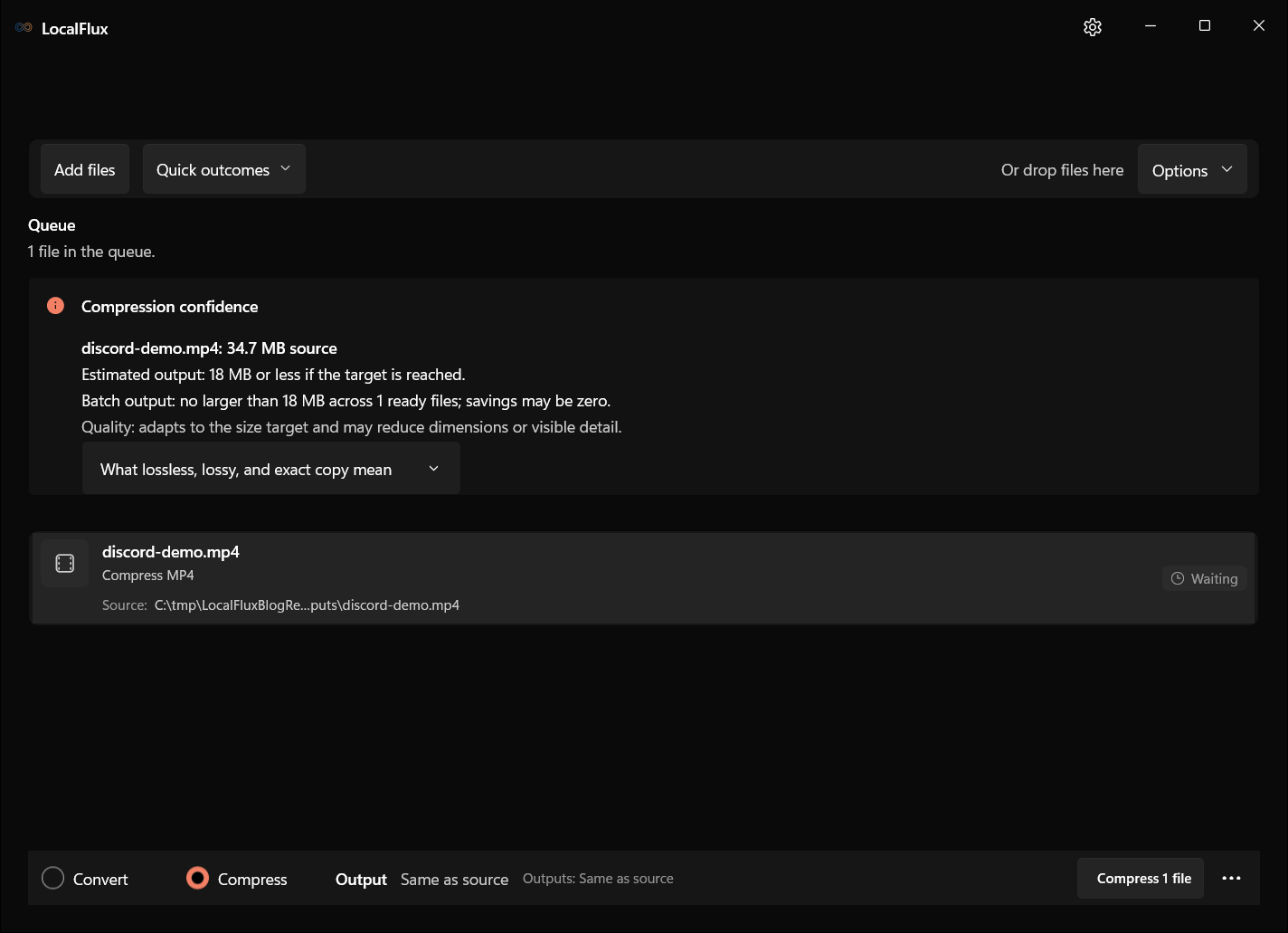
Interface screenshots were refreshed in October 2026 using a build reconstructed from the documented LocalFlux 1.0.10.0 release source. Historical measurements and downloads below retain their original test scope. Capture records: 1
The app may say that it cannot estimate the output without encoding. That is useful information: the source size alone cannot predict how much a video will shrink. Motion, detail, codec, duration, and previous compression all affect the result.
Our demonstration uses a synthetic 24-second, 1920 × 1080 clip with H.264 video at 30 frames per second and AAC audio. It contains no personal footage. Its deliberately high source bitrate makes it suitable for demonstrating compression; a previously optimized phone clip may behave differently.
Step 2: choose a target with room below the limit
Open Options if the settings panel is closed. Select Target size, then open the Outcome menu. The tested app offers several named targets and Custom. These are general output choices; the app does not need a dedicated Discord button.
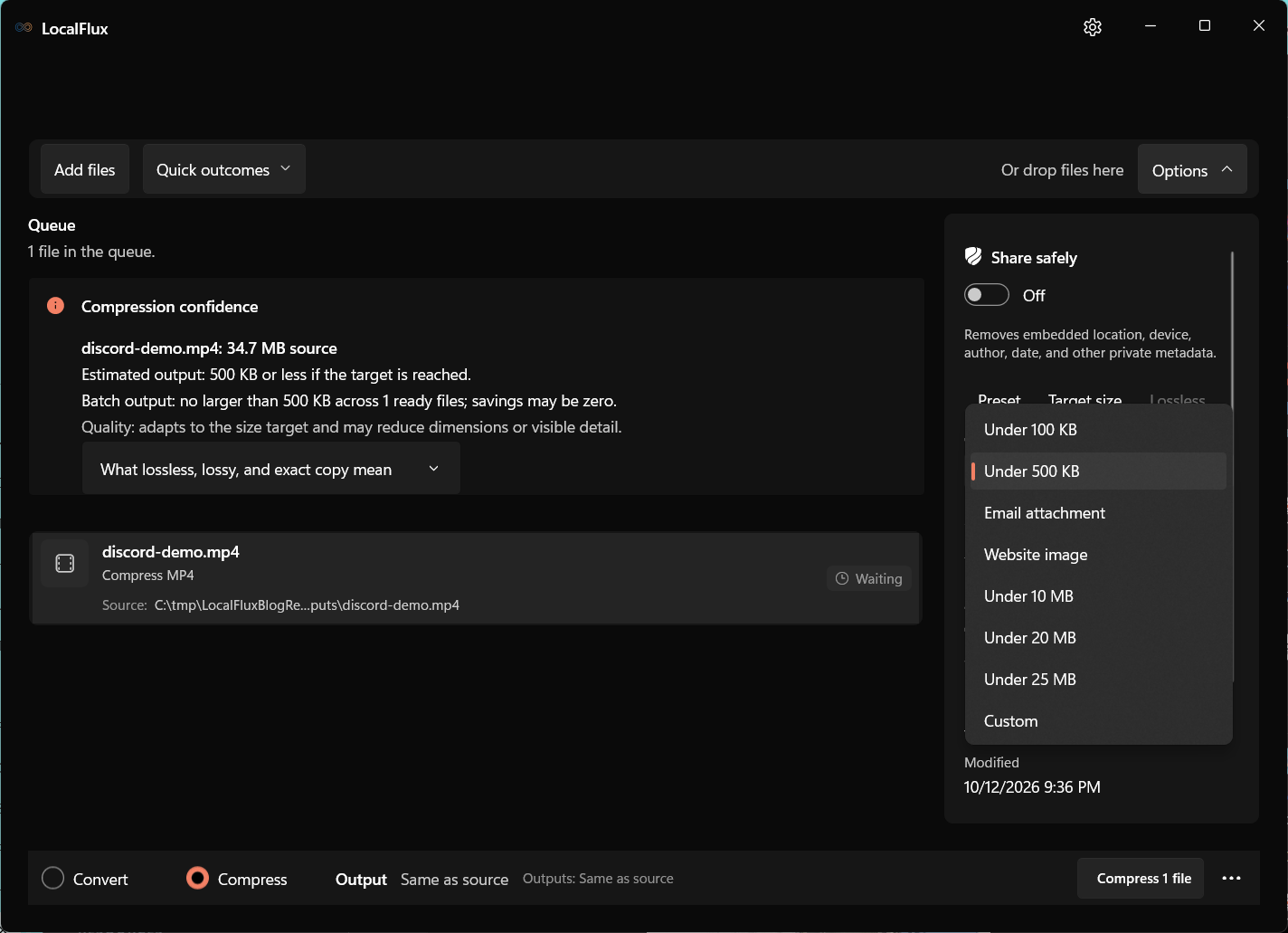
Choose Custom, select MB, enter 18, and move focus out of the field. Check that the compression information now reflects an 18 MB target. Selecting the unit first avoids confusing 18 KB with 18 MB.
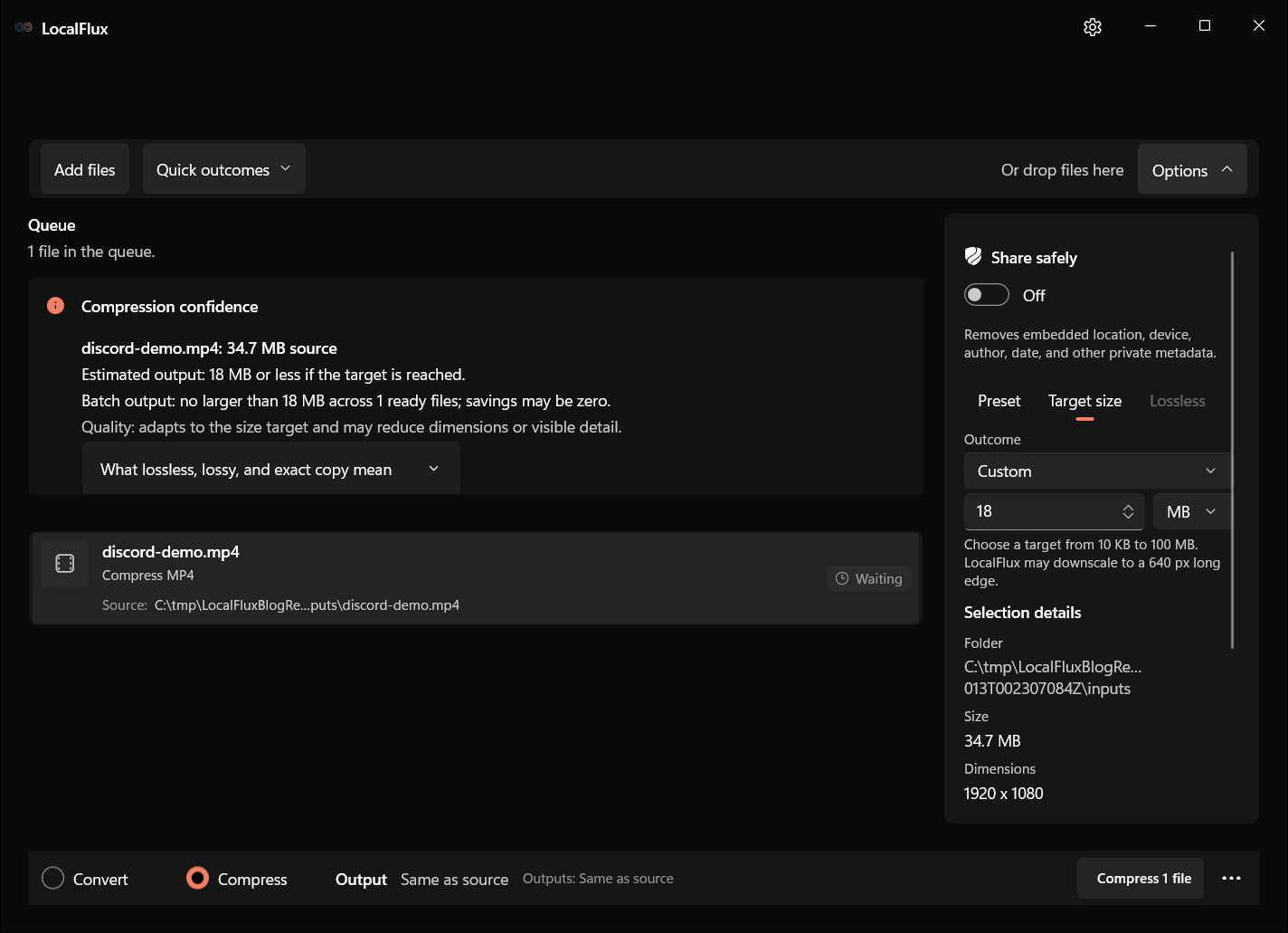
The target is a ceiling to attempt, not a promise that the output will be exactly that size. A successful file may be substantially smaller. The UI also warns that target-based compression can reduce dimensions or visible detail. If retaining tiny text or a specific resolution is essential, review the output before accepting it.
Preset is useful when your priority is a quality preference rather than a fixed attachment limit. Start with Balanced and inspect the result, or choose a smaller-output preset when needed. Do not assume a preset name guarantees a particular byte count. For the broader preset workflow, see compressing a large video on Windows.
Step 3: compress locally and inspect the finished copy
Check the destination, then choose Compress 1 file. Wait for the completion result rather than assuming an output is ready because a file has appeared in the destination folder. Target-size processing may perform additional work to find a suitable result.
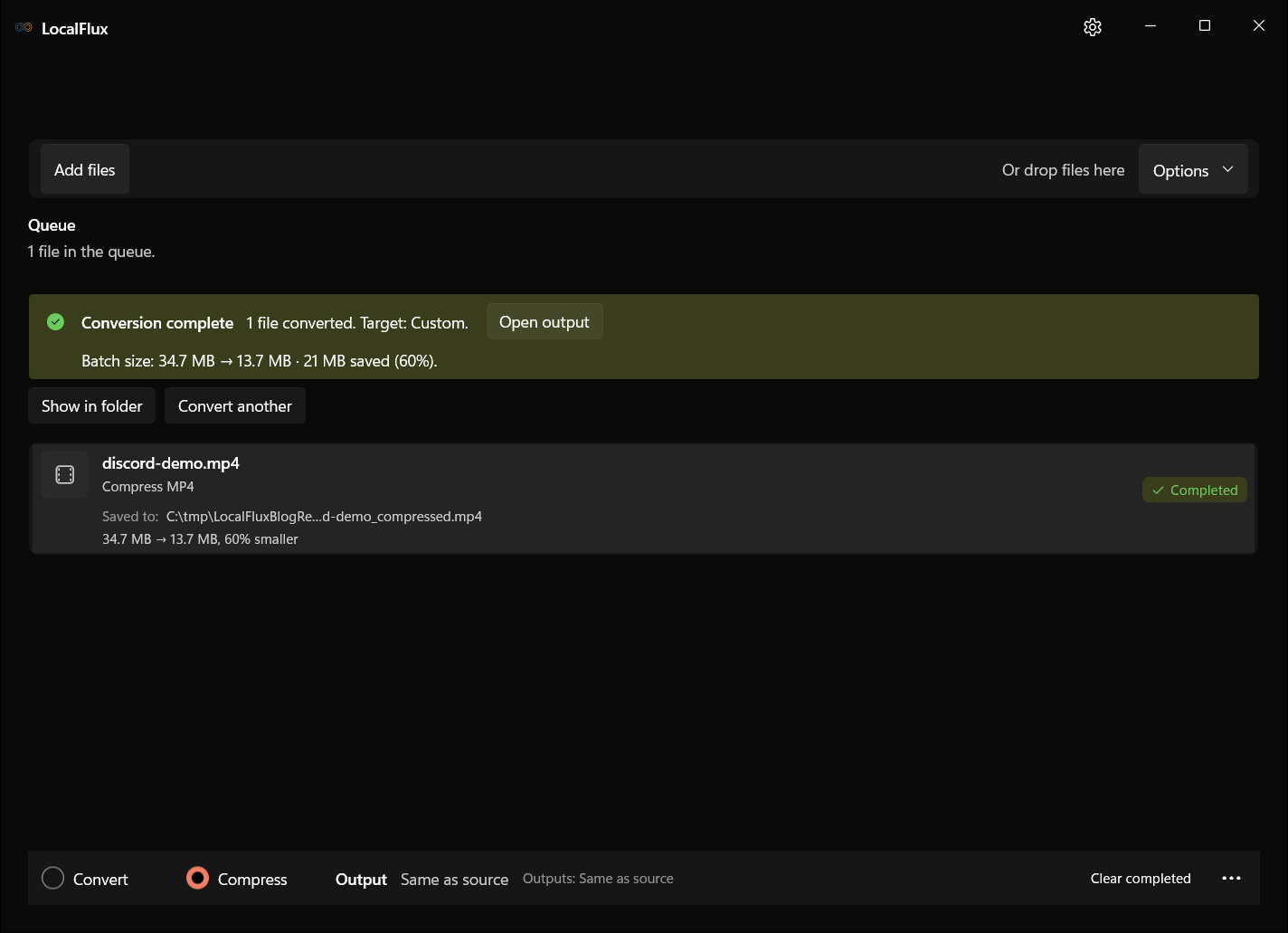
Use Open output to inspect the result, or Show in folder to locate it. Confirm that you are checking the newly compressed file. In our first run, the output was named discord-demo_compressed.mp4; an existing filename can cause a later output to receive a different name.
Watch the beginning, a busy section, and the end. Listen for missing or distorted audio and check synchronization. Look at captions, game HUD text, cursor movements, faces, gradients, and dark scenes when those appear in your source. A file that fits but makes the important content unreadable is not a useful result.
Measured example: 34.7 MB to 13.7 MB
The table preserves the 12 October 2026 test on installed LocalFlux 1.0.10.0, Windows x64. The four screenshots were refreshed on 13 October using a reconstructed 1.0.10.0 build. Ten localized runs produced 14,370,495-byte outputs with the same SHA-256 as the historical Store output. This is a short synthetic fixture, not a test of real recordings or Discord delivery. 2026-10-13
Capture and measurement record (JSON)
| Measurement | Source | Compressed copy |
|---|---|---|
| App display | 34.7 MB | 13.7 MB |
| Exact size | 36,359,845 bytes | 14,370,495 bytes |
| Duration | Approximately 24 seconds | 24.033 seconds |
| Dimensions | 1920 × 1080 | 1920 × 1080 |
| Video | H.264, 30 fps | H.264, 30 fps |
| Audio | AAC, 48 kHz, mono | AAC, 48 kHz, mono |
| Source integrity | SHA-256 recorded before processing | Original hash unchanged |
The output is below 20,000,000 bytes, so it fits the numerical 20 MB budget without depending on rounding. This is a local file-size and media check, not a claim that we uploaded the sample to Discord or tested every Discord client. The app reported approximately 60% smaller for this example.
Your result may be different. A high-bitrate test clip has more room to shrink than a video that has already been aggressively encoded. Preserving 1080p in this run does not guarantee that every target-size attempt preserves the input resolution.
What to do if the video is still too large
First, check that you selected the output rather than the original. Then compare exact bytes with the limit shown in Discord. If you used a preset, try a supported custom target. If you already used a target, inspect the job result for a warning or failure rather than interpreting any output file as success.
A lower target can help, but quality has a floor. Long recordings spread the available bytes across more seconds. As an illustration, an 18,000,000-byte budget over 60 seconds allows roughly 2.4 Mb/s for video, audio, and container overhead together. Over five minutes, the same budget is only about 0.48 Mb/s. This arithmetic explains the trade-off; it is not a bitrate field you must enter in LocalFlux.
When a long clip becomes unreadable, shorten it in a video editor and compress the shorter export. LocalFlux’s compression workflow is not a timeline editor. For a screen recording, remove idle sections before sacrificing the legibility of the section your friends need to see.
Work from the original or a good-quality edited master for each new attempt. Repeatedly compressing a compressed output can accumulate damage without delivering the best use of the remaining size budget.
Frequently asked questions
Can I compress a Discord video without a website?
Yes. LocalFlux processes the file on Windows and writes an output locally. You do not need to upload the source to a web converter. Installing the app and later sending the attachment are separate network activities.
Do I need Nitro to send the compressed clip?
Not if the output fits the limit available to your account and the destination accepts it. Check the current client limit rather than relying on an old article. A subscription is not required merely to compress a file locally.
Does converting MOV to MP4 make it smaller?
Not necessarily. Conversion solves a format or compatibility requirement; compression solves a size requirement. A conversion may keep a similar bitrate or even produce a larger file. Check the converted copy, then compress if necessary.
Can I keep the same quality at any target size?
No. A tighter size budget can require lower detail or resolution. “Still 1080p” also does not mean identical quality: the encoder can store fewer bits at the same dimensions. Judge the scenes that matter to your viewers.
Why does a small MP4 fail to preview?
Size is only one condition. Codec support, a damaged file, client behavior, or the particular destination can affect playback. Confirm the file opens locally with audio, check the actual codec rather than just .mp4, and distinguish an attachment-upload problem from a preview problem.
Should I ZIP the video instead?
ZIP is usually a poor way to shrink already compressed H.264 video substantially. It also turns the clip into an archive recipients must extract instead of an immediately viewable video attachment. Make a smaller media copy when playback is the goal.
Prepare the clip once, then share the right file
Check the limit, choose a target with room to spare, compress locally, and review size, picture, and sound. Keep the original and send the checked output. That makes the workflow repeatable without sending your source footage through an online converter first.
Get LocalFlux for Windows · Read the compression user guide
Technical references
The format guidance above is checked against these independent specifications and platform references.
- File Attachments FAQ, Discord