
CSV to XLSX on Windows: check dates, leading zeros, and encoding
On this page
- CSV and XLSX are not equivalent
- The quick workflow
- Step-by-step: convert a standard CSV to XLSX
- What the measured test found
- The leading-zero and long-number problem
- Dates can change meaning too
- Delimiters and decimal symbols
- UTF-8, quotations, and empty cells
- Validation checklist for the finished workbook
- Privacy: local conversion does not automatically protect files
- When LocalFlux is the right tool
- The practical takeaway
- Publication evidence
A CSV file is easy for software to produce and easy for people to inspect. An XLSX workbook is often easier to filter, format, share, and open in spreadsheet applications. The conversion sounds simple, but a CSV has no built-in spreadsheet types. A converter must interpret separators, quotation marks, dates, decimal symbols, leading zeros, and long numbers, and that interpretation can change the data.
LocalFlux can convert CSV to XLSX locally on Windows 11. Add the .csv files, select XLSX, and run the batch. The source CSV files remain unchanged and the new workbooks are saved as _converted.xlsx copies. No browser upload is required.
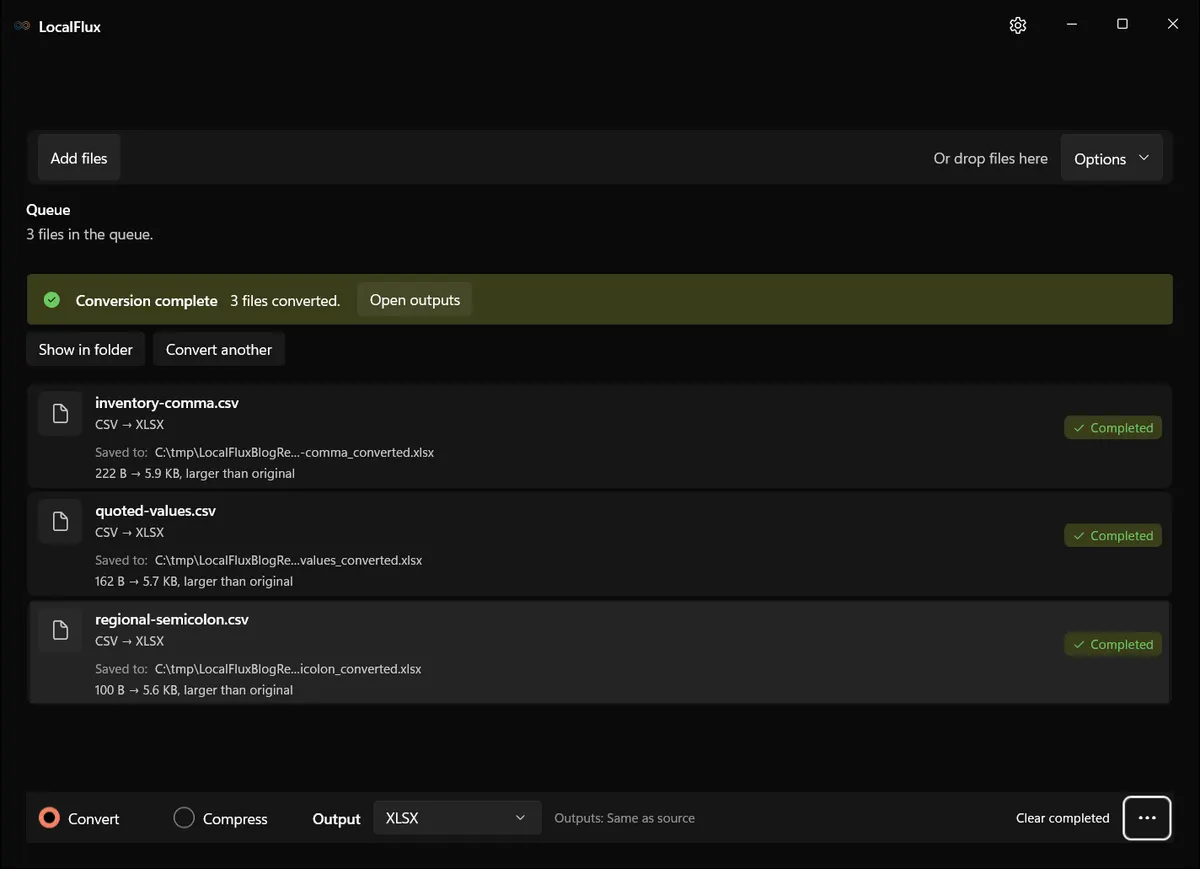
Interface screenshots were refreshed in October 2026 using a build reconstructed from the documented LocalFlux 1.0.10.0 release source. Historical measurements and downloads below retain their original test scope. Capture records: 1 · 2
October 2026 recheck: the reconstructed 1.0.10.0 capture build produced the same table shapes in all ten app interface languages. SKU 000123 became numeric 123; 987654321012345678 was stored as 9.87654321012346E+017 (987654321012346000), so its final digits changed. The semicolon fixture still became 2 columns instead of 4. Changing the app interface language did not provide CSV import controls in these runs. XML
Historical test: The tested LocalFlux 1.0.8 batch completed three conversions under C:\tmp. Completion means an XLSX was written; it does not guarantee that every field was interpreted the way your workflow requires.
Use one-click conversion for a standard comma-delimited UTF-8 file whose values can safely be inferred. Pause and inspect first if the file contains account codes, ZIP codes, product identifiers, long integers, locale-specific decimals, unusual dates, or semicolon/tab delimiters.
CSV and XLSX are not equivalent
CSV is plain text with fields separated by a delimiter, commonly a comma. Records usually occupy one line, but a quoted field can contain line breaks, delimiters or doubled quotation marks. CSV represents one table and does not retain an editable workbook model with multiple sheets, formatting and formulas.
XLSX is a ZIP-based workbook format. It can store cell types, date serials, styles, formulas, multiple worksheets, filters, and other spreadsheet features. Converting creates a workbook structure around the interpreted CSV values; it does not invent meaningful formatting or know which digit strings are identifiers.
That distinction explains the central risk: a value that looks numeric may become a number even when you intended text.
The quick workflow
If identifiers must remain text or the delimiter is unusual, import the CSV in LibreOffice Calc or another spreadsheet tool with explicit encoding, delimiter and column-type controls, then save as XLSX. The simple LocalFlux route does not expose those import decisions; completing conversion does not prove values were preserved.
- Make a copy of the CSV files you will convert.
- Confirm the delimiter, character encoding, decimal convention, and columns that must remain text.
- Open LocalFlux and add the CSV files.
- Choose Convert and select XLSX.
- Start the batch.
- Open every workbook and compare important rows with the source.
- Keep the CSV until the workbook passes validation.
Check the current LocalFlux format routes before starting a production batch.
Step-by-step: convert a standard CSV to XLSX
1. Work from a neutral local folder
The tested files were placed under:
C:\tmp\LocalFluxBlogResearch\csv-to-xlsx-windows\inputA short local path simplifies troubleshooting. Choose a folder outside any configured cloud-sync location to keep syncing out of the test. The fixtures contained synthetic inventory and text data only. If your CSV has customer, health, financial, employee, or research data, local conversion avoids sending that table to an online converter, but you still need appropriate local access controls.
2. Inspect the raw file before converting
Open the CSV in a plain-text editor, not only in a spreadsheet. Check:
- whether the first line is a header;
- whether fields are separated by commas, semicolons, or tabs;
- whether commas also appear as decimal separators;
- whether text containing commas is quoted;
- whether quotation marks inside fields are escaped as doubled quotes;
- whether the file is UTF-8 and non-English text appears correctly;
- which columns must remain text even though they contain digits.
If the file uses an unusual delimiter or locale convention, normalize a copy before batch conversion or use a spreadsheet import dialog that lets you choose those rules explicitly.
3. Add one or more CSV files
Open LocalFlux, select Add files, and choose the CSV files. The tested batch included a conventional comma CSV, a quotation/UTF-8 fixture, and a regional semicolon fixture.
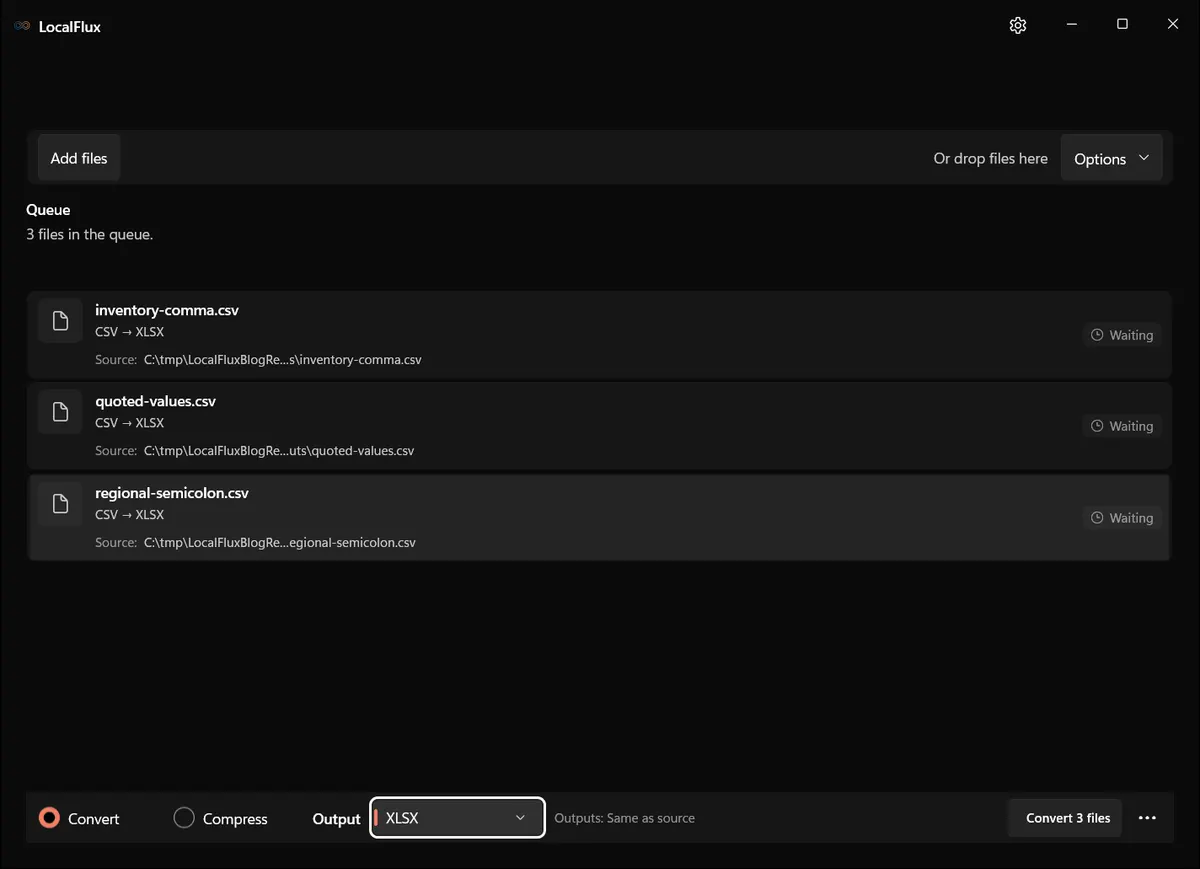
LocalFlux automatically selected CSV → XLSX for the three files. The working path is neutral and contains no user profile name.
4. Confirm the output route
At the bottom of the window, keep Convert selected and open the output menu. Choose XLSX rather than ODS or TSV.
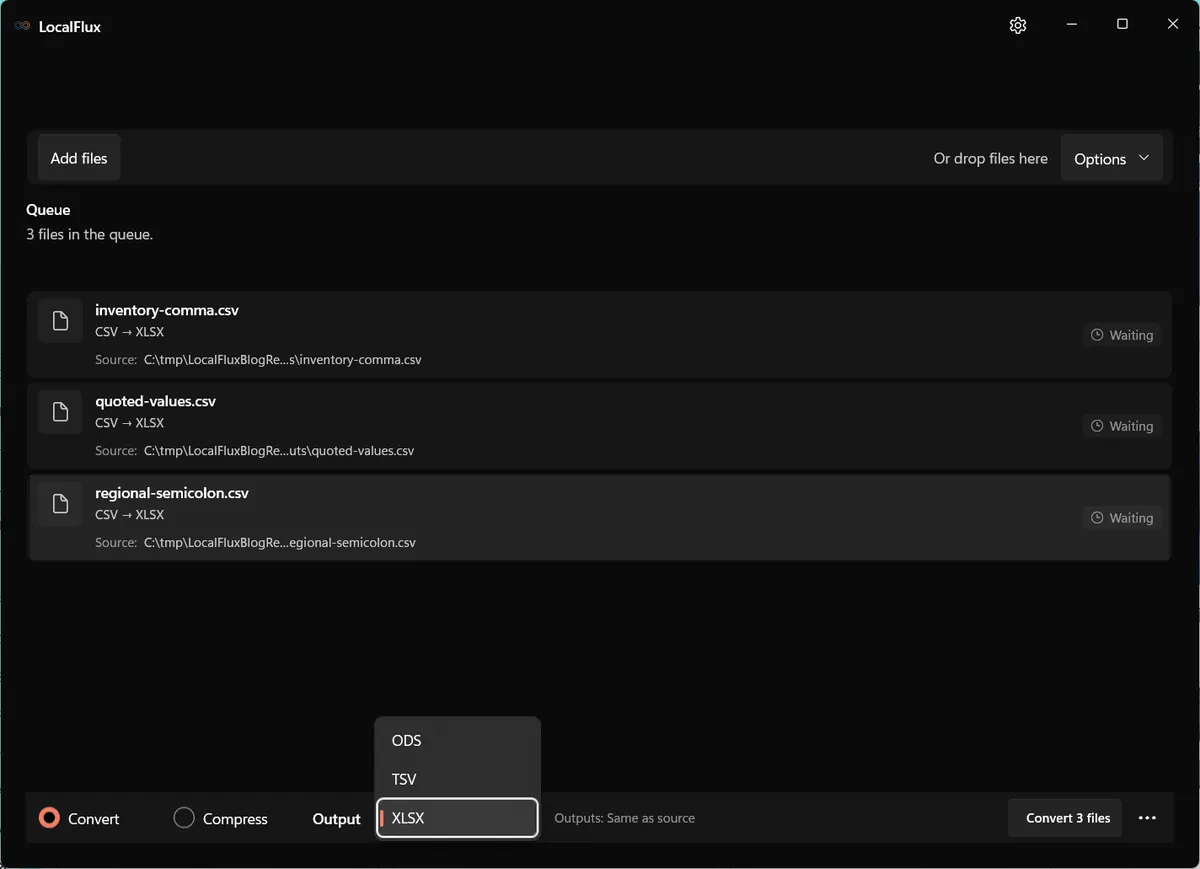
The available spreadsheet outputs in this tested queue were ODS, TSV, and XLSX.
Open Options to view the selection details before converting. The selection details show the source folder, size, modified time, and destination behavior.
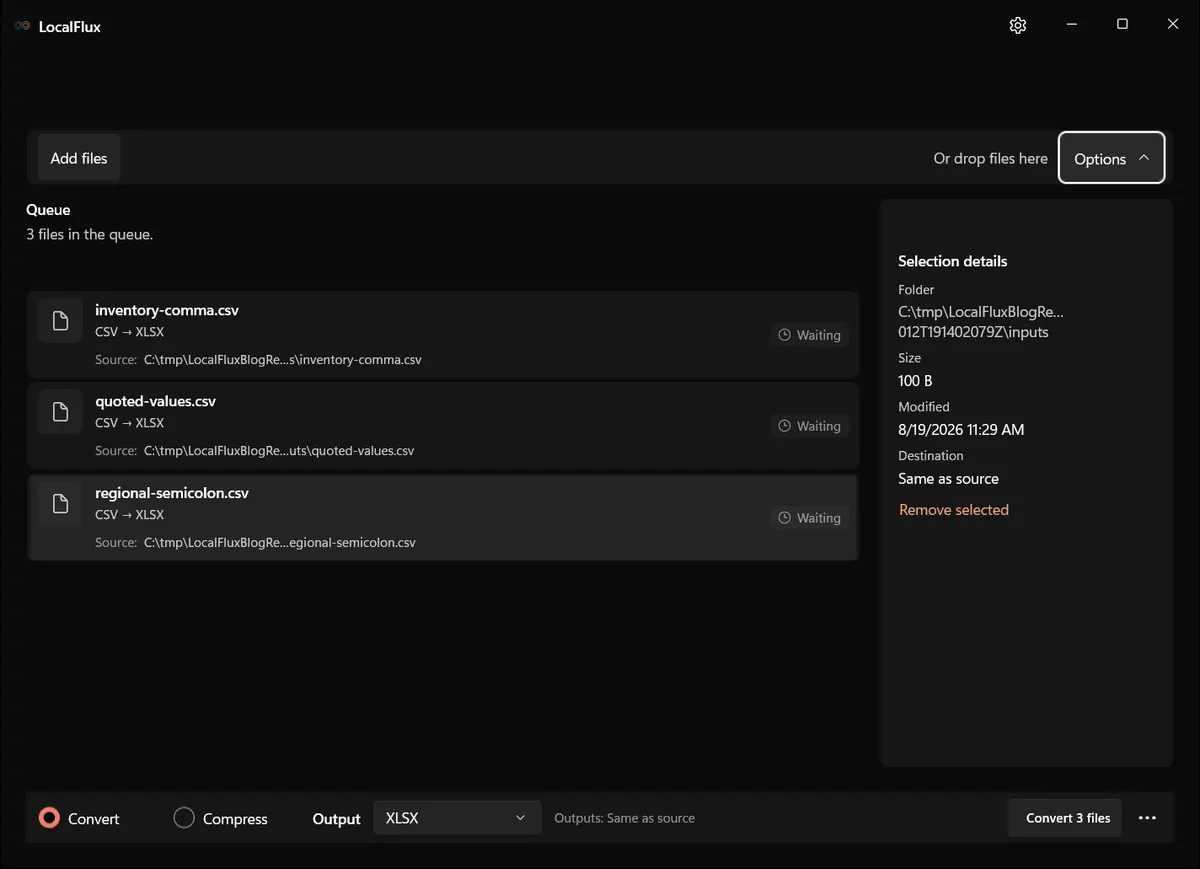
Outputs are saved beside the sources by default in this workflow.
5. Convert the batch
Select Convert 3 files. The bundled LibreOffice worker starts locally and processes the files in sequence. A first conversion can take longer while the worker starts.
The queue identifies the active file and those still waiting.
Do not edit or replace a CSV while it is in the queue. Wait for completion, then validate the workbooks.
What the measured test found
All three files produced valid XLSX containers, but they did not all preserve the intended table semantics.
| Fixture | Intended table | Observed XLSX | Result |
|---|---|---|---|
inventory-comma.csv | 6 columns × 4 rows; quoted commas; dates; leading-zero codes; 18-digit identifier | 6 columns × 4 rows; quoted commas and UTF-8 text preserved; dates inferred; numeric-looking identifiers converted to numbers | Structurally successful, but identifier review required |
quoted-values.csv | 4 columns × 4 rows with commas, escaped quotes, Greek text, and empty cells | 4 columns × 4 rows with strings and empty cells represented as expected | Successful in the tested cases |
regional-semicolon.csv | 4 semicolon-separated columns with comma decimals | 2 columns × 3 rows; semicolons remained inside text and decimal commas split rows | Not suitable without delimiter normalization |
The output sizes were 6,044 bytes, 5,828 bytes, and 5,704 bytes. An XLSX is expected to be larger than these tiny CSV fixtures because the workbook contains XML parts, relationships, styles, and ZIP metadata. Do not use size reduction as the success criterion for CSV-to-XLSX conversion.
The leading-zero and long-number problem
The input contained SKU 000123. In the observed workbook, it became numeric value 123. A second identifier, 987654321012345678, became a numeric cell represented in scientific notation in the sheet XML, with limited spreadsheet precision.
This matters for:
- postal and ZIP codes;
- account or invoice references;
- SKUs and barcodes;
- telephone-like digit strings;
- fixed-width IDs;
- integers longer than 15 significant digits.
These are labels, not quantities. If a digit string must remain exact, import it with the column explicitly set to Text before saving as XLSX, then compare it with the original CSV. Quoting a field alone does not establish a text-column schema.
Keeping the original CSV is essential because formatting the already-rounded number as text does not restore lost digits.
Dates can change meaning too
The ISO-like values 2026-08-01 and 2026-08-02 were stored as numeric spreadsheet dates in the tested workbook. That was reasonable for this fixture, but not every date-like string is unambiguous.
For example, 03/04/2026 can mean March 4 or April 3. A field such as 2026-08 may be a reporting period rather than a date. Validate date columns in the workbook and confirm that your recipients use the same locale and calendar assumptions.
If the original textual representation is legally or analytically important, retain it as text or keep a separate raw-data sheet.
Delimiters and decimal symbols
The regional fixture used semicolons between fields and commas within decimal values:
code;label;amount;date
0010;München sample;12,50;19/08/2026
The tested LocalFlux route did not expose a delimiter-selection dialog. LibreOffice’s default inference did not treat semicolons as the intended column separator in this file, while the comma in 12,50 split the row. The output was therefore structurally wrong for the intended four-column table.
Before using the batch route on regional exports, either:
- configure the source system to export a conventional comma CSV with quoted text and a compatible decimal convention;
- normalize a copy with a trusted data tool while preserving the raw file;
- import the CSV directly in LibreOffice Calc or another spreadsheet application and specify character set, delimiter, quoted-field behavior, and column types.
Do not perform a blind search-and-replace of semicolons or commas when those characters can legitimately occur inside fields.
UTF-8, quotations, and empty cells
The tested standard CSVs preserved strings such as Café, 東京 adapter, Crème sample, Γάμμα, a quoted comma, and doubled quotation marks. This is a positive result for those fixtures, not a guarantee for every encoding.
If non-English text becomes mojibake, check whether the source is actually UTF-8, Windows-1252, or another legacy encoding. Conversion cannot infer every unlabeled byte sequence reliably. Re-exporting as UTF-8 from the source application is usually safer than repairing corrupted text afterward.
Empty values also deserve review. In the test, absent cells remained absent in the sheet data. Make sure your downstream system distinguishes an empty cell from numeric zero, an empty string, and the literal word NULL.
Validation checklist for the finished workbook
Open the XLSX and perform a structured comparison:
Shape
- Does the workbook have the expected number of rows and columns?
- Is the header in the first row?
- Did one source row split into multiple columns or lines?
Exact values
- Do leading zeros remain where required?
- Do long identifiers match the original CSV digit for digit? Scientific notation alone does not prove a loss of precision.
- Do negative values, decimals, and thousands separators mean the same thing?
Text
- Are accents and non-Latin characters correct?
- Are embedded commas and quotation marks inside one cell?
- Did line breaks remain inside the intended field?
Dates and empties
- Are dates interpreted in the right order and time zone context?
- Are blank cells still blank?
- Did strings such as
NA,NULL, or1E10become unintended types?
For a production dataset, compare row counts and key-column checksums with a script or data-validation tool. Visual sampling alone can miss a rare malformed row.
Privacy: local conversion does not automatically protect files
Keeping the conversion offline avoids transferring the table to a web service. It does not secure the folder by itself. XLSX files can be easier for a person to browse than raw CSV, and they may be indexed, synced, backed up, or attached accidentally.
Use a folder with appropriate Windows permissions and remove temporary copies according to your organization’s retention rules. If a workbook is going outside the organization, review hidden sheets, formulas, links, comments, document properties, and the visible data, not only the file extension.
The screenshots in this guide show synthetic records and C:\tmp; they do not expose a user profile, Downloads folder, customer data, or account information.
When LocalFlux is the right tool
The batch route is a good fit when you have ordinary comma-delimited UTF-8 files, want local processing, and can validate the results. It is especially convenient for several small exports with the same simple structure.
Use an interactive import tool or a data pipeline instead when delimiter/locale choices vary, columns need explicit schemas, the data is very large, or the conversion must be repeatable and audited. In those cases, a schema is more important than a one-click UI.
The practical takeaway
CSV-to-XLSX conversion is not just packaging. It is data interpretation. LocalFlux successfully created workbooks for all three tested inputs, and the standard quotation/UTF-8 fixture behaved well. The same test also demonstrated why you must preflight identifiers and regional delimiter conventions.
Convert locally, keep the raw CSV, and treat row/column counts, identifier precision, dates, decimals, and encoding as acceptance criteria. A workbook is ready only after the data, not merely the file, has passed review.
For other local conversions, see the supported formats page.
Publication evidence
This guide uses synthetic CSV fixtures tested with LocalFlux 1.0.8.0 x64 on Windows 11. The source tables, generated workbooks, measurements, package details, and privacy review are retained with the article:
- Test record
- Measurements
- Privacy and rights review
- Media manifest with SHA-256 hashes
- Source and fixture notes
Technical references
The format guidance above is checked against these independent specifications and platform references.
- RFC 4180: Common format and MIME type for CSV files, RFC Editor
- ECMA-376 Office Open XML file formats, Ecma International