
How to Convert AVI to MP4 on Windows Without Uploading
Convert AVI video to MP4 locally on Windows, understand codec compatibility, and verify the result before sharing or editing.
On this page
Quick answer
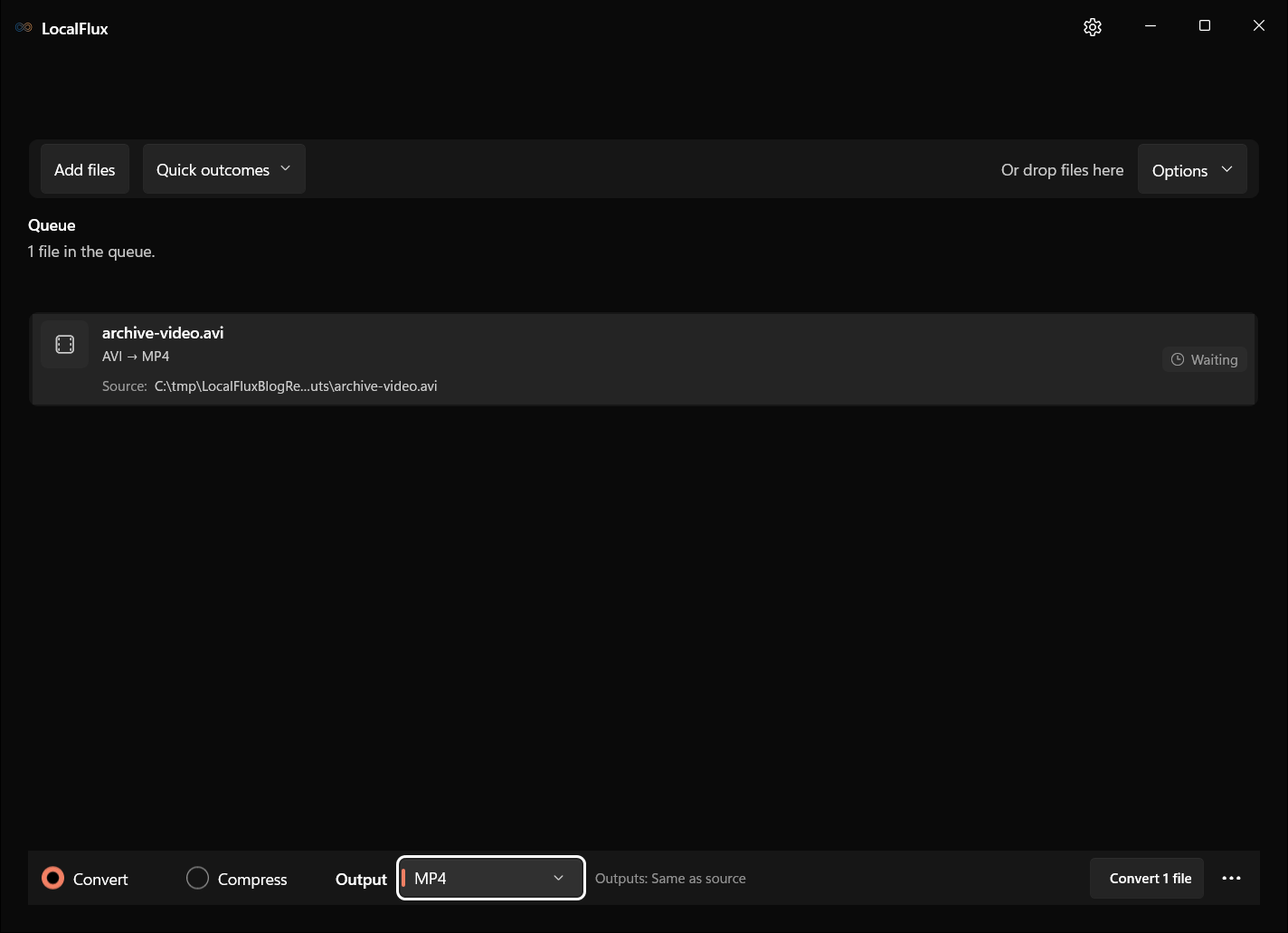
Add the AVI file to LocalFlux, select MP4 as the output format, and choose Convert. LocalFlux processes it on your Windows PC and creates a separate MP4 in the selected destination.
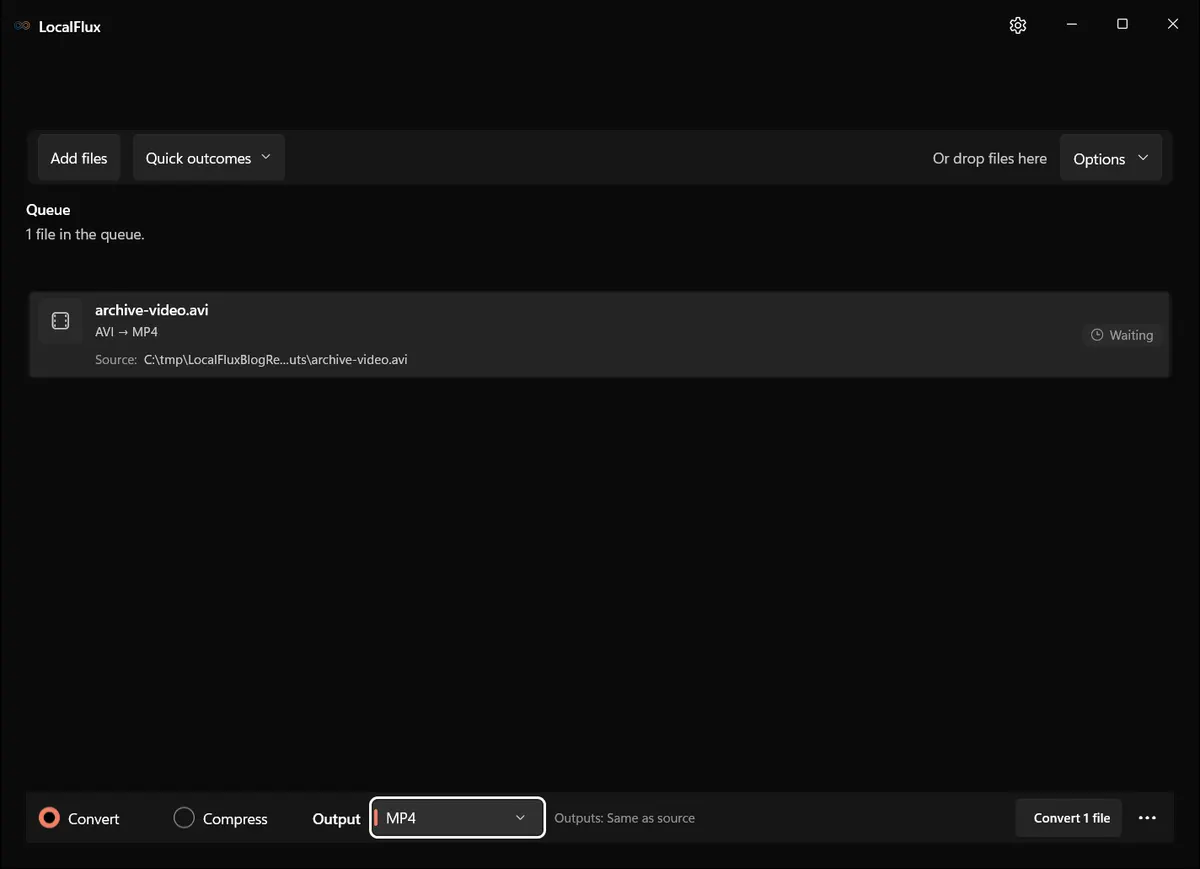
Interface screenshots were refreshed in October 2026 using a build reconstructed from the documented LocalFlux 1.0.10.0 release source. Historical measurements and downloads below retain their original test scope. Capture records: 1
Why AVI files can be awkward
AVI is a container, not one codec. Microsoft’s AVI RIFF reference explains that an AVI can contain multiple streams and that the stream format is described separately. Two .avi files can therefore behave differently depending on their internal video and audio codecs.
MP4 is often the safer delivery format for current browsers, phones, presentation tools, and web services. Conversion does not repair every damaged file, but it can replace an older container and codec combination with a more broadly accepted one.
Convert AVI to MP4
- Open LocalFlux.
- Add or drop the AVI file.
- Keep Convert selected.
- Choose MP4 under Output.
- Confirm where the new file will be saved.
- Select Convert 1 file.
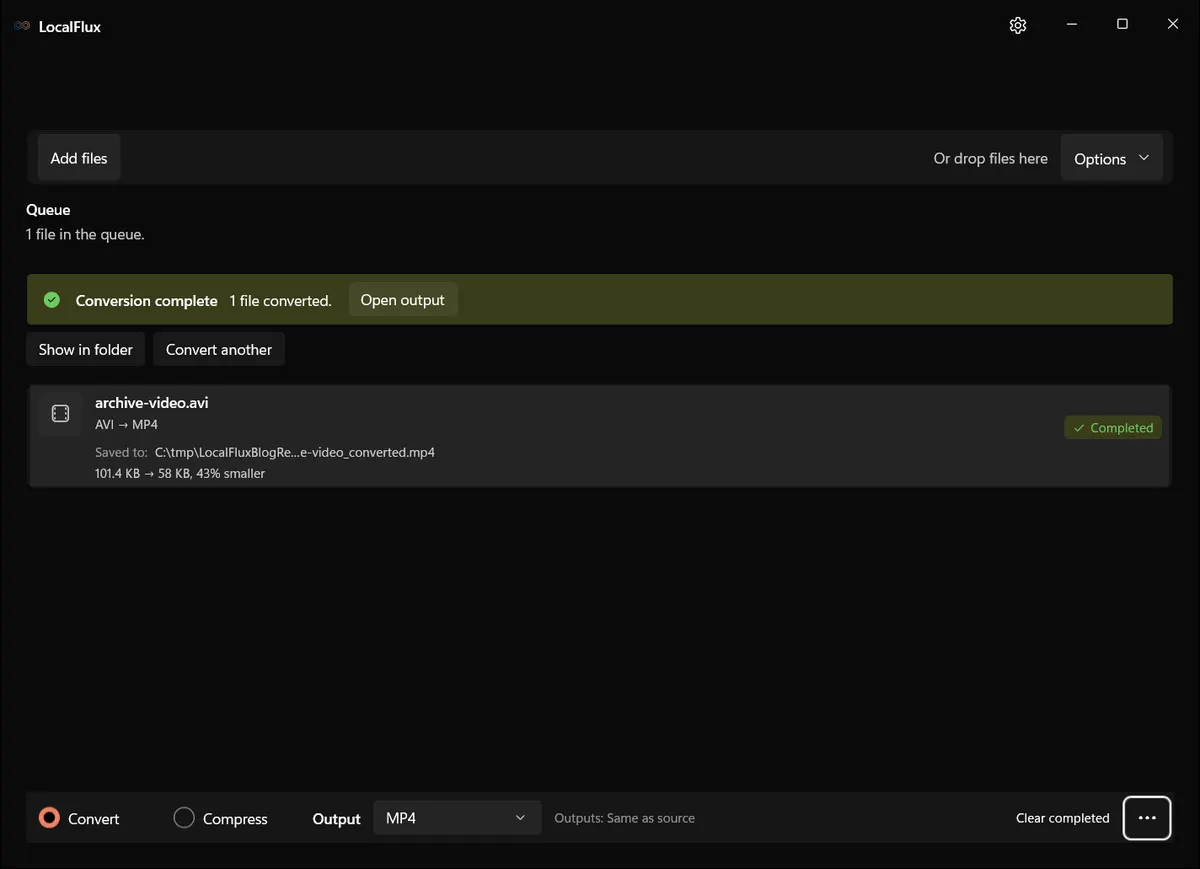
- Use Open output or Show in folder after completion.
What we tested
| Check | Result |
|---|---|
| LocalFlux version | 1.0.7.0 |
| Route | AVI → MP4 |
| Source | archive-video.avi, 101.4 KB |
| Output | archive-video_converted.mp4, 58 KB |
| Size change | 43% smaller |
| Upload required | No |
That size reduction is specific to the short test fixture. A different AVI can become larger depending on its codecs, resolution, and the requested output.
Does AVI to MP4 conversion reduce quality?
It can, because creating a compatibility-focused MP4 generally involves decoding and encoding the video. Repeated lossy encodes compound artifacts. Convert from the best source once, then keep that source as the master.
For home video or irreplaceable footage, check faces, fine detail, dark gradients, fast movement, and audio synchronization before deleting or archiving anything.
What about subtitles and extra audio tracks?
AVI can contain more than a simple video-plus-audio pair. A successful MP4 does not automatically prove that every additional audio or text stream was carried across. Verify anything beyond the primary picture and sound.
Troubleshooting
The AVI plays in one app but not another
That usually points to codec support rather than the .avi extension alone. Try the conversion from the original file, then test the MP4 in the specific destination app.
Audio is missing or out of sync
Play the AVI through before converting to rule out source damage. Then compare the first and last minute of the MP4. Variable or malformed timestamps in older captures can require a more specialized repair workflow.
The MP4 is not smaller
Conversion and compression are different jobs. Select Compress when the target is a smaller file. See how to compress a large video on Windows for the size-focused workflow.
Final checklist
- Preserve the original AVI.
- Convert to MP4 instead of renaming the extension.
- Verify duration, sound, synchronization, and any extra streams.
- Use compression separately when size is the goal.
Get LocalFlux from the Microsoft Store
Publication evidence
The historical measurements come from privacy-reviewed fixtures tested with LocalFlux 1.0.7.0. The source files, outputs, and reproducibility notes are available here: