
How to Convert MTS or M2TS to MP4 on Windows Without Uploading
On this page
- What MTS or M2TS and MP4 actually mean
- When this conversion makes sense
- The short workflow
- Convert MTS or M2TS to MP4 step by step
- What happened in our LocalFlux 1.0.8.0 test
- How to verify the converted file
- Quality, compatibility, and file size
- Troubleshooting
- A safer batch-migration method
- Privacy notes for local conversion
- Common mistakes to avoid
- Frequently asked questions
- Final checklist
- Bottom line
- Publication evidence
Camcorders and AVCHD folders often contain .mts or .m2ts clips that play inconsistently outside their original folder structure. MP4 is easier to import into current editors, share with family, place in a presentation, or play on phones and televisions.
LocalFlux makes a new MP4 on the Windows PC without a browser upload. We tested both an MTS transport stream and an M2TS-mode variant with LocalFlux 1.0.8.0 x64. Each contained 640×360 H.264 video at 30 fps and mono AAC audio. Both completed and produced a playable MP4 with matching dimensions, frame rate, audio layout, and approximately six-second duration.
What MTS or M2TS and MP4 actually mean
MPEG-2 Transport Stream is a packetized multiplexing format designed for delivery environments where errors may occur. MTS is a common name for MPEG-2 TS media. M2TS is a related modification used by Blu-ray BDAV and AVCHD. These containers can carry video, audio, subtitles, and other data.
AVCHD commonly uses H.264 video and Dolby Digital or linear PCM audio, but an .mts or .m2ts suffix does not guarantee one codec combination, resolution, scan mode, or channel layout. Camera model and recording settings matter. That variation is why a migration should start with a representative sample instead of an entire card.
MP4 is a different container. Renaming a transport stream to .mp4 does not rewrite packet and index structures. The tested LocalFlux route decoded and re-encoded video as H.264, while keeping AAC audio characteristics in these fixtures.
When this conversion makes sense
Convert when the destination genuinely requires MP4, not simply because the extension looks newer. A compatibility copy is useful when it solves a concrete playback, editing, sharing, or document-exchange problem.
Good reasons include:
- AVCHD or camcorder clips that current apps reject
- making access copies for editing or family sharing
- standardizing a local collection before cataloging it
- private footage that should stay off web converters
Pause or choose another workflow when you are:
- discarding the original card structure or metadata
- assuming progressive output is correct for every interlaced source
- claiming every subtitle or data stream is preserved
- starting a large migration without testing representative clips
Copy the entire camera folder before working. Folder metadata, playlists, clip-spanning information, timestamps, and sidecar files can matter even when the visible
.mtsfile plays by itself.
The short workflow
- Copy the source files into a working folder and keep an untouched backup.
- Open LocalFlux and stay on Convert.
- Add the MTS or M2TS file or files.
- Confirm each queue card shows the intended route to MP4.
- Select MP4 explicitly if another output is shown by default.
- Start the queue and wait for the completed status.
- Verify the new files before moving, sharing, or deleting anything.
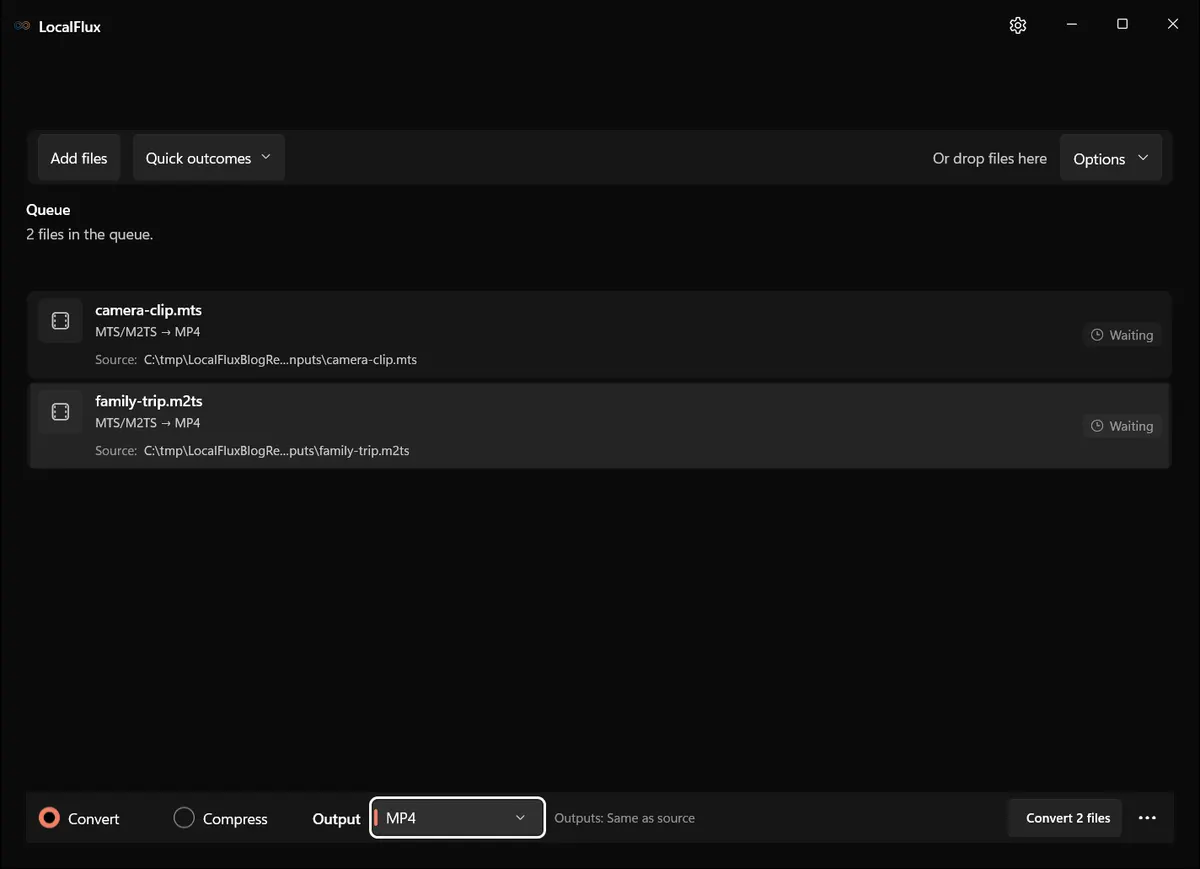
Interface screenshots were refreshed in October 2026 using a build reconstructed from the documented LocalFlux 1.0.10.0 release source. Historical measurements and downloads below retain their original test scope. Capture records: 1
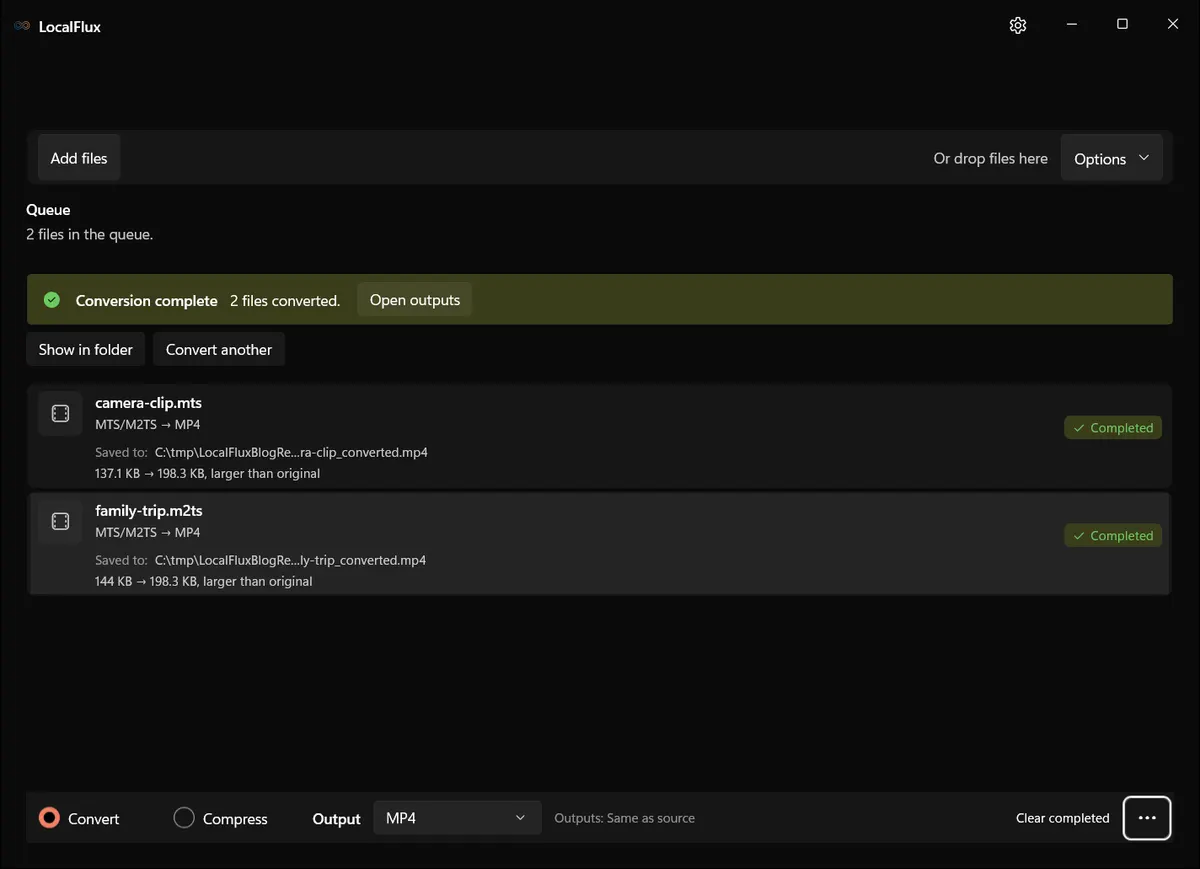
Convert MTS or M2TS to MP4 step by step
1. Protect the source before making a derivative
Create a working copy when the file is valuable or came from removable media. Record the original byte count and, for a defensible migration, a SHA-256 hash. Conversion should create a new file; it should never be your only opportunity to preserve the source.
Use short, descriptive filenames that do not contain customer names, account numbers, or other sensitive details if screenshots or evidence will be shared. Our fixtures use neutral names and live under C:\tmp\LocalFluxBlogRefresh so the captured UI does not expose personal folders.
2. Add the file to LocalFlux
Open LocalFlux, choose Convert, and add the file. LocalFlux inspects the extension and available route. Read the queue label before proceeding. A mislabeled file can have the right suffix but the wrong internal structure, so stop if the displayed route is unexpected.
For batches, begin with a representative subset: a small file, a large file, and files with important edge cases. A successful sample is evidence for that sample and build, not a universal guarantee for the extension.
3. Choose the target explicitly
Select MP4 in the output list.
Keep the default “same as source” output location only when it will not overwrite or confuse existing files. LocalFlux adds a converted suffix in this workflow, so the source and output remain separate.
4. Start the local queue
Click the conversion button. The queue disables conflicting controls while the bundled runtime works. Do not close the app or remove the source until the item reaches Completed. For a long batch, let the first few items finish and inspect them before committing more time.
The tested workflow used the installed LocalFlux 1.0.8.0 x64 package on a Windows x64 host. It did not require an account or browser upload. “Local” describes this conversion architecture; it is not a claim that every unrelated Windows process was network-silent.
What happened in our LocalFlux 1.0.8.0 test
Rechecked on 13 October 2026: both inputs contain the same synthetic audio/video program, wrapped in 188-byte TS and 192-byte M2TS packets. They are not two independent camera recordings. All four retained files fully decode, and all ten reconstructed 1.0.10.0 capture runs reproduce the historical output hashes. These progressive AAC samples do not validate AVCHD camera compliance, 1080i handling, clip-spanning or long-recording sync. In real camera files, either suffix can denote the same packet format; inspect the file rather than inferring its structure from the extension.
| Fixture | Input | Output | Observed result |
|---|---|---|---|
camera-clip.mts | 140,436 bytes | 203,110 bytes | MPEG-TS H.264/AAC to MP4 H.264/AAC; 640×360 at 30 fps |
family-trip.m2ts | 147,456 bytes | 203,110 bytes | M2TS-mode H.264/AAC to MP4 H.264/AAC; 640×360 at 30 fps |
The MP4 files were larger by about 45% and 38%. They were byte-identical because the second fixture was a deterministic M2TS-mode remux of the same encoded program, and LocalFlux encoded both through the same route. Their container durations moved from 6.023223 seconds to 6.037007 seconds.
The source SHA-256 hashes were unchanged after conversion. See the published test record and SHA-256 media manifest below for the exact files and tested package.
How to verify the converted file
- Compare start and end frames so the clip is not trimmed.
- Check resolution, frame rate, field order, display aspect, and rotation.
- Listen for audio sync at several points, especially on long clips.
- Inspect subtitles, timecode, or extra streams if your workflow needs them.
- Test an interlaced real-camera sample separately because our fixtures were progressive.
Do not compare only filenames. Compare content, structure, presentation, and destination behavior. Preserve the first output you validated; repeatedly opening and saving it in another application can introduce changes that are unrelated to LocalFlux.
Quality, compatibility, and file size
Our fixtures were progressive and small, so they do not establish deinterlacing behavior for 1080i camcorder footage. On interlaced sources, inspect motion edges and combing. Also compare color, aspect ratio, and cadence. A larger MP4 does not mean more source detail was created; it only reflects different encoding and container choices.
Compatibility is also destination-specific. “It opens on this PC” does not prove that a web portal, television, editor, records system, or colleague’s application will accept it. Test where the file will actually be used.
Troubleshooting
If a clip will not load, copy it from the camera media again before assuming codec incompatibility. If audio is missing, inspect whether it uses AC-3, PCM, or another layout. If video looks combed, the source may be interlaced and needs deliberate deinterlacing. If several camera files represent one spanned recording, join them with a workflow that understands the camera metadata. If the MP4 is larger, evaluate playback and quality rather than treating size alone as failure.
When a conversion fails, do not keep changing the source extension. Work from a copy, record the exact error, and determine whether the issue is corruption, protection, an unsupported codec or feature, a locked file, or insufficient disk space. Retry one file at a time before returning to a batch.
A safer batch-migration method
For more than a handful of files, inventory before converting. Group files by extension and, where possible, codec, resolution, scan mode and audio layout. Select a pilot set that includes the largest files and the features you care about. Convert the pilot, run the acceptance checklist, and only then expand the batch.
Keep three folders: immutable originals, first-generation LocalFlux outputs, and reviewed deliverables. Store a manifest with source and output hashes. If a later reviewer discovers a problem, this separation lets you rerun the source without guessing which file was edited after conversion.
Record the LocalFlux version and architecture. Results in this article apply to version 1.0.8.0 x64 and the retained fixtures. A future build may improve compatibility or change encoding behavior, so versioned evidence prevents an old measurement from becoming an unqualified promise.
Privacy notes for local conversion
The screenshots and sample files in this package are privacy-safe editorial fixtures. They contain no accounts, notifications, personal filenames, customer data, or cloud URLs. The conversion occurred through the desktop app with bundled local runtimes.
Local processing reduces the need to send a file to an unknown converter website, but normal endpoint security still matters. Protect the Windows account, keep sensitive outputs in an appropriate folder, and remove temporary copies according to your retention policy. Do not publish screenshots made from real confidential documents simply because the conversion itself was local.
Common mistakes to avoid
Do not rename the source extension and call the job complete. Do not convert the only copy. Do not approve a batch because one easy fixture succeeded. Do not use output size as a substitute for listening, watching, rendering, or structural inspection. Do not let a destination application silently repair and resave the first output before you preserve it for comparison. Finally, do not turn a fixture-specific observation into a universal promise. A careful workflow keeps the original, records the tested build, checks the features that matter, and documents any exception before files move into normal use.
Frequently asked questions
Is M2TS the same as MTS?
They are closely related MPEG transport-stream forms, but M2TS adds conventions used by Blu-ray/AVCHD. Treat both as containers.
Can I rename MTS to MP4?
No. The internal container remains a transport stream.
Does LocalFlux upload the video?
The tested workflow performed conversion locally and required no browser upload or account.
Will it preserve 1080i exactly?
Our fixtures were 640×360 progressive. Test real interlaced footage and inspect field handling before relying on the result.
Why is the MP4 larger?
The tested encoder produced larger files for these already compact sources. Size depends on content and encoding settings.
Final checklist
- The source is backed up and its hash is recorded.
- LocalFlux shows the intended MTS or M2TS to MP4 route.
- The output format is selected explicitly.
- The source still exists and its hash is unchanged.
- The output passes format-specific structural and visual checks.
- The file works in the actual destination.
- Any limitation, warning, or missing feature is documented.
- The original remains available for recovery or future conversion.
Bottom line
LocalFlux provides a direct Windows workflow for turning MTS or M2TS into MP4 without a browser upload. The useful result is not merely a new extension: it is a new file that has been measured, inspected, and tested for its intended destination. Keep the source, make the compatibility copy, and let verification, not the completion banner, decide when the job is done.
Publication evidence
Technical references
The format guidance above is checked against these independent specifications and platform references.
- MPEG-2 support in Media Foundation, Microsoft Learn
- Supported media formats in Media Foundation, Microsoft Learn