
How to Convert ODS to XLSX on Windows Offline
On this page
ODS is a good open spreadsheet format, but a client, portal, or coworker may require XLSX. Creating a compatibility copy is straightforward; proving that formulas, formatting, charts, and spreadsheet semantics survived is the important part.
LocalFlux converted two macro-free ODS fixtures to XLSX on the Windows host with no browser upload. Both produced valid Open XML packages. The outputs were smaller than these particular ODS inputs, but file-size reduction is not the goal and is not guaranteed for other spreadsheets.
Use a copy containing the OpenFormula functions your recipient actually relies on. Before conversion, record the formula text, a known total, a named range and a date value. Compare the first XLSX without saving it, then recalculate a second copy in the recipient’s spreadsheet app and compare again. A changed function or total needs investigation before the batch continues; the historical zero-formula fixtures cannot settle that question.
What ODS and XLSX actually mean
ODS is the spreadsheet subtype of the OpenDocument Format standardized by OASIS. Its package commonly contains XML content, styles, a manifest, and a MIME entry. Formulas are governed by OpenFormula. XLSX uses SpreadsheetML and Office Open XML packaging instead.
Both are structured spreadsheet formats, yet their feature models are not identical. Formula names and semantics, chart options, comments, protection, validation, named expressions, filters, pivots, graphics, and other objects can cross the boundary imperfectly. Even Microsoft publishes a compatibility matrix warning that ODS and XLSX features may differ.
Treat conversion as translation between two document models. A successful open means the package is readable, not that every formula or visual detail is equivalent.
When this conversion makes sense
Convert when the destination genuinely requires XLSX, not simply because the extension looks newer. A compatibility copy is useful when it solves a concrete editing, sharing, or document-exchange problem.
Good reasons include:
- sharing an ODS workbook with an XLSX-only recipient
- creating a current Office-compatible copy without uploading data
- testing a migration from an ODF-based workflow
- simple tables and formulas that can be verified easily
Pause or choose another workflow when you are:
- promising full fidelity for advanced formulas or charts
- deleting the ODS before destination testing
- assuming the displayed result proves the formula text is equivalent
- using one simple fixture to approve a complex workbook estate
Preserve the ODS as the source of record until formulas, values, names, hidden sheets, validation, charts, and rendering have been checked in the intended XLSX application.
The short workflow
- Copy the source files into a working folder and keep an untouched backup.
- Open LocalFlux and stay on Convert.
- Add the ODS file or files.
- Confirm each queue card shows the intended route to XLSX.
- Select XLSX explicitly if another output is shown by default.
- Start the queue and wait for the completed status.
- Verify the new files before moving, sharing, or deleting anything.
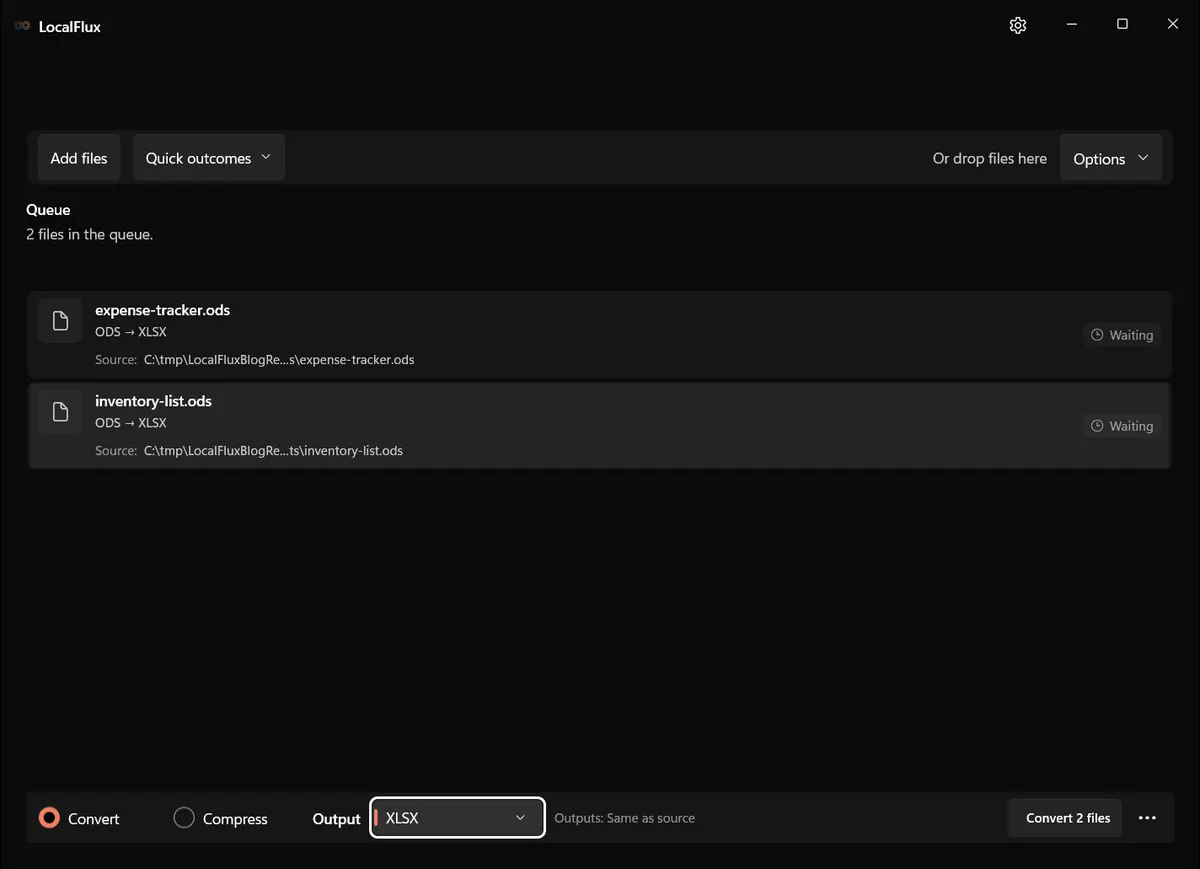
Interface screenshots were refreshed in October 2026 using a build reconstructed from the documented LocalFlux 1.0.10.0 release source. Historical measurements and downloads below retain their original test scope. Capture records: 1
Rechecked on 13 October 2026: all twenty XLSX outputs from the reconstructed 1.0.10.0 runs preserve the populated cells and sheet names of these two fixtures. Despite its filename, expense-tracker.ods contains only two text cells on Summary; inventory-list.ods has twelve populated cells on primary, including three numbers. Both declare ODF 1.4 and contain zero formulas. This is a basic cell-transfer check, not evidence of formula recalculation, chart fidelity or complex-workbook compatibility. Cell checks
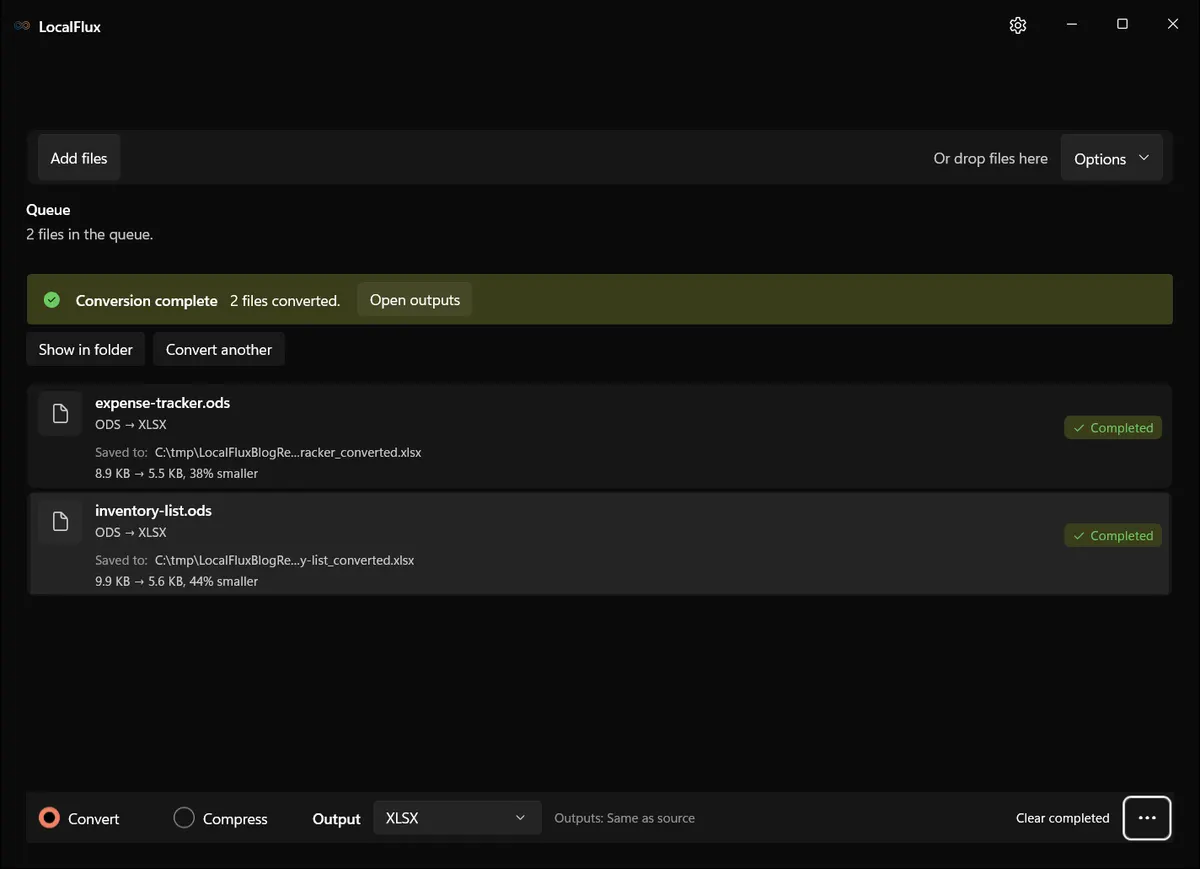
What happened in our LocalFlux 1.0.8.0 test
| Fixture | Input | Output | Observed result |
|---|---|---|---|
expense-tracker.ods | 9,091 bytes | 5,606 bytes | Valid XLSX package; 38% smaller |
inventory-list.ods | 10,100 bytes | 5,691 bytes | Valid XLSX package; 44% smaller |
The outputs contained workbook, worksheet, style, and relationship parts expected of XLSX. The fixtures are deliberately small and public-safe; they do not include pivot tables, macros, complex charts, external data, or every OpenFormula function. The size change largely reflects different package structures and compression.
The source SHA-256 hashes were unchanged after conversion. See the published test record and SHA-256 media manifest below for the exact files and tested package.
How to verify the converted file
- Compare formula expressions and displayed results separately.
- Check Unicode text, dates, currency, percentages, and leading zeros.
- Confirm sheet names, hidden state, merged cells, names, comments, and validation.
- Inspect charts, drawings, page setup, and print areas.
- Open and recalculate a copy in the destination application, then compare again.
Quality, compatibility, and file size
For spreadsheets, “quality” means semantic correctness and usable presentation. A visually similar cell can contain a different formula, while an ugly column width may hide perfectly correct data. Create an acceptance checklist based on how the workbook is used. For financial or regulated work, include independent totals and spot checks rather than relying only on side-by-side appearance.
Cross-application behavior deserves a separate check. Open the first XLSX in the application that will receive it, but preserve an untouched copy before saving or recalculating. Some spreadsheet programs update cached formula results, date systems, chart layouts, or print settings as soon as a workbook opens. Keeping the initial output lets you distinguish what LocalFlux wrote from what the destination changed. For a recurring workflow, record both stages and reuse the same representative workbook whenever either application is updated.
Byte count remains useful as a diagnostic. An implausibly tiny result can signal missing cells, sheets or objects, and an unexpectedly large result can reveal a different encoding strategy. But a plausible size is never proof of fidelity. Use it alongside format-aware checks.
Compatibility is also destination-specific. “It opens on this PC” does not prove that a web portal, records system or colleague’s spreadsheet application will accept it. Test where the file will actually be used.
Troubleshooting
If LocalFlux initially shows PDF, choose XLSX from the output list. If formulas display errors, inspect whether a function has a different name or semantics. If dates or separators change, check locale assumptions. If charts look different, compare source data and chart type. If protected ranges or validation vanish, keep the ODS and decide whether a manual rebuild in the destination is safer.
When a conversion fails, do not keep changing the source extension. Work from a copy, record the exact error, and determine whether the issue is corruption, protection, an unsupported workbook feature, a locked file, or insufficient disk space. Retry one file at a time before returning to a batch.
Privacy notes for local conversion
The screenshots and sample files in this package are privacy-safe editorial fixtures. They contain no accounts, notifications, personal filenames, customer data, or cloud URLs. The conversion occurred through the desktop app with bundled local runtimes.
Local processing reduces the need to send a file to an unknown converter website, but normal endpoint security still matters. Protect the Windows account, keep sensitive outputs in an appropriate folder, and remove temporary copies according to your retention policy. Do not publish screenshots made from real confidential documents simply because the conversion itself was local.
Frequently asked questions
Is ODS the same as XLSX?
No. Both are packaged spreadsheet formats, but ODS uses ODF/OpenFormula and XLSX uses Office Open XML/SpreadsheetML.
Will every formula convert?
No universal promise is safe. Test the functions actually used by your workbook.
Is the conversion offline?
The tested LocalFlux workflow ran locally and used no browser upload or account.
Why did the XLSX get smaller?
Package structure and compression differed. Other workbooks may grow.
Should I recalculate immediately?
Keep the first output, then recalculate a copy. That preserves evidence of what the converter initially wrote.
Publication evidence
Technical references
The format guidance above is checked against these independent specifications and platform references.
- OpenDocument Version 1.3, OASIS Open
- ECMA-376 Office Open XML file formats, Ecma International