
How to Convert RTF to DOCX Without Microsoft Word
On this page
RTF remains common in old correspondence, exports, help systems, and cross-platform archives. It is readable by many applications, but modern collaboration and document-management systems often expect DOCX. LocalFlux can create that editable DOCX locally without launching or automating Microsoft Word.
Our LocalFlux 1.0.8.0 x64 tests used a formatted RTF derived from the repository’s sample document and a separate plain memo. Both produced valid DOCX packages. One output grew and one shrank, demonstrating that a format change has no dependable size direction.
Use an RTF copy with an embedded picture, a numbered list and a header from your actual workflow. In the DOCX, check picture placement, numbering across paragraphs and the header on later pages. Then compare extracted text separately: a matching text result cannot establish image or page-layout fidelity. This is an acceptance procedure to run yourself, not an additional result from the retained fixtures.
What RTF and DOCX actually mean
Rich Text Format is a Microsoft-developed interchange family whose control words can represent fonts, paragraphs, sections, tables, headers, images, annotations, and other document features. It is often described as text-readable, but RTF can also embed binary or encoded picture data and complex layout instructions.
DOCX is a macro-free WordprocessingML package in the Office Open XML family. Text, styles, relationships, media, numbering, headers, and other parts live in a ZIP container. Conversion must interpret the RTF controls and construct a new document model.
Font availability matters. If the original fonts are absent, line breaks, page breaks, and table widths can shift even when every character is preserved. Aim for an editable modern copy, not automatic pixel-perfect reproduction.
When this conversion makes sense
Convert when the destination genuinely requires DOCX, not simply because the extension looks newer. A compatibility copy is useful when it solves a concrete editing, sharing, or document-exchange problem.
Good reasons include:
- modernizing old letters, notes, and reports
- creating an editable DOCX for a Word-compatible workflow
- local conversion when documents should not be uploaded
- simple RTF batches with a clear verification checklist
Pause or choose another workflow when you are:
- claiming identical pagination without rendering
- discarding image-heavy or complex RTF originals
- assuming text extraction validates headers and footers
- using conversion as a substitute for records-retention policy
Install or identify the fonts required by the document before comparing layout. Keep the RTF because a future renderer may reproduce an unusual control or embedded object better.
The short workflow
- Copy the source files into a working folder and keep an untouched backup.
- Open LocalFlux and stay on Convert.
- Add the RTF file or files.
- Confirm each queue card shows the intended route to DOCX.
- Select DOCX explicitly if another output is shown by default.
- Start the queue and wait for the completed status.
- Verify the new files before moving, sharing, or deleting anything.
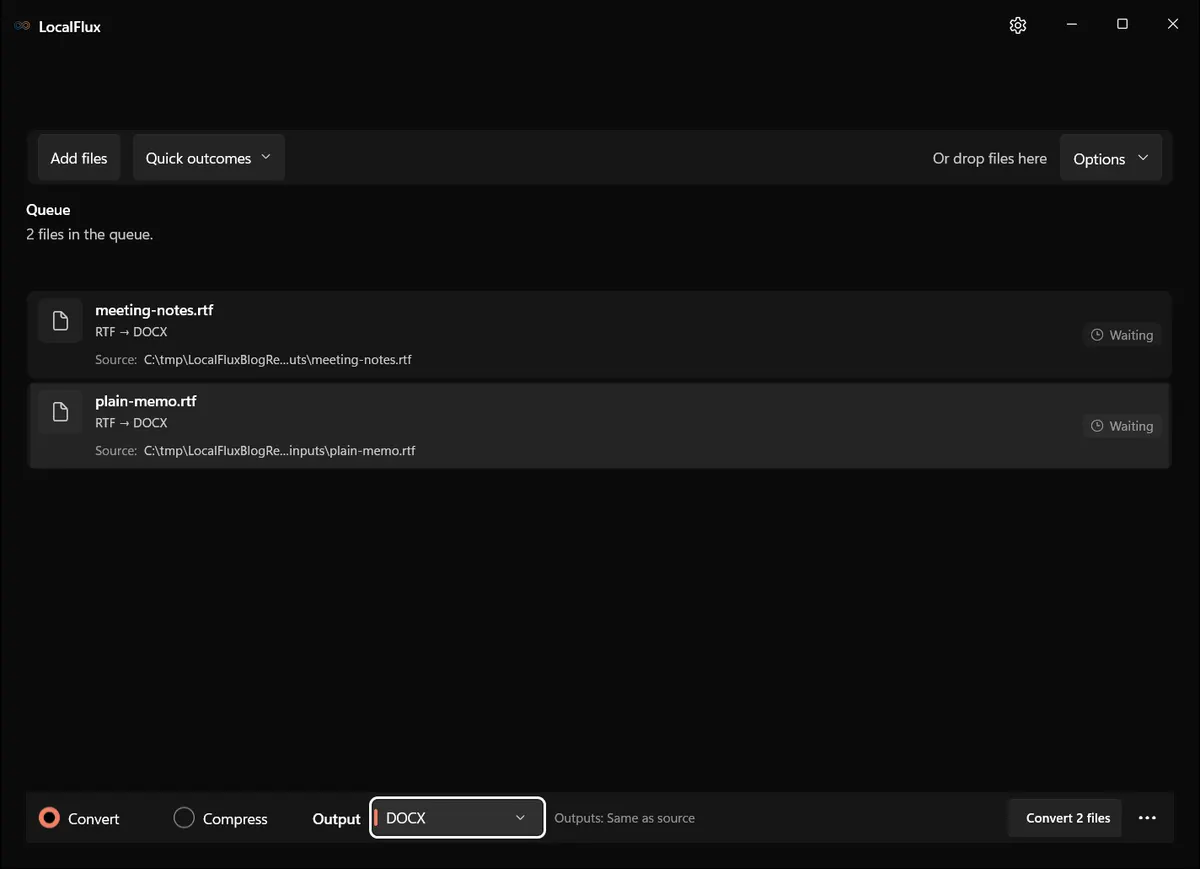
Interface screenshots were refreshed in October 2026 using a build reconstructed from the documented LocalFlux 1.0.10.0 release source. Historical measurements and downloads below retain their original test scope. Capture records: 1
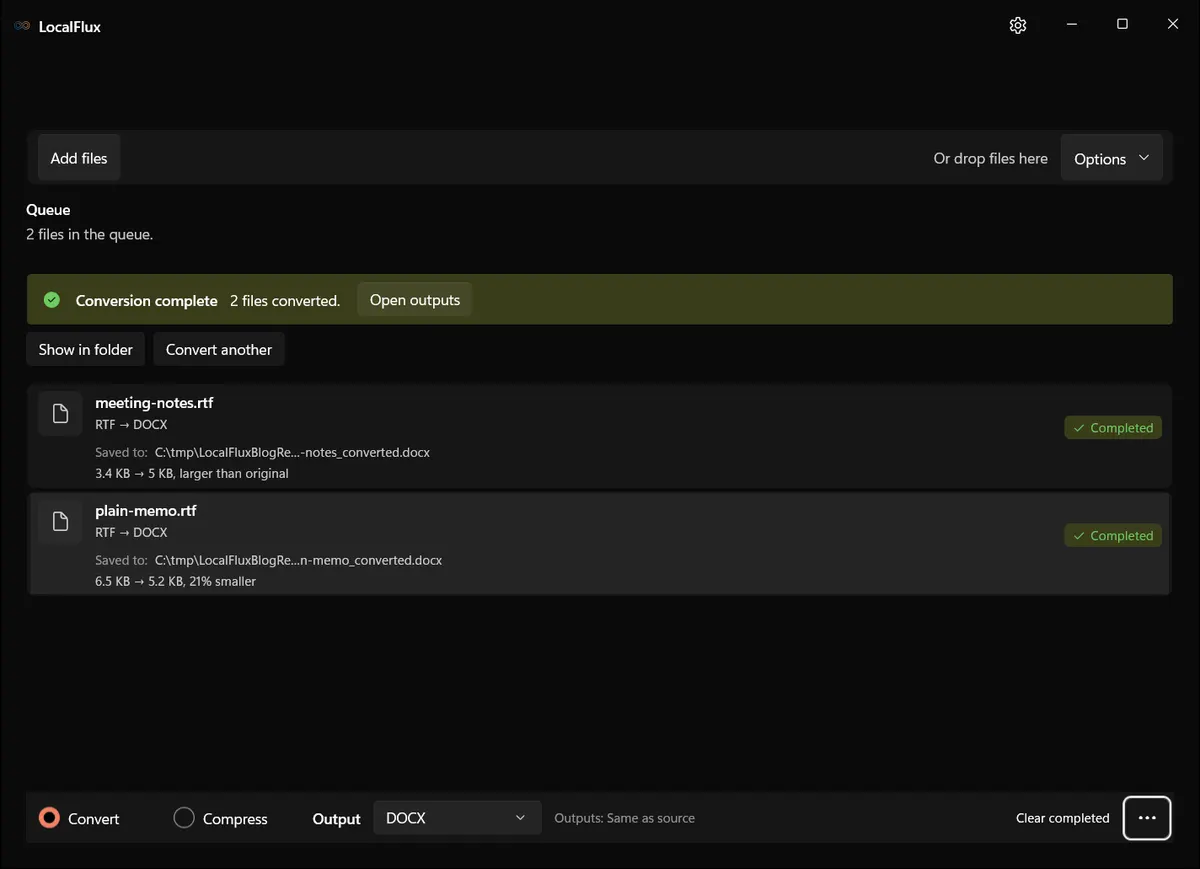
What happened in our LocalFlux 1.0.8.0 test
| Fixture | Input | Output | Observed result |
|---|---|---|---|
meeting-notes.rtf | 3,481 bytes | 5,093 bytes | Valid DOCX package; about 46% larger |
plain-memo.rtf | 6,697 bytes | 5,293 bytes | Valid DOCX package; about 21% smaller |
Both outputs contained WordprocessingML document parts. The fixtures contain public-safe sample text and limited formatting; they do not establish fidelity for tracked changes, forms, embedded OLE objects, complex fields, or every RTF picture type.
The source SHA-256 hashes were unchanged after conversion. See the published test record and SHA-256 media manifest below for the exact files and tested package.
How to verify the converted file
- Compare extracted text, headings, paragraphs, lists, and tables.
- Check hyperlinks, images, headers, footers, footnotes, and page breaks.
- Render representative pages with the intended fonts available.
- Inspect numbering continuity and table-cell alignment.
- Open the DOCX in the actual destination editor and save only a copy during testing.
Quality, compatibility, and file size
Text preservation and layout preservation are related but different tests. A clean text comparison can miss missing images or headers. A visual comparison can miss altered hyperlinks or flattened structure. Use both. If exact appearance is the primary goal and editing is unnecessary, preserve a PDF rendering alongside the editable DOCX.
Use more than one view when appearance matters. Compare the RTF and DOCX at a readable zoom, inspect page boundaries, and review a PDF exported from the destination application when the document will be printed or signed. Preserve the first DOCX before making manual corrections so the conversion result remains auditable. If a font is substituted, an image is missing, or a field becomes plain text, record that exception instead of silently treating the corrected copy as the untouched conversion output.
Byte count remains useful as a diagnostic. An implausibly tiny result can signal missing text, images or objects, and an unexpectedly large result can reveal a different encoding strategy. But a plausible size is never proof of fidelity. Use it alongside format-aware checks.
Compatibility is also destination-specific. “It opens on this PC” does not prove that a web portal, editor, records system, or colleague’s application will accept it. Test where the file will actually be used.
Troubleshooting
If LocalFlux defaults to PDF, select DOCX explicitly. If text reflows, check font substitution and page-size settings. If bullets change, compare list styles and numbering definitions. If an image is missing, inspect whether the RTF used an unusual embedded-object form. If the DOCX opens in repair mode, retain the RTF and retry with a simpler copy before trusting a batch.
When a conversion fails, do not keep changing the source extension. Work from a copy, record the exact error, and determine whether the issue is corruption, protection, an unsupported document feature, a locked file, or insufficient disk space. Retry one file at a time before returning to a batch.
Privacy notes for local conversion
The screenshots and sample files in this package are privacy-safe editorial fixtures. They contain no accounts, notifications, personal filenames, customer data, or cloud URLs. The conversion occurred through the desktop app with bundled local runtimes.
Local processing reduces the need to send a file to an unknown converter website, but normal endpoint security still matters. Protect the Windows account, keep sensitive outputs in an appropriate folder, and remove temporary copies according to your retention policy. Do not publish screenshots made from real confidential documents simply because the conversion itself was local.
Frequently asked questions
Can I convert RTF to DOCX without Word?
Yes. The tested LocalFlux workflow used its bundled document runtime and did not start Microsoft Word.
Will DOCX look identical?
Not necessarily. Fonts, renderer behavior, and unsupported RTF constructs can change layout.
Is RTF plain text?
No. It contains formatting controls and can embed pictures or binary data.
Why did one output get larger?
DOCX package parts and compression differ from RTF representation. Size does not measure fidelity.
Should I keep a PDF too?
If appearance matters, a reviewed PDF can complement the editable DOCX and retained RTF.
Publication evidence
Technical references
The format guidance above is checked against these independent specifications and platform references.
- Rich Text Format (RTF) compression algorithm, Microsoft Learn Open Specifications
- ECMA-376 Office Open XML file formats, Ecma International